cPanel provides a control panel for managing websites, email accounts and server resources on your VPS. Installing it requires root access and basic command line knowledge.
You will connect to your VPS via SSH, download the cPanel installation script and run it. Once complete, you can access WHM to configure hosting packages and manage users.
Before you begin
- You need a VPS with root access.
- Your VPS must run a cPanel-supported operating system. This guide assumes AlmaLinux 8.
- We recommend at least 1 vCPU, 4GB RAM and 40GB disk space.
- You need an SSH client installed. Download PuTTY if you do not have one.
Connect to your VPS
You need to establish an SSH connection to your VPS before running the installation script. This gives you command line access with root privileges.
- Open PuTTY.
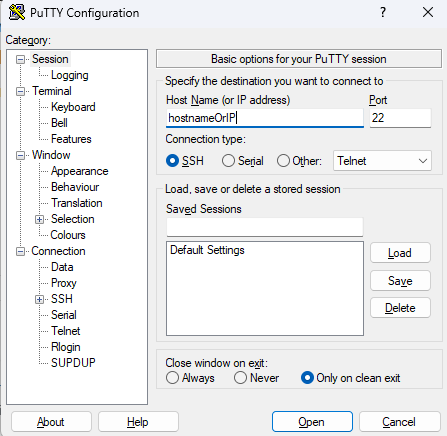
Launch the PuTTY application on your computer. - Enter your VPS details.
In the Host Name (or IP address) field, enter your VPS IP address or domain name. Confirm that Connection type is set to SSH and the Port is set to 22. - Connect to the server.
Click Open to start the connection. If this is your first time connecting, PuTTY will display a security alert about the server’s host key. Click Accept to continue.
- Log in with your credentials.
When prompted, enter your VPS username (typicallyroot) and press Enter. Type or paste your password when requested. The password will not appear on screen as you type.
You are now connected to your VPS with root access. The command prompt confirms you can run administrative commands.
Download and run the cPanel installer
The cPanel installation script downloads all required files and configures your server automatically. This process takes 30 to 60 minutes depending on your server specifications.
- Navigate to the home directory.
Typecd /homeand press Enter. This moves you to the directory where the installer will run. - Download the installation script.
Copy and paste this command into PuTTY, then press Enter:
curl -o latest -L https://securedownloads.cpanel.net/latest && sh latestThis command uses cURL to download the latest cPanel installer and runs it immediately. You will see installation progress messages appear in the terminal.
- Wait for installation to complete.
The installer configures Apache, MySQL, PHP and other required services. Do not close PuTTY or interrupt the process. When finished, you will see a completion message with your WHM login URL.
cPanel is now installed on your VPS. You can access the WHM interface to complete initial configuration.
Access WHM
WHM (Web Host Manager) is the administrative interface for cPanel. You use it to create hosting accounts, set resource limits and manage server settings.
- Open your browser.
Navigate to your VPS IP address or domain name followed by:2087. For example:https://192.0.2.1:2087orhttps://yourdomain.co.uk:2087 - Accept the security warning.
Your browser will display a certificate warning because cPanel uses a self-signed SSL certificate by default. Click Advanced and then Proceed to continue. - Log in to WHM.
Enterrootas the username and your VPS root password. Click Log in to access the WHM dashboard.
You are now in WHM where you can complete the initial setup wizard and start creating hosting accounts.
Wrapping up
You have installed cPanel on your VPS and accessed the WHM interface. You connected via SSH, ran the installation script and logged into the control panel. Your server is now ready for hosting configuration.
Complete the WHM setup wizard to configure nameservers, email settings and security options. You can then create hosting packages and user accounts. If you prefer a managed solution, our web hosting services include cPanel without requiring manual installation.
Did this guide solve your problem?
Still stuck?
Our UK support team answers tickets and live chat every day. Send us the guide you were following and where it stopped working.
Keep learning
Find a guide
Related guides

Need more power?
Get scalable resources with our VPS hosting with root access and optional software.
Get VPS Hosting
Starting something new?
Perfect for websites and small businesses unlimited bandwidth with cPanel hosting.
Get cPanel Hosting