Your website or application may require a specific PHP version to function correctly. Outdated PHP versions can cause compatibility issues, while newer versions improve performance and security.
You will use cPanel’s MultiPHP Manager to change the PHP version for one or more domains. This allows you to test updates on development sites before applying them to your live environment.
Before you begin
- We recommend creating a backup before changing PHP versions.
- Check your application’s documentation for PHP version requirements.
Change PHP version using MultiPHP Manager
MultiPHP Manager lets you set different PHP versions for each domain in your cPanel account. This prevents changes to one site affecting others.
- Log in to cPanel.
Access your cPanel account using the credentials provided in your welcome email.
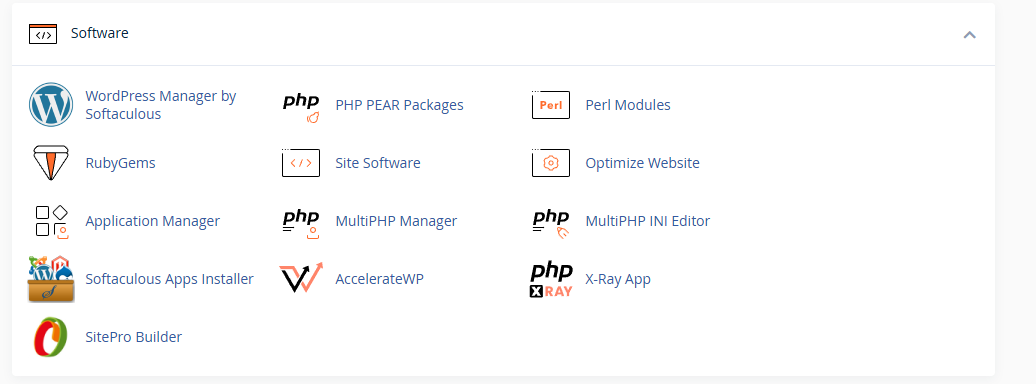
- Open MultiPHP Manager.
Locate the Software section and click the MultiPHP Manager icon.
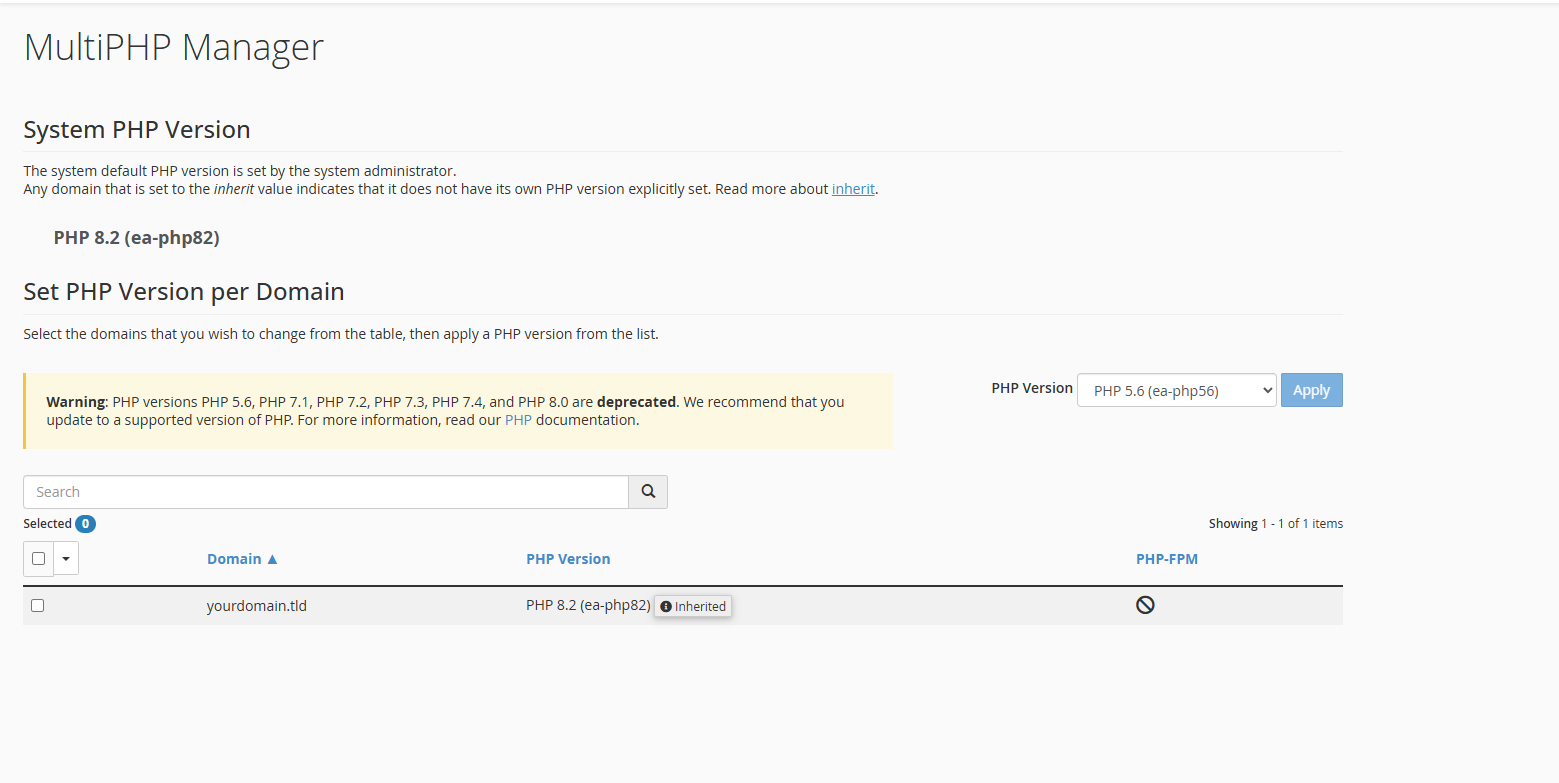
- Select your domain.
Tick the checkbox next to each domain you want to update. You can select multiple domains to change them all at once.
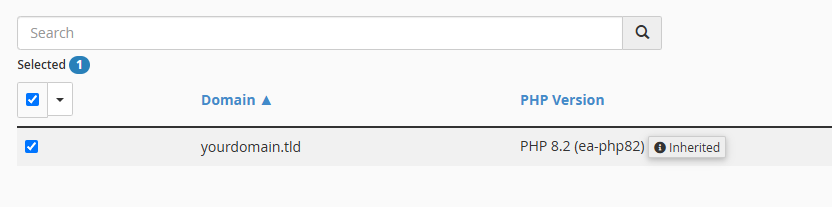
- Choose a PHP version.
Click the PHP Version dropdown menu and select your required version. Newer versions provide better performance and security.
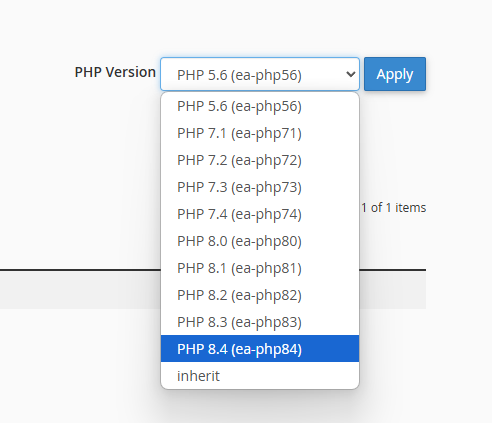
- Apply the changes.
Click Apply to update the PHP version. The change takes effect immediately.
Your domain now runs on the selected PHP version. You can verify this by creating a phpinfo file to check your current PHP configuration.
Wrapping up
You have changed the PHP version for your domain using cPanel’s MultiPHP Manager. Your site now runs on the version you selected, which improves compatibility with your application’s requirements.
Different applications need different PHP versions. WordPress typically runs best on PHP 8.1 or newer. If you run into memory errors after changing versions, you may need to increase your WordPress memory limit. For WHMCS users experiencing caching problems, resolve OPcache issues which can be PHP version-specific. Our web hosting plans include cPanel access with MultiPHP Manager on all accounts.
If you run into any trouble, get in touch and our team will be happy to help.
Did this guide solve your problem?
Still stuck?
Our UK support team answers tickets and live chat every day. Send us the guide you were following and where it stopped working.
Keep learning
Find a guide
Related guides

Hosting that keeps up
cPanel hosting with the tools these guides use, backed by UK support.
Get cPanel Hosting
Keep your site secure
Protect your visitors with SSL certificates – from budget DV to premium EV certificates.
Get SSL Certificate