A website going offline can have several causes, from a temporary server issue to a DNS misconfiguration or a firewall block. Working through each possibility in order will help you identify the cause and get your site back online.
This guide covers the most common reasons a site becomes unreachable and the steps to diagnose each one.
Before you begin
- Confirm your internet connection is working by loading another website.
- Have your domain name and hosting account login details to hand.
- We recommend checking the UWH status page before investigating further.
Check whether the site is down for everyone or just you
Before making any changes, you need to know whether the problem is isolated to your connection or affecting all visitors. This tells you whether the issue is server-side or local to your network.
- Visit a site availability checker.
Go to downforeveryoneorjustme.com, enter your domain name and submit the check. - Read the result.
The tool will report either that your site is down for everyone, or that it appears to be online and the problem is on your end.
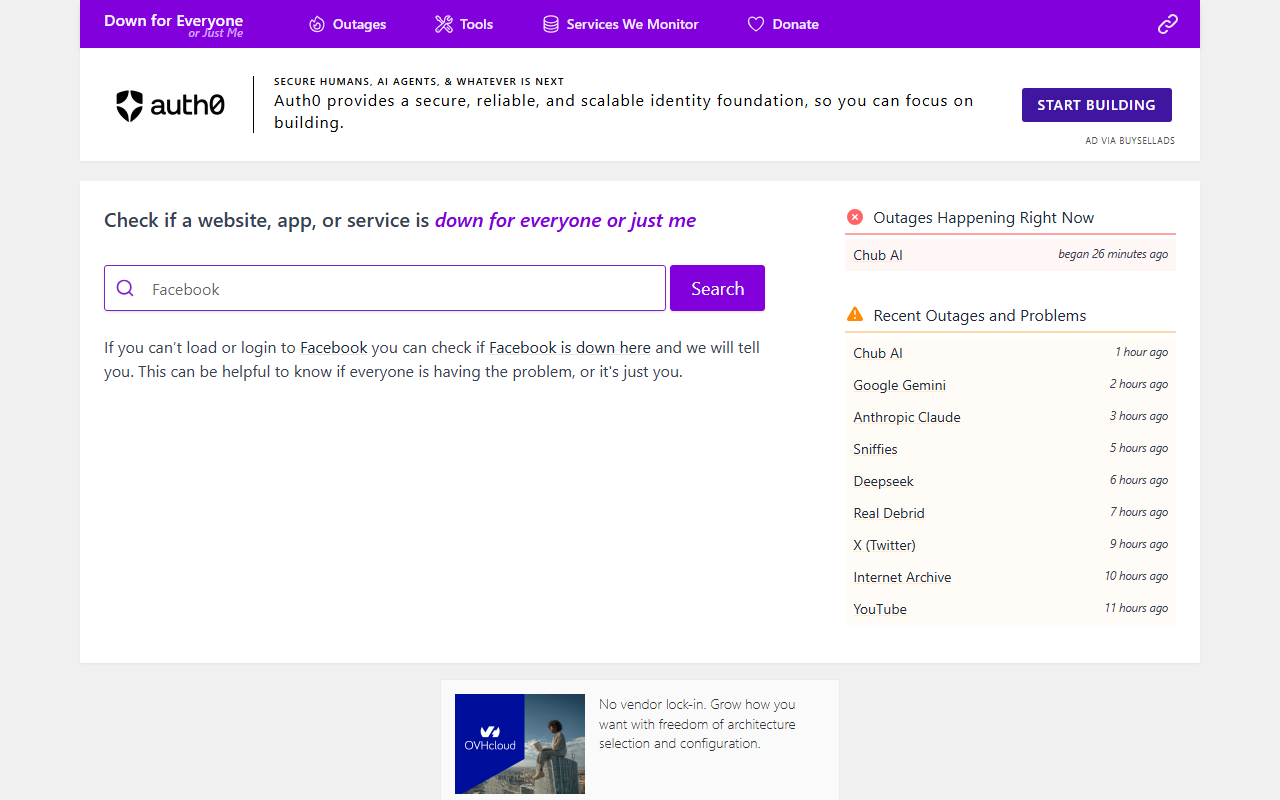
Once you know the scope of the problem, follow the relevant section below.
Site is down for everyone
If the checker confirms your site is unreachable for all visitors, the issue is likely with the server or your site’s files and configuration. Work through the following checks in order.
- Check the UWH server status page.
Visit the Unlimited Web Hosting status page to see whether a known incident is affecting your server. If an incident is listed, no further action is needed on your part until it is resolved. - Log in to your control panel.
Access your hosting control panel to confirm your account is active and no suspension notice is displayed. - Check your domain’s expiry date.
An expired domain stops resolving immediately. Log in to your account and confirm the domain is active and has not lapsed. You can also run a WHOIS lookup to check the expiry date publicly. - Review your error logs.
If the server is running but your site is not loading, a PHP or application error is often the cause. Access your error logs through your control panel’s Logs section to identify any fatal errors or permission problems. - Check for HTTP error codes.
Load your domain in a browser and note any error code displayed. See our guide on fixing website error codes for a breakdown of what each code means and how to resolve it.

If none of these steps reveal the cause, open a support ticket with the error code, your domain name and the time the issue started.
Site appears online but you cannot access it
When a site is reachable for other visitors but not for you, the problem is between your device and the server. The most common causes are a firewall block, a DNS caching issue or a local network problem.
- Flush your local DNS cache.
Your device may be holding an outdated DNS record. Follow our guide on flushing your DNS resolver cache to clear it and force a fresh lookup. - Check DNS propagation.
If you recently updated your nameservers or DNS records, the changes may not have reached your ISP yet. Use our guide on checking DNS propagation to see what your ISP is currently resolving. - Test from a different network.
Load your site on a mobile device using mobile data rather than your Wi-Fi connection. If it loads, the issue is with your local network or ISP rather than the server. - Check whether your IP has been blocked.
Server firewalls can block an IP address if repeated failed login attempts or unusual requests are detected. Use the ping command to test connectivity to your server. If ping times out but the site loads on mobile data, your IP may be blocked. Contact support with your IP address and a description of what you were doing before access was lost.
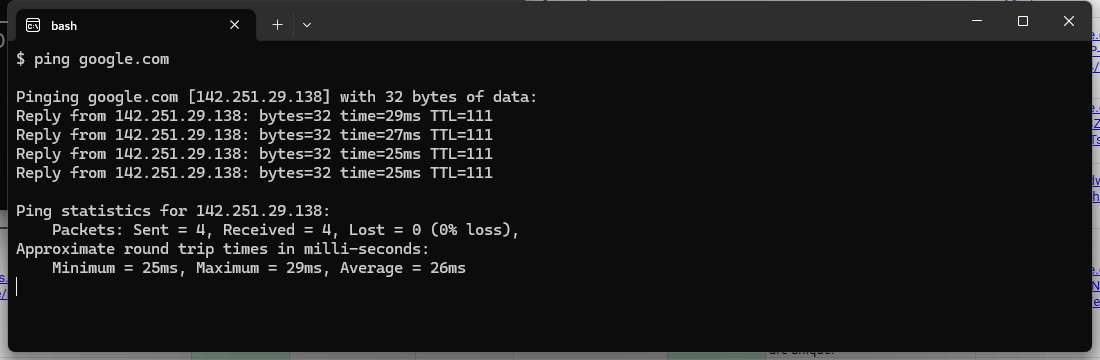
Once you have identified the cause, the relevant fix above should restore access. If the problem persists after working through all steps, contact support with the details gathered during your checks.
Wrapping up
You worked through the most common reasons a website becomes unreachable, covering server status, domain expiry, error logs, DNS caching and firewall blocks. Identifying whether the outage is global or local is the key first step, as it determines which path to follow.
For related topics, see our guides on fixing website error codes, fixing too many redirects and editing your DNS zone. If your site is running WordPress, our guide on removing malware from WordPress covers cases where a site goes down due to a security compromise.
Our cPanel hosting plans include access to server logs and DNS management tools to help you diagnose and resolve issues like these.
Plans and tools mentioned in this guide
Did this guide solve your problem?
Still stuck?
Our UK support team answers tickets and live chat every day. Send us the guide you were following and where it stopped working.
Keep learning
Find a guide
Related guides

Hosting that keeps up
cPanel hosting with the tools these guides use, backed by UK support.
Get cPanel Hosting
Keep your site secure
Protect your visitors with SSL certificates – from budget DV to premium EV certificates.
Get SSL Certificate