A WHOIS lookup reveals who owns a domain, when it expires and where its DNS is hosted. You need this information when troubleshooting DNS issues, verifying domain availability or checking registration details before a transfer.
You will perform a WHOIS query using either an online lookup tool or a command line interface. Both methods return the same registration data, including nameservers, registrar information and important dates.
Before you begin
- You need the exact domain name you want to query.
- Windows users require the Sysinternals WHOIS tool for command line queries.
- Some domain extensions require registry-specific lookup tools.
Use an online WHOIS lookup tool
Online lookup tools provide the quickest way to query domain registration data. Registry providers and third-party services offer free tools that return results in seconds.
- Choose a lookup service.
Visit one of these established WHOIS tools: ICANN Lookup, Who.is, Whois.com, DomainTools or MXToolbox. Each service queries the same underlying database. - Enter the domain name.
Type the full domain including its extension into the search field. Use the formatexample.co.ukrather than adding www or protocol prefixes. - Submit the query.
Click the search or lookup button. The tool contacts the appropriate registry server and retrieves the domain’s registration data. - Review the results.
The page displays registration details including nameservers, registrar information, creation date and expiry date. Some fields may show privacy protection instead of actual contact details.
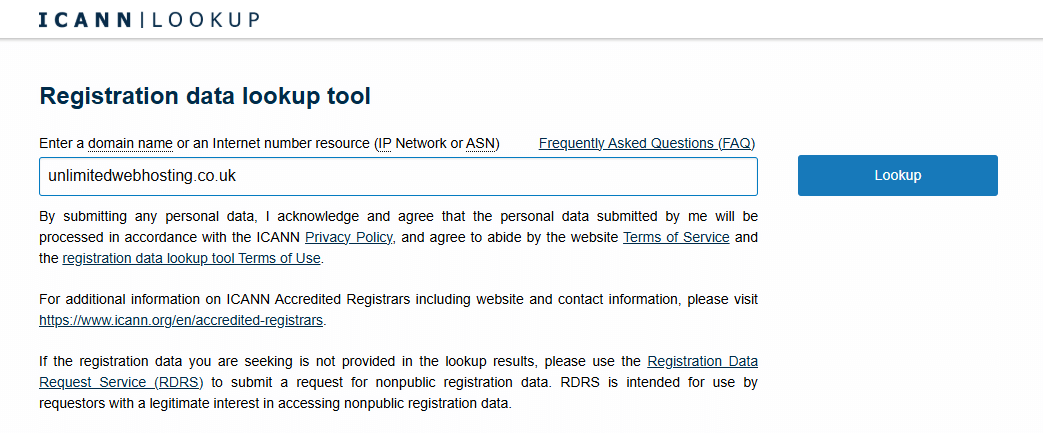
Different domain extensions sometimes require specific registry lookups because there is no universal standard across all top-level domains. If one tool returns limited results, try an alternative service that may query a different registry database.
Run a WHOIS query from the command line
Command line queries return the same data as online tools but integrate better into scripts and automated workflows. Linux and macOS include WHOIS by default, while Windows requires additional software.
- Install WHOIS on Windows.
Download and install the Sysinternals WHOIS tool from Microsoft. Extract the executable to a directory in your system PATH. Linux and macOS users can skip this step as WHOIS is pre-installed. - Open your terminal or command prompt.
On Windows, press Win + R, typecmdand press Enter. On macOS, open Terminal from Applications > Utilities. On Linux, use your distribution’s terminal application. - Run the WHOIS command.
Typewhois example.co.ukreplacing example.co.uk with your target domain. Press Enter to execute the query. - Read the output.
The terminal displays registration data directly in the command window. Scroll through the results to find nameservers, registrar details and expiry dates.
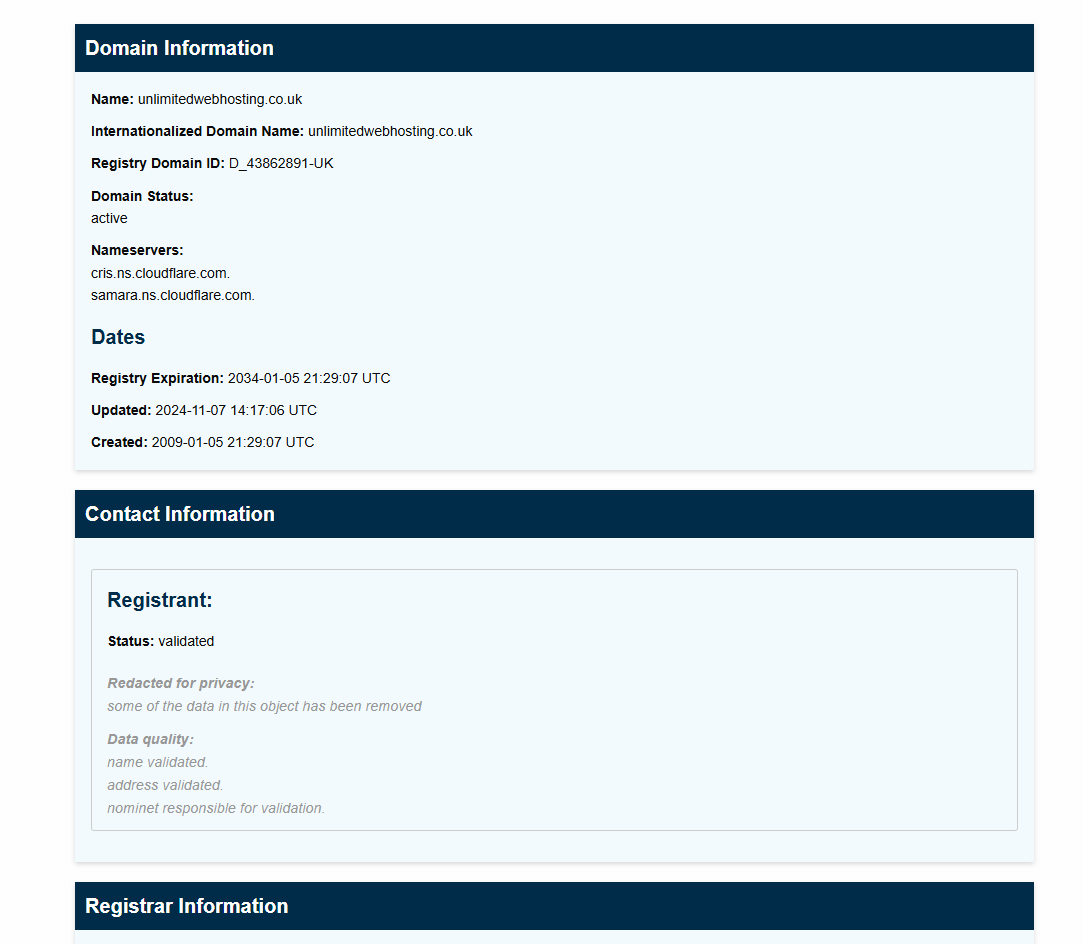
Command line queries work well when you need to check multiple domains quickly or integrate WHOIS lookups into maintenance scripts. The raw output format makes it easier to parse specific fields programmatically.
Interpret WHOIS query results
WHOIS output contains several key fields that reveal a domain’s configuration and status. Understanding these fields helps you troubleshoot DNS issues and verify domain ownership.
- Nameservers: The DNS servers hosting the domain’s zone file. These servers translate the domain name into an IP address. When troubleshooting DNS issues, nameservers confirm where the domain’s records are managed.
- Registrar: The company managing the domain registration. This tells you where to log in to modify domain settings or renew the registration.
- Status: The domain’s current state, such as
clientTransferProhibitedorpendingDelete. Status codes indicate whether the domain can be transferred, modified or is locked for security. - Registration dates: When the domain was created, last updated and when it expires. Expiry dates help you avoid accidental lapses in registration.
Nameservers are particularly useful when troubleshooting DNS propagation. They tell you where DNS is hosted. If you need to export DNS zone records during a migration, WHOIS confirms you are checking the right domain.
Protect domain privacy with WHOIS protection
WHOIS lookups expose contact details by default. This makes domain owners vulnerable to spam, unsolicited marketing and domain theft attempts. Registrars offer privacy protection services that replace your actual information with proxy contact details in WHOIS results.
Some registries automatically hide certain details to comply with data protection laws. UK domains, for example, mask registrant information unless you explicitly opt in to public display. WHOIS protection prevents your email address and phone number from appearing in public searches.
Privacy protection does not affect domain ownership or your ability to manage DNS settings. It only changes what information appears in WHOIS queries. The registrar maintains your actual contact details internally for legal and administrative purposes.
Further reading on domain management
WHOIS is gradually being replaced by RDAP (Registration Data Access Protocol), which standardises output in a machine-readable format. Most registries still support WHOIS for now, but RDAP offers better data structure and access control. The transition improves how automated systems query domain data while maintaining privacy protections.
Different domain extensions sometimes require specific registry lookups. There is no universal standard across all top-level domains, so you might need to try different tools. Understanding UK domains helps if you work with .uk extensions specifically, as they follow different registration rules compared to generic TLDs.
When troubleshooting DNS issues, combine WHOIS lookups with other diagnostic tools. You might need to find your server hostname for DNS configuration or use the ping command to diagnose connectivity problems. WHOIS confirms where DNS is hosted, while ping tests whether the domain resolves correctly.
Wrapping up
You now know how to perform WHOIS lookups using online tools and command line queries. You can check domain ownership, verify nameserver configuration and review registration dates. These skills help you troubleshoot DNS issues and verify domain details before transfers.
Review WHOIS data regularly for domains you manage. Check expiry dates to avoid accidental lapses and verify nameservers match your DNS provider. Our domain registration service includes WHOIS privacy protection and automated renewal reminders.
Plans and tools mentioned in this guide
Did this guide solve your problem?
Still stuck?
Our UK support team answers tickets and live chat every day. Send us the guide you were following and where it stopped working.
Keep learning
Find a guide
Related guides

Need a domain name?
Search and register your perfect domain name hundreds of extensions available.
Search Domains
Keep your site secure
Protect your visitors with SSL certificates – from budget DV to premium EV certificates.
Get SSL Certificate