Your server hostname lets you access your control panel and webmail when DNS issues prevent you from reaching your domain. Every server has an IP address and a configured hostname that works independently of your domain name.
You will find your hostname in your welcome email or retrieve it from the client area. Once you have it, you can access cPanel, WHM, Plesk or webmail directly through your browser.
Before you begin
- Your welcome email contains your server hostname. Check your inbox for an email from Unlimited Web Hosting sent after signup.
- You need access to the client area if you cannot locate your welcome email.
Find your hostname in your welcome email
Your welcome email arrives immediately after you purchase a hosting package. This email contains your server hostname, IP address and login credentials.
- Open your welcome email.
Search your inbox for “Welcome to Unlimited Web Hosting” or check the email address you used during signup. - Locate the server details section.
Scroll down to find the section labelled Server Information. Your hostname appears here alongside your server’s IP address.
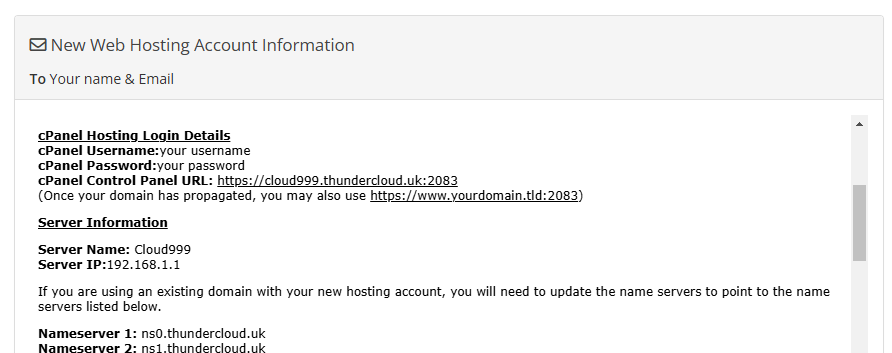
- Copy your hostname.
Select and copy the hostname value. This typically appears in the formatserver.unlimitedwebhosting.co.uk.
If you cannot find your welcome email, contact our support team or retrieve your hostname from the client area.
Access your hostname from the client area
The client area displays your server hostname and provides direct login links to your control panel. This method works when you need to access your server but cannot locate your welcome email.
- Log in to the client area.
Visitunlimitedwebhosting.co.uk/client-areaand enter your credentials. - Open your services list.
Click Services in the top navigation menu, then select My Services from the dropdown. - Select your hosting package.
Click on the service you want to access. This opens the service details page. - View your server information.
Scroll down to find the Server Information section. Your hostname appears here alongside quick login buttons for cPanel, WHM or Plesk.
You can click the login buttons to access your control panel directly without entering your hostname manually. Our guide on accessing your control panel explains this process in detail.
Use your hostname to access control panels
Your hostname works with specific port numbers to reach different control panel interfaces. This method bypasses DNS and connects directly to your server.
Replace server.tld with your actual hostname in these URLs:
- cPanel:
https://server.tld/cpanelorhttps://server.tld:2083 - WHM:
https://server.tld/whmorhttps://server.tld:2087 - Webmail:
https://server.tld/webmail - Plesk:
https://server.tld:8443
Hostnames prove particularly useful during site migrations or when troubleshooting DNS issues. If you need to manage DNS settings before your domain points to the new server, your hostname provides direct access to cPanel. You can also perform a WHOIS lookup to verify your domain and server information matches your expectations.
Wrapping up
You now know how to find your server hostname in your welcome email or client area. You can use this hostname to access cPanel, WHM, Plesk or webmail directly, bypassing any DNS issues that might prevent domain access.
Keep your welcome email saved for future reference. Review our guide on accessing your control panel for more ways to manage your hosting account. Our web hosting packages include full control panel access and direct server connections.
Plans and tools mentioned in this guide
Did this guide solve your problem?
Still stuck?
Our UK support team answers tickets and live chat every day. Send us the guide you were following and where it stopped working.
Keep learning
Find a guide
Related guides

Starting from scratch?
Register a domain name and point it at your hosting in the same account.
Search Domains
Somewhere to put it
Perfect for websites and small businesses unlimited bandwidth with cPanel hosting.
Get cPanel Hosting