PHP errors and warnings displayed on a live website expose internal code details to visitors and can make your site appear broken. Hiding them from the browser while keeping error logging active means you can still diagnose problems without affecting the visitor experience.
There are four places you can control PHP error display: php.ini, your .htaccess file, wp-config.php (for WordPress sites) or directly inside a specific PHP file. Choose the method that matches your level of access and the scope of the change you need.
Before you begin
- You need access to your hosting control panel or the ability to edit files via FTP or SSH.
- We recommend creating a backup of any file before editing it.
- Hiding errors from the browser does not disable error logging. Set up a log file so errors are still recorded for debugging.
- See our guide on using the cPanel File Manager if you are not familiar with editing files in your control panel.
Disable PHP error display via php.ini
The php.ini file controls PHP behaviour across your entire hosting account. Setting display_errors to Off here is the broadest approach and affects all PHP files on your account. The expose_php directive also prevents PHP version information from being sent in HTTP response headers, which reduces the information available to anyone probing your server.
Locate your php.ini file in your hosting account’s root directory or create one if it does not exist, then add or update the following lines:
expose_php=Off
display_errors=Off
Save the file. Changes take effect on the next PHP request without needing a server restart on most shared hosting environments.
Suppress errors using .htaccess
If you do not have access to php.ini, you can set PHP flags from your .htaccess file instead. This method applies to the directory containing the file and all subdirectories beneath it, making it a good option when you want to target a specific site rather than your whole account.
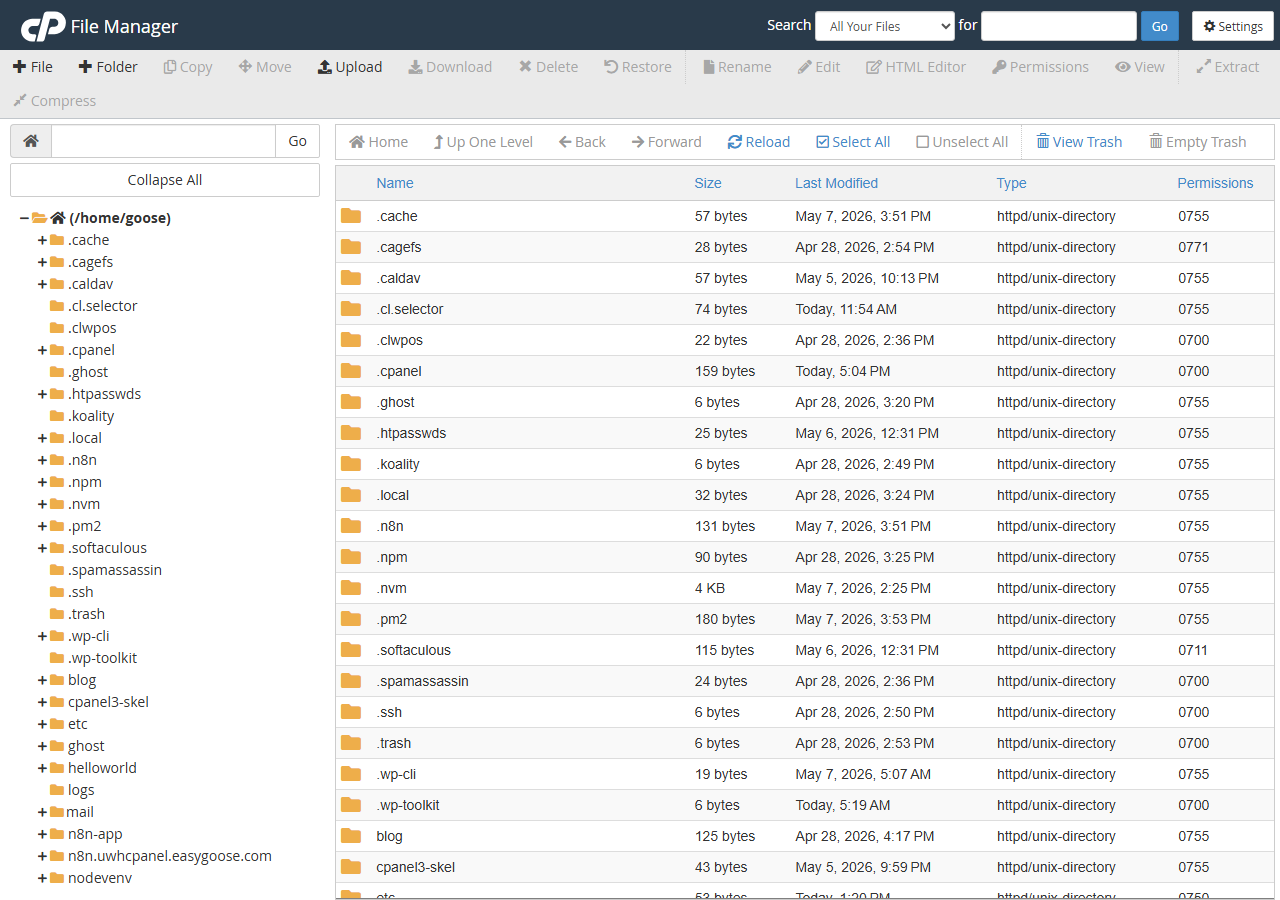
- Open File Manager in cPanel.
Navigate to Files and click File Manager. - Locate your .htaccess file.
Find.htaccessinside yourpublic_htmldirectory. If it does not exist, create a new file with that name. Make sure hidden files are visible by enabling Show Hidden Files in File Manager settings. - Add the error flag.
Open the file for editing and add the following line:
php_flag display_errors off- Save the file.
Click Save Changes. PHP errors will no longer appear in the browser for any page served from that directory.
Hide PHP errors in WordPress via wp-config.php
WordPress has its own debug constants that interact with PHP error display. Setting these correctly in wp-config.php prevents errors from appearing on the front end while keeping WordPress’s own debug log available for troubleshooting.
- Open wp-config.php in File Manager.
Find the file in yourpublic_htmldirectory and click Edit. - Remove any existing debug lines.
Delete any lines containingWP_DEBUG,WP_DEBUG_DISPLAYordisplay_errorsto avoid conflicts. - Add the production debug configuration.
Insert the following block before the line that reads/* That's all, stop editing! */:
ini_set('display_errors', 'Off');
ini_set('error_reporting', E_ALL);
define('WP_DEBUG', false);
define('WP_DEBUG_DISPLAY', false);- Save the file.
Click Save Changes. PHP errors will no longer display on your WordPress site. Settingerror_reportingtoE_ALLalongsidedisplay_errors Offmeans all error types are still captured in your server log rather than silently discarded.
Suppress errors in a specific PHP file
When you only need to suppress errors on one particular page or script, you can add a single line at the top of that PHP file. This overrides any server-level setting for that file only and does not affect the rest of your site.
Open the PHP file you want to modify and add the following as the first line after the opening <?php tag:
error_reporting(0);Save the file. Errors on that page will no longer be shown to visitors.
Troubleshooting
Errors are still showing after saving changes
If errors continue to appear after editing .htaccess or php.ini, a conflicting directive in another file may be overriding your change. PHP processes multiple configuration sources in a set order, and a later source can override an earlier one.
- Check whether a
php.inifile exists in the same directory as the affected script and contains a conflictingdisplay_errors=Online. - Check whether the PHP file itself calls
ini_set('display_errors', 'On')orerror_reporting(E_ALL)and remove those lines. - For WordPress sites, confirm that a plugin or theme is not re-enabling debug mode. Deactivate plugins one at a time to identify the cause. See our guide on disabling plugins using WP Toolkit for help with this.
- Confirm the file was saved correctly by reopening it and checking the directive is present.
php_flag causes a 500 error in .htaccess
Some hosting environments run PHP as a CGI or FastCGI process rather than as an Apache module. In those configurations, php_flag directives in .htaccess are not supported and will trigger a 500 Internal Server Error.
- Remove the
php_flagline from.htaccessto restore your site. - Use a
php.inifile in the same directory instead, withdisplay_errors=Off. - See our guide on fixing website error codes if your site returns a 500 error.
Wrapping up
You have now hidden PHP errors from your site’s visitors using one of four methods: a server-wide php.ini directive, an .htaccess flag, WordPress debug constants in wp-config.php or a per-file error_reporting(0) call. In each case, errors are suppressed in the browser without disabling logging on the server.
Review your server error log periodically to catch any issues that are now hidden from the front end. For WordPress sites, our guides on removing malware from WordPress and creating a phpinfo file can help you investigate underlying problems. If you need to change which PHP version your site runs, see our guide on changing your PHP version in cPanel.
Our PHP hosting plans give you full control over your PHP configuration, including access to php.ini settings from your control panel.
Did this guide solve your problem?
Still stuck?
Our UK support team answers tickets and live chat every day. Send us the guide you were following and where it stopped working.
Keep learning
Find a guide
Related guides

Hosting that keeps up
cPanel hosting with the tools these guides use, backed by UK support.
Get cPanel Hosting
Keep your site secure
Protect your visitors with SSL certificates – from budget DV to premium EV certificates.
Get SSL Certificate