Greyed out emails in Roundcube webmail prevent you from reading messages in your inbox. This happens when the webmail client fails to properly index your mailbox, most commonly after a server transfer or when mailbox settings become misconfigured.
You will fix this by enabling the compact on logout setting in Roundcube. This forces the client to rebuild its message index each time you log out, clearing the greyed out display issue.
Before you begin
- You need access to your cPanel account.
- The email account must already be set up in cPanel.
Access your email account settings
You need to open Roundcube webmail through cPanel to access the settings that control how messages display in your inbox.
- Log in to cPanel.
Access your cPanel account atyourdomain.co.uk/cpanelusing your hosting credentials. - Open Email Accounts.
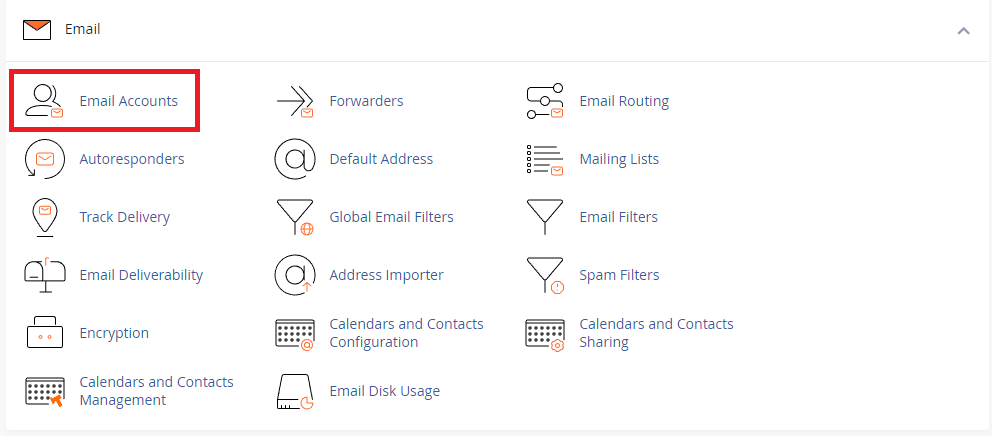
In the Email section, click Email Accounts. This displays all email addresses configured on your hosting account.
- Access webmail.
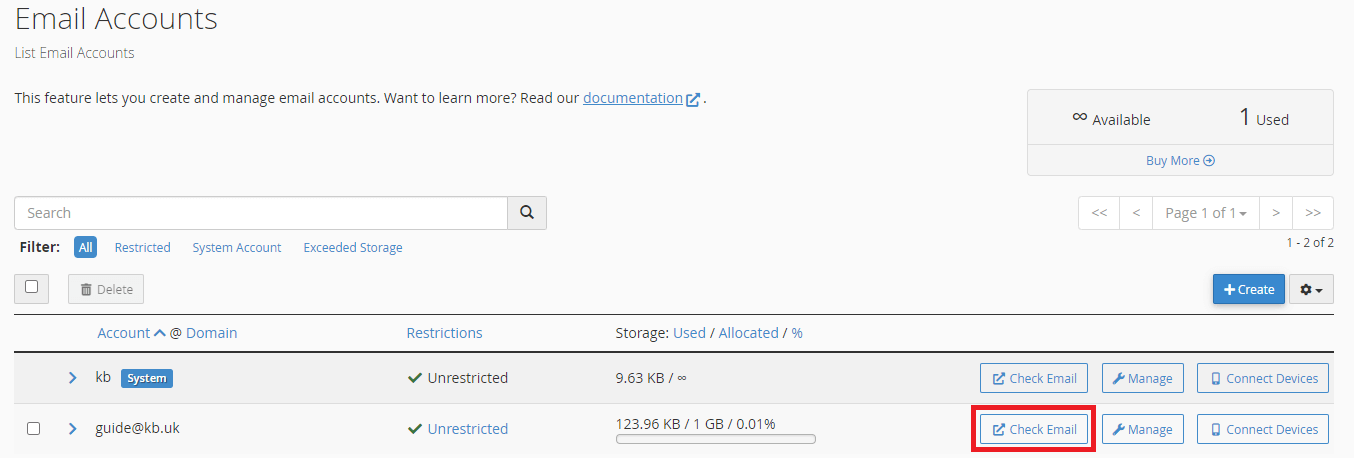
Find the email account experiencing greyed out messages and click Check Email. This opens Roundcube webmail in a new tab.
Enable compact on logout
The compact on logout setting forces Roundcube to rebuild its message index when you log out. This clears corrupted index data causing the greyed out display.
- Open Roundcube settings.
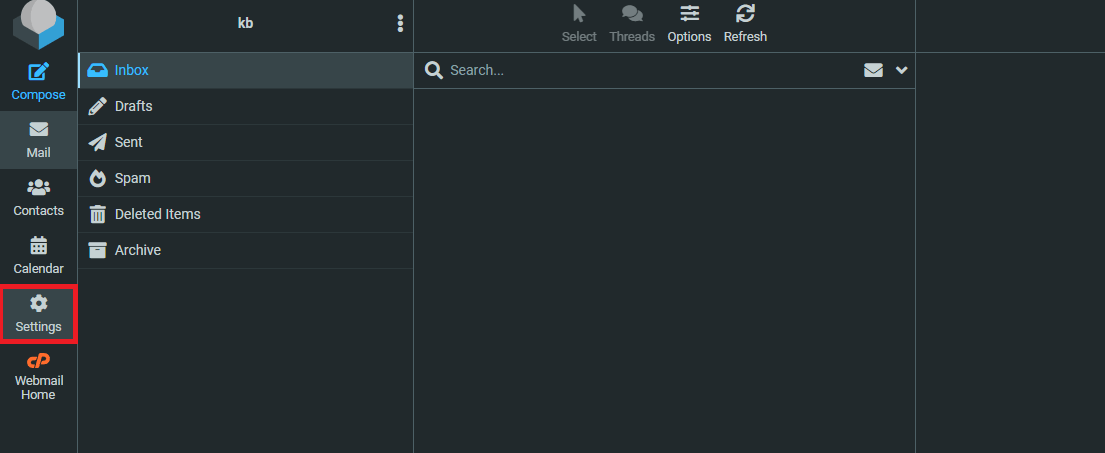
In the top right corner of Roundcube, click the Settings icon (cog symbol).
- Navigate to Server Settings.
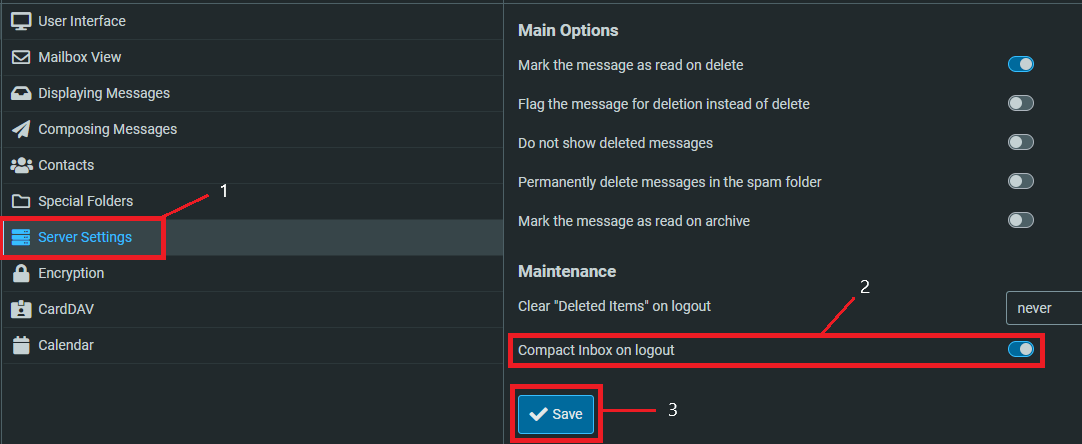
In the left sidebar, click Server Settings. This displays options for how Roundcube handles your mailbox. - Enable the compact setting.
Find the Compact Inbox on Logout option and tick the checkbox. This tells Roundcube to compress and rebuild the mailbox index each time you log out. - Save your changes.
Click Save at the top of the settings page. - Log out and back in.
Click the logout button in Roundcube, then log back in through cPanel. Your inbox should now display all messages correctly without greyed out entries.
Troubleshooting
Emails still appear greyed out
If messages remain greyed out after enabling compact on logout, the mailbox may have deeper indexing issues or corrupted message files.
- Log out and back in twice to force two complete index rebuilds
- Check email size limits as oversized messages can cause display problems
- Try accessing your email through Outlook or another email client whilst troubleshooting
Wrapping up
Our web hosting gives you everything you need to manage this and more.
Your Roundcube webmail now rebuilds its message index on logout, preventing greyed out email display issues. You enabled the compact on logout setting through cPanel and forced an index rebuild by logging out and back in.
Check your inbox over the next few days. If greyed out messages reappear or you notice missing emails, there may be server-side configuration issues requiring admin access.
Plans and tools mentioned in this guide
Did this guide solve your problem?
Still stuck?
Our UK support team answers tickets and live chat every day. Send us the guide you were following and where it stopped working.
Keep learning
Find a guide
Related guides

Email on your own domain
Every cPanel hosting plan includes mailboxes you manage yourself.
Get cPanel Hosting
Need the domain first?
Register the domain your mailboxes will sit on, with hundreds of extensions available.
Search Domains