The cPanel webmail interface lets you manage your email account settings directly from a browser, without configuring a desktop email client. From a single landing page you can update your password, create autoresponders, set up forwarders and control spam filtering.
This guide covers each configuration option available from the webmail landing page and explains what each one does.
Before you begin
- You need an active email account on your hosting plan.
- You need your email address and password to log in to webmail.
- See our guide on logging in to webmail if you have not done this before.
Access the webmail settings landing page
After logging in to webmail, you land on a page that displays your available webmail applications alongside a set of account management options. The configuration tools described below are all accessible from this landing page, so you do not need to open Roundcube or any other mail application to reach them.
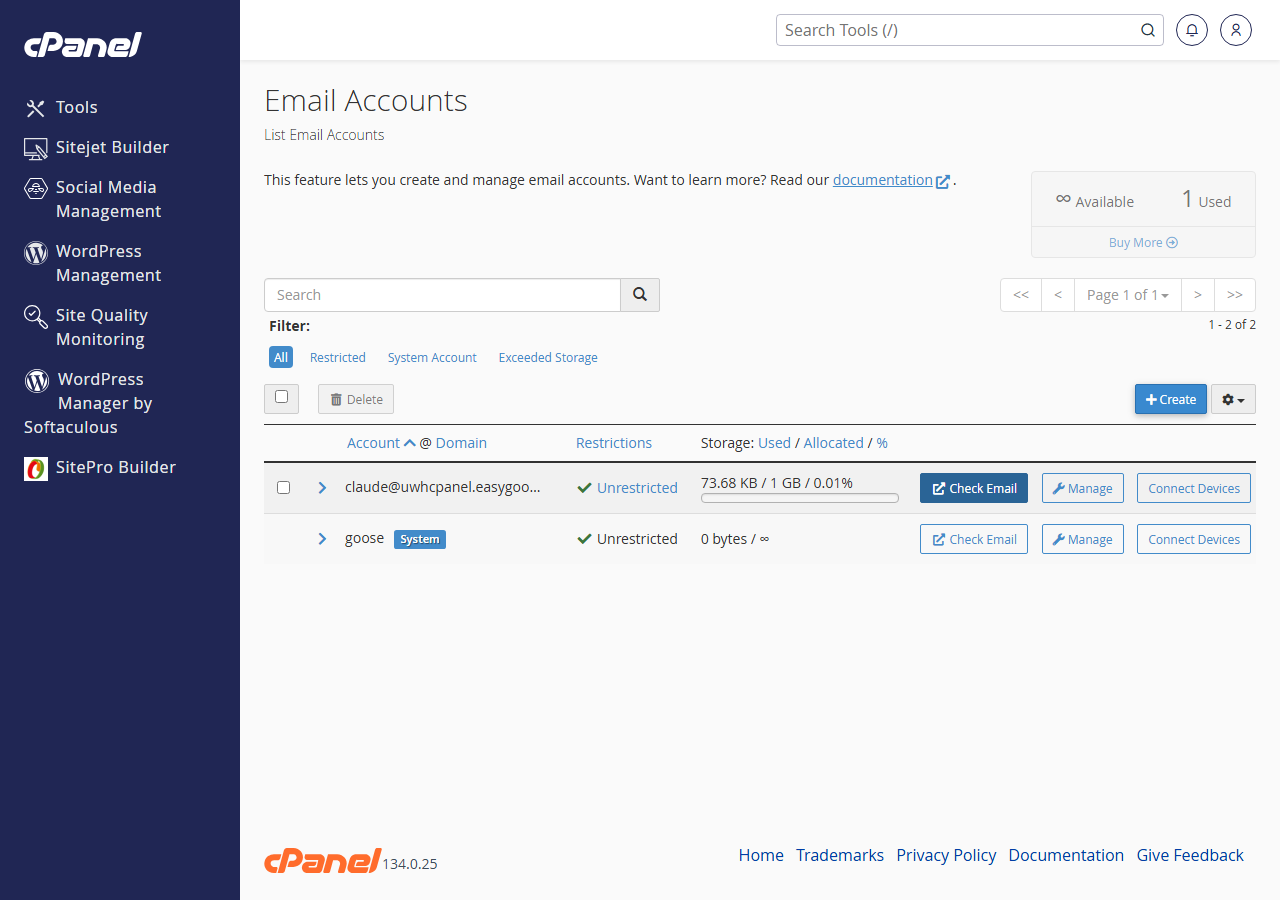
Each option below is available as a clickable tile or link on that page.
Configure your email account settings
The landing page groups your account settings into distinct areas. Work through the ones relevant to your needs – you do not need to configure all of them.
- Open Autoresponders.
Click Autoresponders to create automated replies for incoming messages. This is useful when you are away from the office and want senders to receive an immediate acknowledgement. You can set a subject line, message body and an active date range. - Open Email Filters.
Click Email Filters to create rules that act on incoming messages automatically. Rules can move, delete or redirect messages based on criteria such as sender address, subject line or message content. This reduces manual sorting and keeps your inbox organised. - Open Forwarders.
Click Forwarders to send copies of incoming messages to a second email address. Forwarding is useful if you monitor multiple addresses from one inbox or need messages delivered to an external account. See our guide on setting up email forwarders for full instructions. - Open Password & Security.
Click Password & Security to change your email account password. Updating your password here changes it at the server level, so any connected mail clients will need to be updated with the new credentials afterwards. - Open Contact Information.
Click Contact Information to update the recovery details associated with your account. This address receives password reset links and account notifications, so keeping it current means you can recover access if you forget your password. - Open Account Preferences.
Click Account Preferences to choose your default webmail application and adjust display settings. If you prefer Roundcube over other available clients, set it as the default here so it loads automatically on your next login. - Open Spam Filters.
Click Spam Filters to adjust the spam detection threshold for your account. Raising the threshold reduces false positives; lowering it catches more suspected spam. Messages that exceed the threshold are either moved to a spam folder or deleted, depending on your settings.
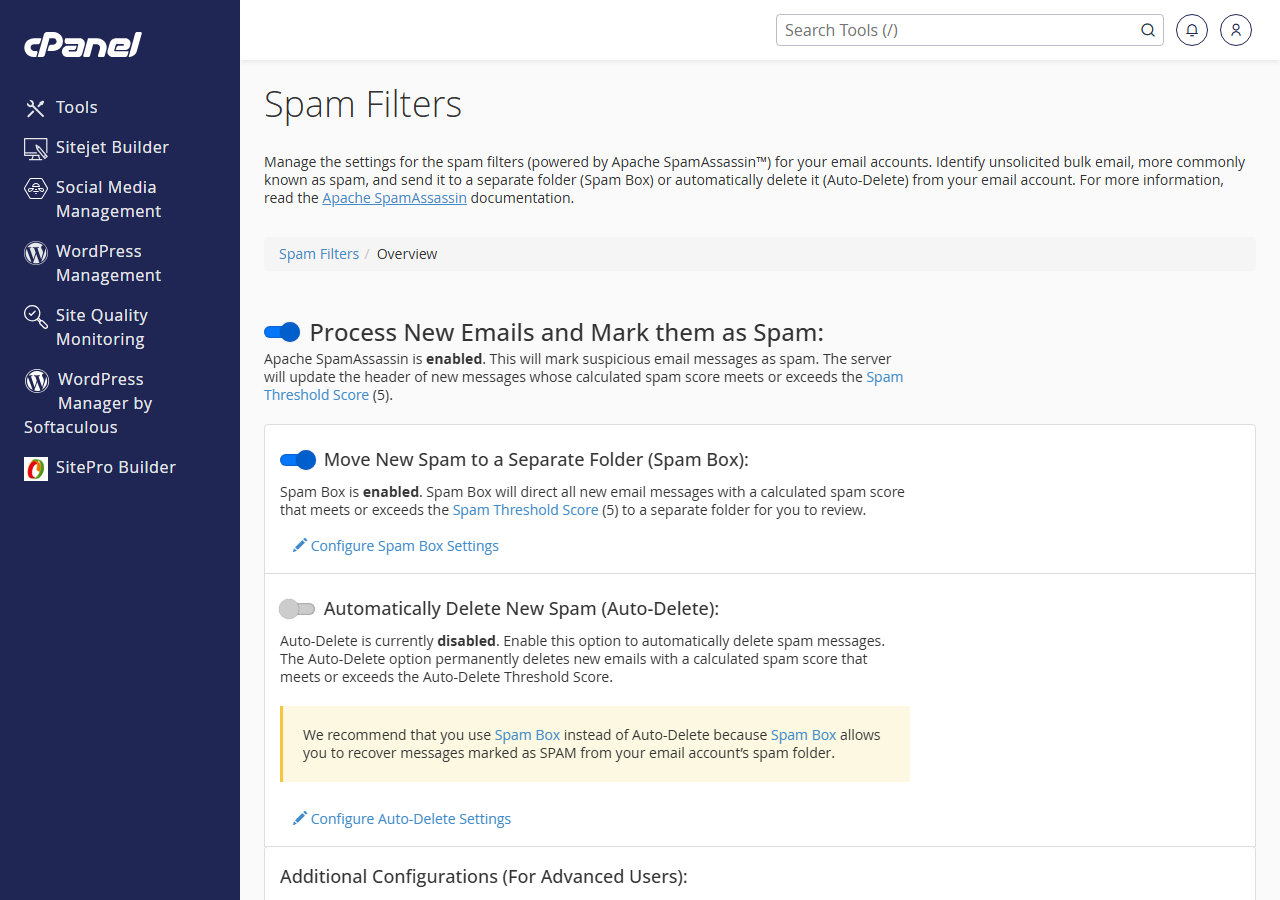
Each setting saves independently, so you can return to any section at any time to make adjustments.
Wrapping up
You have reviewed the account configuration options available from the cPanel webmail landing page. From a single location you can manage autoresponders, filters, forwarders, your password, contact details, application preferences and spam settings.
For related tasks, see our guides on setting up autoresponders, creating an out-of-office reply and creating a new email account. If you also access your mail from a phone or desktop client, our guide on managing email on iPhone covers the setup process for mobile devices.
Our cPanel hosting plans include full webmail access for every email account on your domain.

