Email forwarders redirect incoming messages from one address to another automatically. This allows you to consolidate multiple email addresses into a single inbox or manage contact addresses for different parts of your business without creating separate mailboxes.
You will set up a forwarder in cPanel by specifying a source address and destination. Once configured, all messages sent to the source address arrive in the destination inbox immediately.
Before you begin
- You need access to your cPanel control panel.
- The destination email address must already exist or be external (such as Gmail).
Access the forwarders tool
The forwarders tool in cPanel manages all email forwarding rules for your domains. You need to open this tool before creating a new forwarder.
- Log in to cPanel.
Access your control panel atyourdomain.co.uk/cpanelusing your cPanel username and password. - Open the forwarders tool.
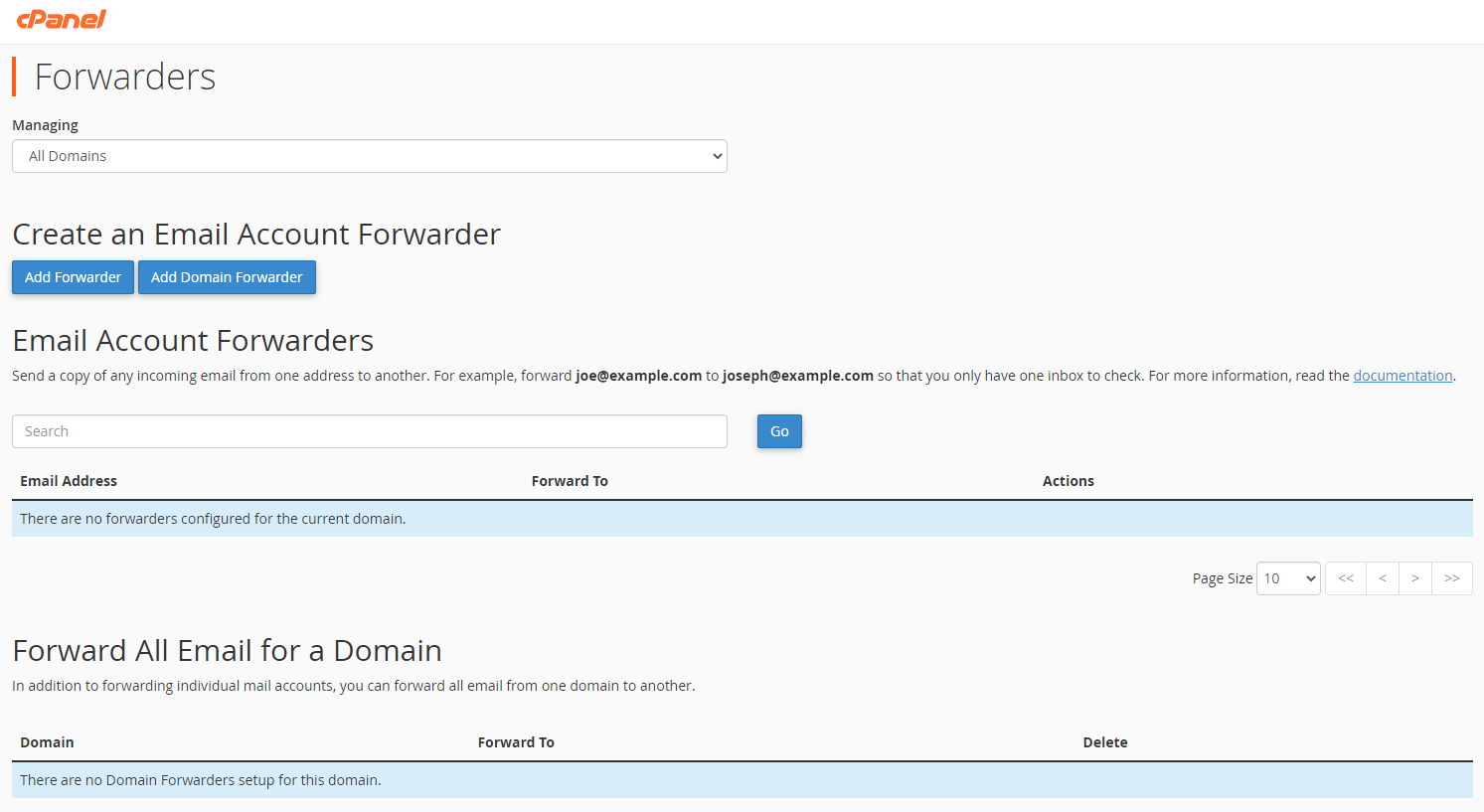
Scroll to the Email section and click Forwarders. This opens the forwarder management page.

Create a new forwarder
You will now configure the source address and destination for your forwarder. cPanel splits the source address into two fields: the local part (before the @) and the domain.
- Click Add Forwarder.
This button appears at the top of the forwarders page and opens the configuration form.
- Enter the source address.
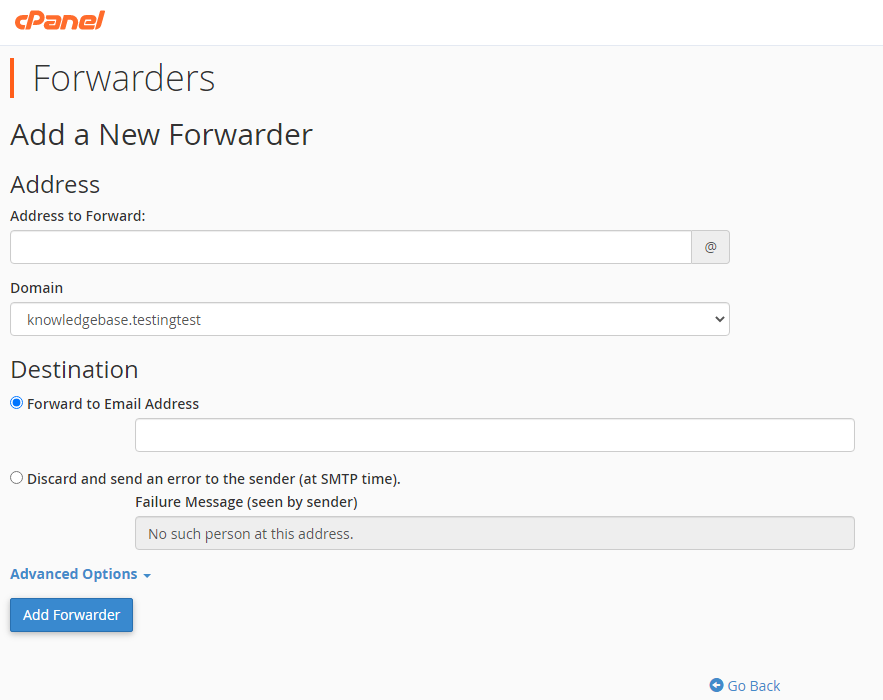
In the Address to Forward field, type the local part of the email address (the part before @). Select the domain from the dropdown menu. For example, to forwardcontact@yourdomain.co.uk, entercontactin the first field and selectyourdomain.co.ukfrom the dropdown. - Specify the destination.
Under Destination, select Forward to email address and enter the address where messages should arrive. This can be another address on your domain or an external address like Gmail.
- Save the forwarder.
Click Add Forwarder at the bottom of the form. cPanel creates the forwarding rule immediately and returns you to the forwarders management page.
Your forwarder is now active. Test it by sending an email to the source address and confirming it arrives at the destination inbox.
Wrapping up
You have configured an email forwarder in cPanel that redirects messages automatically. All emails sent to your source address now arrive at the destination inbox without requiring a separate mailbox.
You can create multiple forwarders for different addresses or set up your custom domain email in Outlook if you prefer direct mailbox access.
Did this guide solve your problem?
Still stuck?
Our UK support team answers tickets and live chat every day. Send us the guide you were following and where it stopped working.
Keep learning
Find a guide
Related guides

Email on your own domain
Every cPanel hosting plan includes mailboxes you manage yourself.
Get cPanel Hosting
Need the domain first?
Register the domain your mailboxes will sit on, with hundreds of extensions available.
Search Domains