A full cPanel backup protects your website files, databases, email accounts and configurations in a single archive. You need this backup before migrating to a new server, making major site changes or recovering from data loss.
You will generate a complete backup of your cPanel account, download it to your local machine and remove it from the server to free up disk space.
Before you begin
- You need access to your cPanel dashboard.
- Backup generation time depends on your account size. Large accounts may take several hours.
- We recommend avoiding major site changes during backup generation to maintain data consistency.
Generate a full account backup
You will create a complete backup archive containing all files, databases and email accounts in your cPanel account. The backup generates on your server before you download it.
- Log in to your cPanel dashboard.
Access cPanel through your hosting control panel or by visitingyourdomain.co.uk:2083and entering your credentials. - Open the Backup tool.
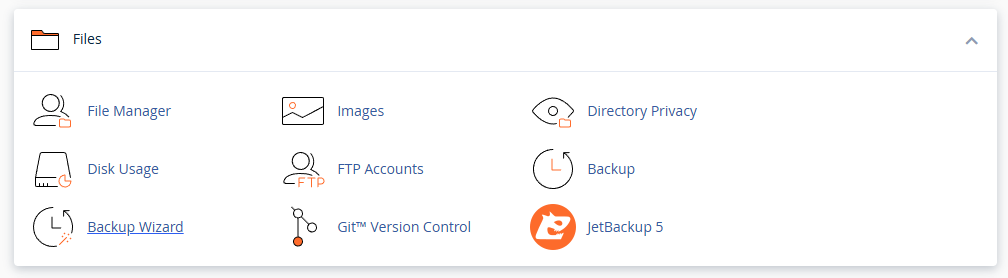
Scroll down to the Files section and click Backup. This tool manages both full and partial backups of your account.
- Start the backup generation.
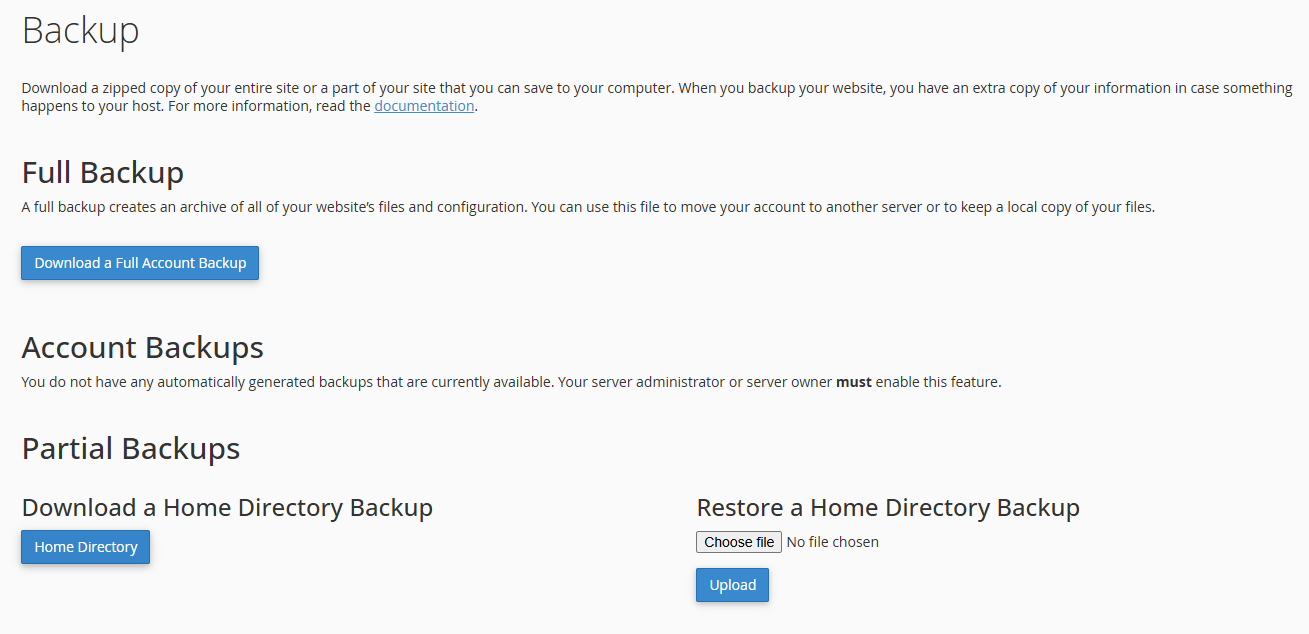
In the Full Backup section, click Download a Full Account Backup. This opens the backup configuration screen.
- Select the backup destination.
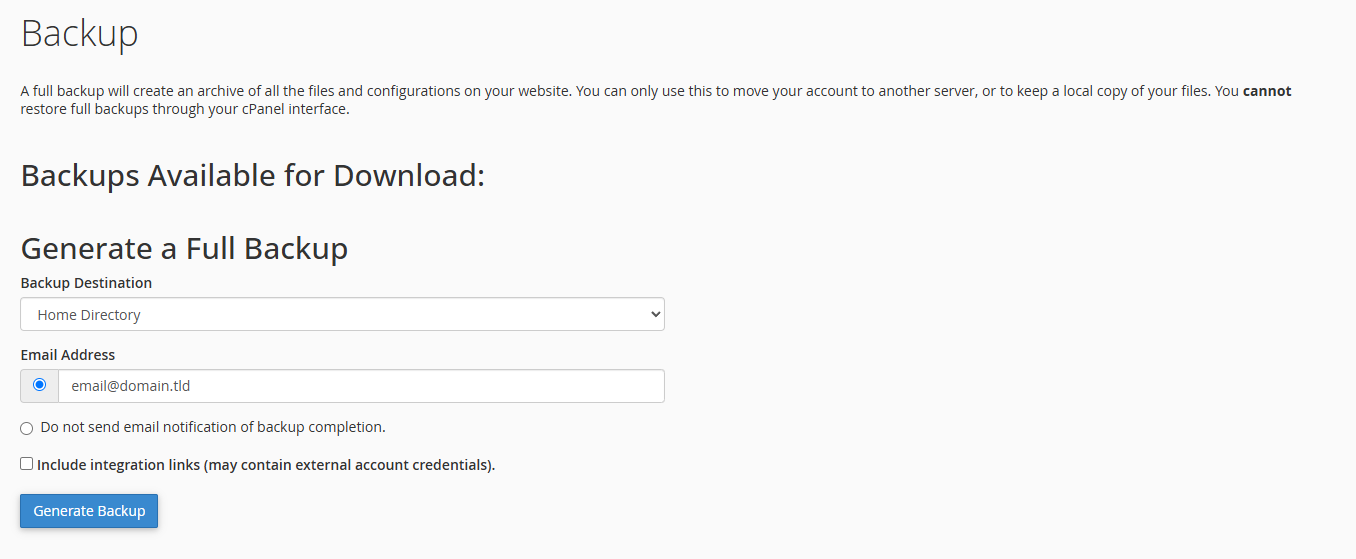
From the Backup Destination dropdown, choose Home Directory. This stores the backup on your server where you can download it. Remote destinations require additional credentials. - Configure email notification.
Enter your email address in the notification field if you want to receive an alert when the backup completes. Leave this blank if you prefer to check manually. - Generate the backup.
Click Generate Backup to start the process. The backup runs in the background and may take several minutes to hours depending on your account size.

Download and remove the backup
Once generation completes, you will download the backup archive to your local machine and delete it from the server. This frees up disk space in your hosting account.
- Return to the Backup interface.
Navigate back to Files > Backup in cPanel. The completed backup appears under Backups Available for Download with its filename and generation date. - Download the backup file.
Click the filename to download the archive to your local device. Store this file securely as it contains all your account data.

- Delete the backup from the server.
After downloading, click the delete icon next to the backup filename. This removes the archive from your hosting account and recovers the disk space it occupied.
Wrapping up
You have created a complete backup of your cPanel account containing all files, databases and email accounts. The backup is now stored securely on your local machine and removed from the server to free up disk space.
Store your backup in multiple locations for redundancy. Consider keeping copies on external drives and cloud storage services.
Our web hosting plans include automated daily backups stored separately from your live account.
Plans and tools mentioned in this guide
Did this guide solve your problem?
Still stuck?
Our UK support team answers tickets and live chat every day. Send us the guide you were following and where it stopped working.
Keep learning
Find a guide
Related guides

Need multiple accounts?
Create isolated individual accounts for your clients and manage them all from one dashboard.
Get Reseller Hosting
Need more control?
Upgrade to VPS hosting for scalable resources and root access to your server.
Get VPS Hosting