SSL certificate configuration links your certificate to your domain and server through a validation method. Without completing this step, your certificate cannot be installed or activated on your hosting account.
You will select a server type, enter your certificate signing request (CSR) and choose a validation method. Once configured, your certificate is ready for installation.
Before you begin
- You need an active SSL certificate purchased through your account.
- You must generate a certificate signing request before starting configuration.
- Access to the client area.
Access the certificate configurator
The certificate configurator is accessed through your client area. You need to navigate to your SSL certificate details before you can begin configuration.
- Log in to your client area.
Visitunlimitedwebhosting.co.uk/client/loginand enter your credentials.

- Open the manage services area.
Click Manage Services from the main navigation. This displays all active services on your account. - Select your SSL certificate.
Locate the SSL certificate you want to configure and click on it. This opens the certificate management page.
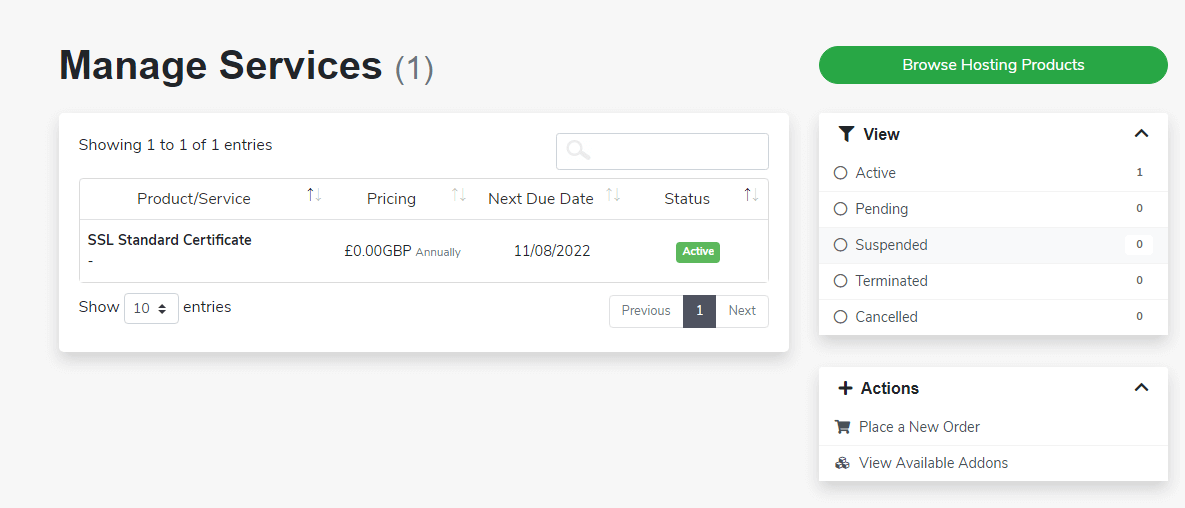
- View certificate details.
Click the green View Certificate Details button. This displays configuration options and certificate information. - Start configuration.
Click Configure Certificate to open the configurator. You can now enter your certificate details.
Configure certificate details
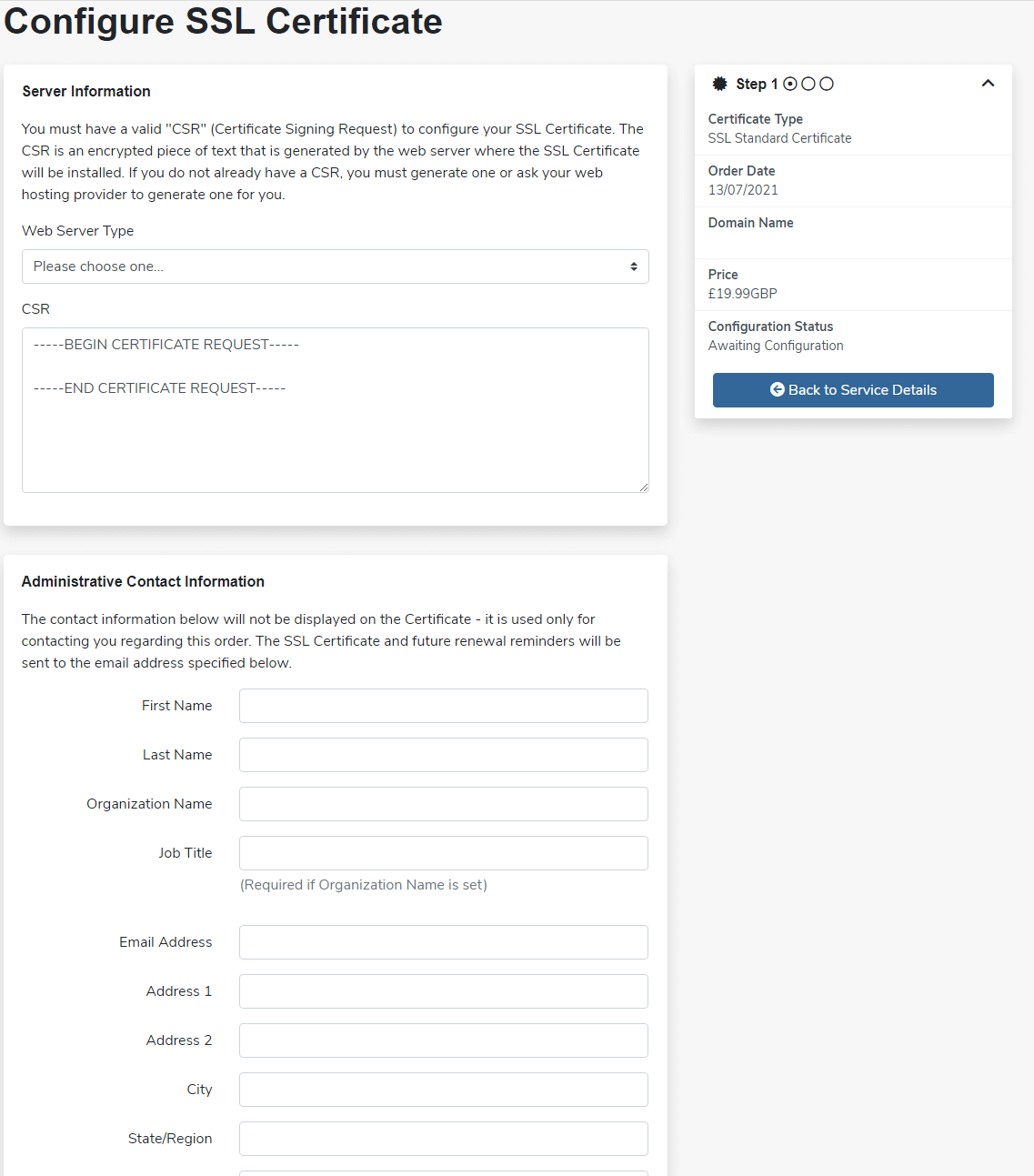
The configurator requires your server type, CSR code and contact information. These details verify your identity and link the certificate to your hosting environment.
- Select your server type.
Use the dropdown menu to choose your control panel. Most accounts use either Plesk or cPanel. - Enter your CSR code.
Paste the certificate signing request you generated earlier into the CSR field. This code contains your domain and organisation details. - Provide contact information.
Fill in your name, address and contact number. Use the international dialling code format:+44for UK numbers or+1for US numbers.
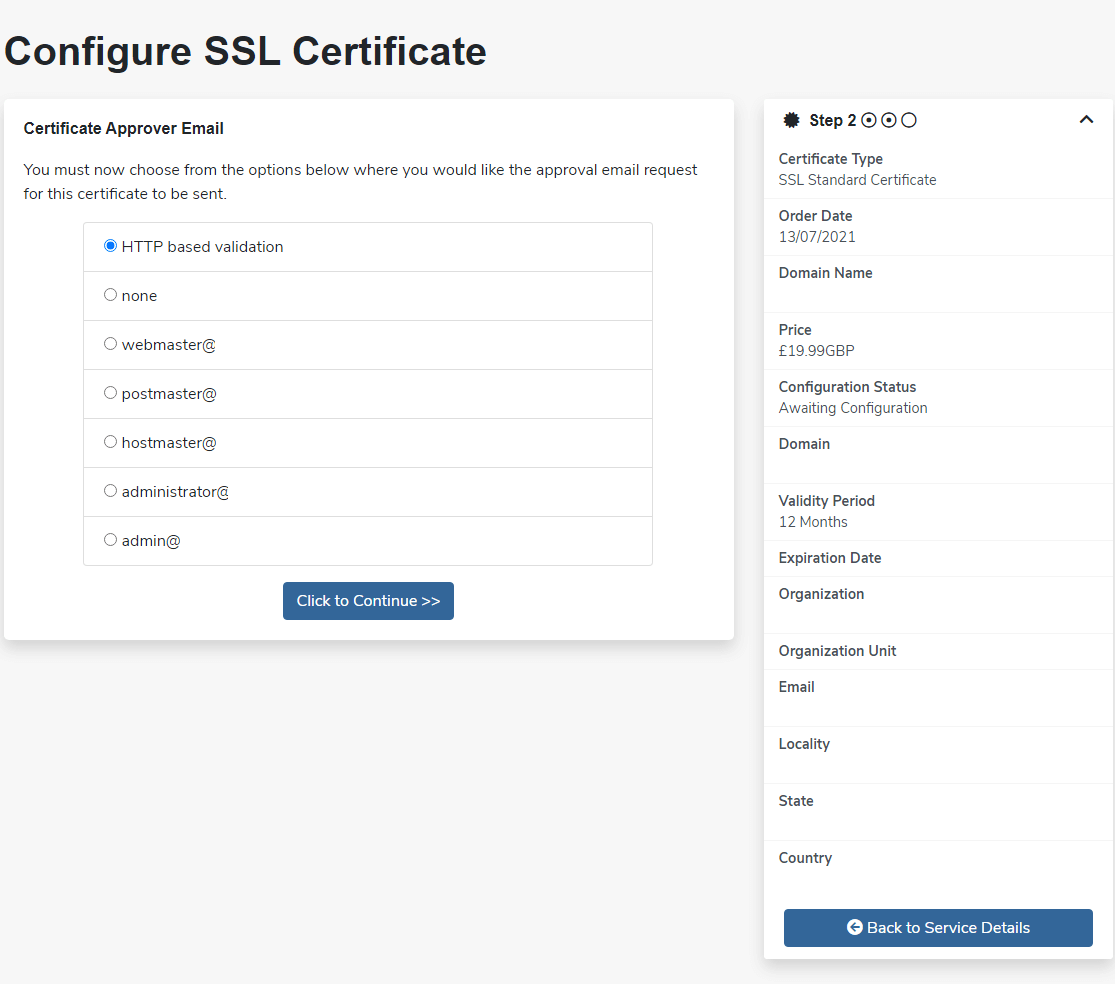
- Choose a validation method.
Select either Email Validation or HTTP Validation. Email validation sends a confirmation link to an admin address on your domain. We recommend email validation because it completes faster and works regardless of your site’s current configuration.
- Submit the configuration.
Click Submit to save your settings. The certificate authority will now process your configuration and send validation instructions.
Wrapping up
Your SSL certificate is now configured with your server details and validation method. You entered your CSR code, provided contact information and selected how you want to verify domain ownership. The certificate authority will send validation instructions to complete the process.
Check your email inbox for the validation message if you selected email validation. Once you complete validation, you can install your SSL certificate on your hosting account. Our SSL certificates include configuration support throughout the setup process.
If you run into any trouble, get in touch and our team will be happy to help.
Plans and tools mentioned in this guide
Did this guide solve your problem?
Still stuck?
Our UK support team answers tickets and live chat every day. Send us the guide you were following and where it stopped working.
Keep learning
Find a guide
Related guides

Hosting that keeps up
cPanel hosting with the tools these guides use, backed by UK support.
Get cPanel Hosting
Keep your site secure
Protect your visitors with SSL certificates – from budget DV to premium EV certificates.
Get SSL Certificate