Losing access to your WordPress admin area prevents you from managing content, installing plugins or updating your site. You need to reset your password to regain control of your account.
You can reset your WordPress password through the login page if you have access to your admin email address. If that method fails, you can change the password directly in your database using phpMyAdmin.
Before you begin
- You need access to the email address associated with your WordPress admin account for the first method.
- You need cPanel access for the phpMyAdmin method.
- Your WordPress login URL is usually
yourdomain.co.uk/wp-adminbut may differ depending on your configuration.
Reset via the WordPress login page
WordPress sends a password reset link to your admin email address. This method works when you have access to that email account and remember your username.
- Navigate to your WordPress login page.
Enter your WordPress login URL in your browser’s address bar. This is typicallyyourdomain.co.uk/wp-admin, replacingyourdomain.co.ukwith your actual domain name. - Click the password reset link.
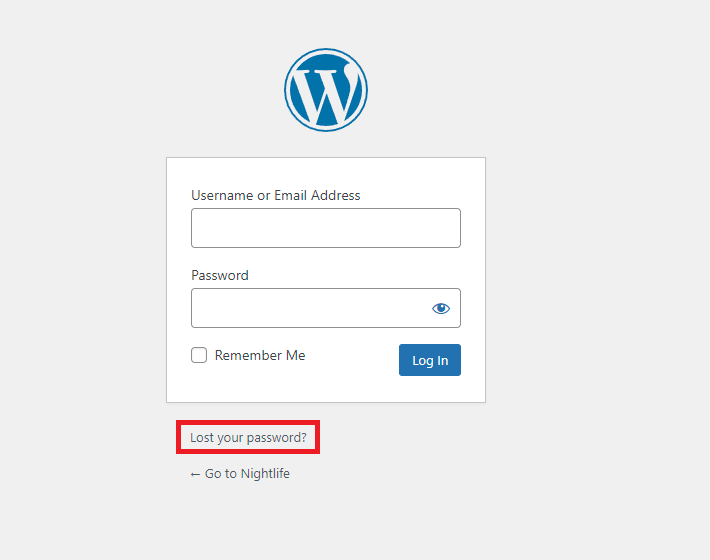
Below the login form, click Lost your password? to start the reset process.
- Enter your username or email address.
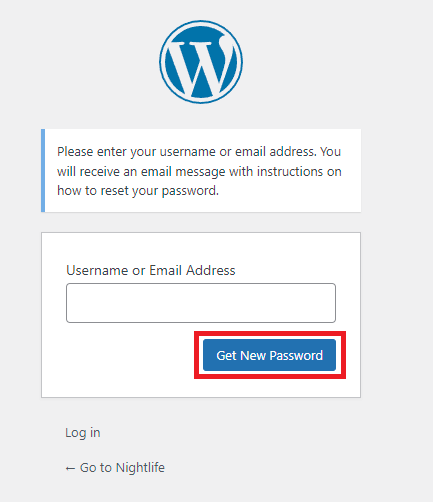
Type your WordPress admin username or the email address associated with your account, then click Get New Password. If you see an error message, try a different username or email address, or use the phpMyAdmin method below.
- Check your email for the reset link.
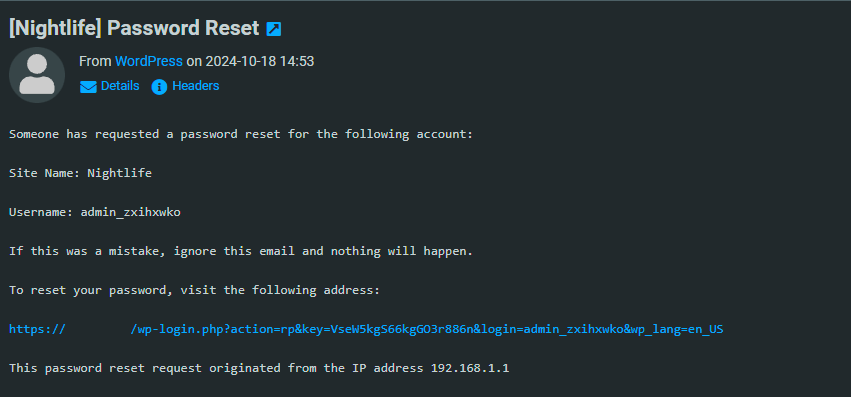
Open the email account associated with your WordPress admin user. You should receive an email from your WordPress site containing a password reset link.
- Set your new password.
Click the link in the email and enter your new password. Store this password securely. You can now log in to your WordPress admin area with your new credentials.
Change your password with phpMyAdmin
This method changes your password directly in the WordPress database. Use this when you cannot access your admin email or the password reset link fails.
- Log in to cPanel and open File Manager.
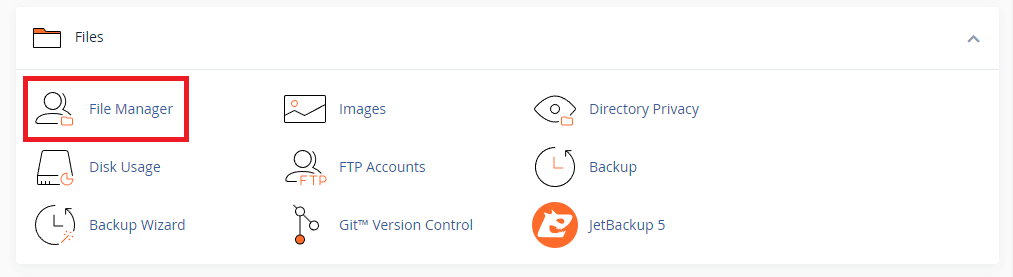
Access your hosting control panel and click the File Manager icon in the Files section. This opens the file browser for your hosting account.
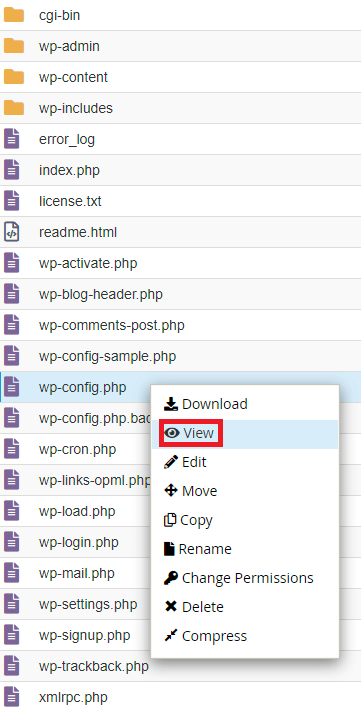
- Locate and view your wp-config.php file.
Navigate to your WordPress installation directory (usuallypublic_html). Right-click onwp-config.phpand select View. This displays the file contents without allowing edits.
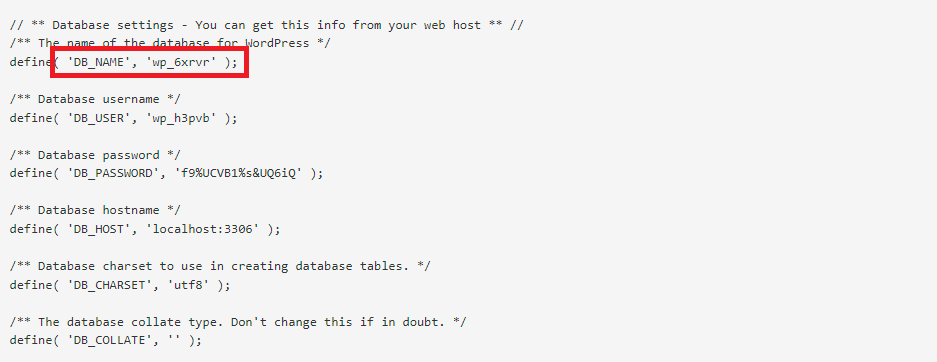
- Note your database name.
Find the line that readsdefine('DB_NAME', 'database_name');and write down the database name shown between the quotes. You will need this to locate your WordPress database in phpMyAdmin.
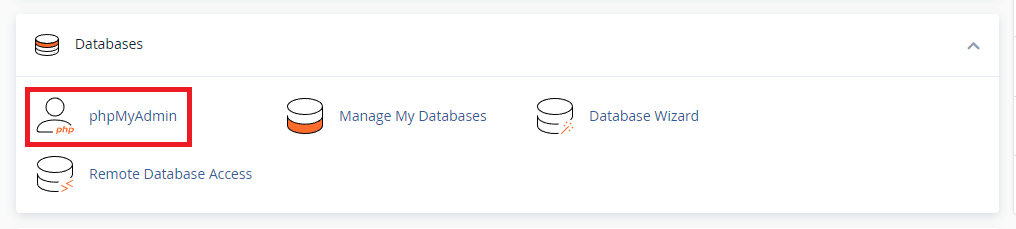
- Open phpMyAdmin.
Return to your cPanel home page and click the phpMyAdmin icon in the Databases section. This opens the database management interface.
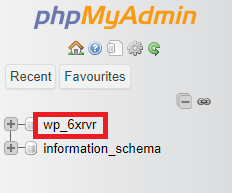
- Select your WordPress database.
In the left sidebar, click on the database name you noted earlier. This displays all tables in your WordPress database.
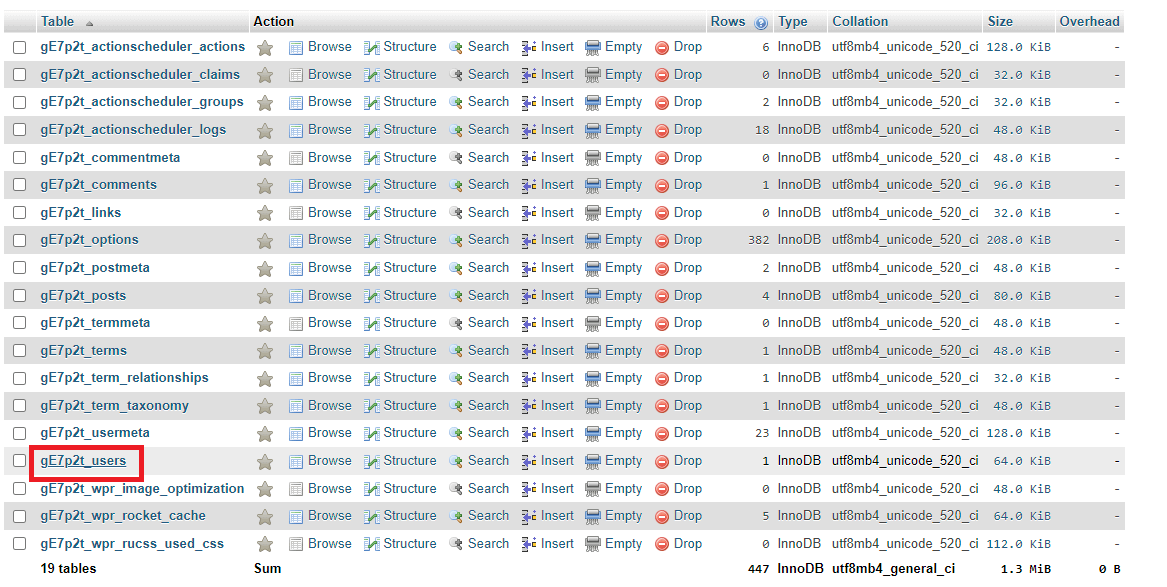
- Open the users table.
Find and click the table ending in_users(typicallywp_users). This table stores all WordPress user accounts and their passwords.
- Edit the admin user.
Locate your admin username in the list and click the Edit button (pencil icon) in that row. This opens the user record for editing.

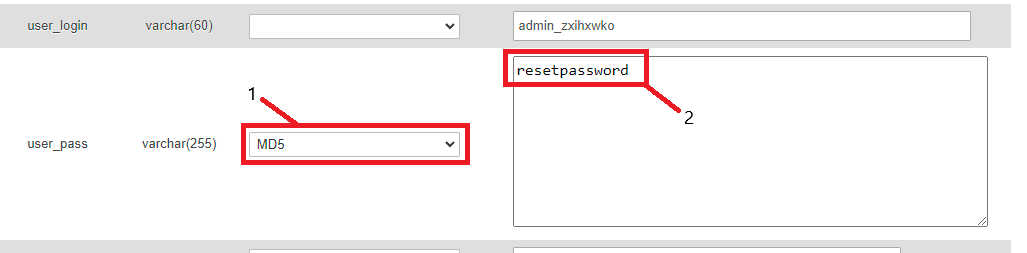
- Set your new password.
Find theuser_passrow. In the Function dropdown, select MD5. In the Value field, enter your new password. MD5 hashing encrypts your password before storing it in the database.
- Save your changes.
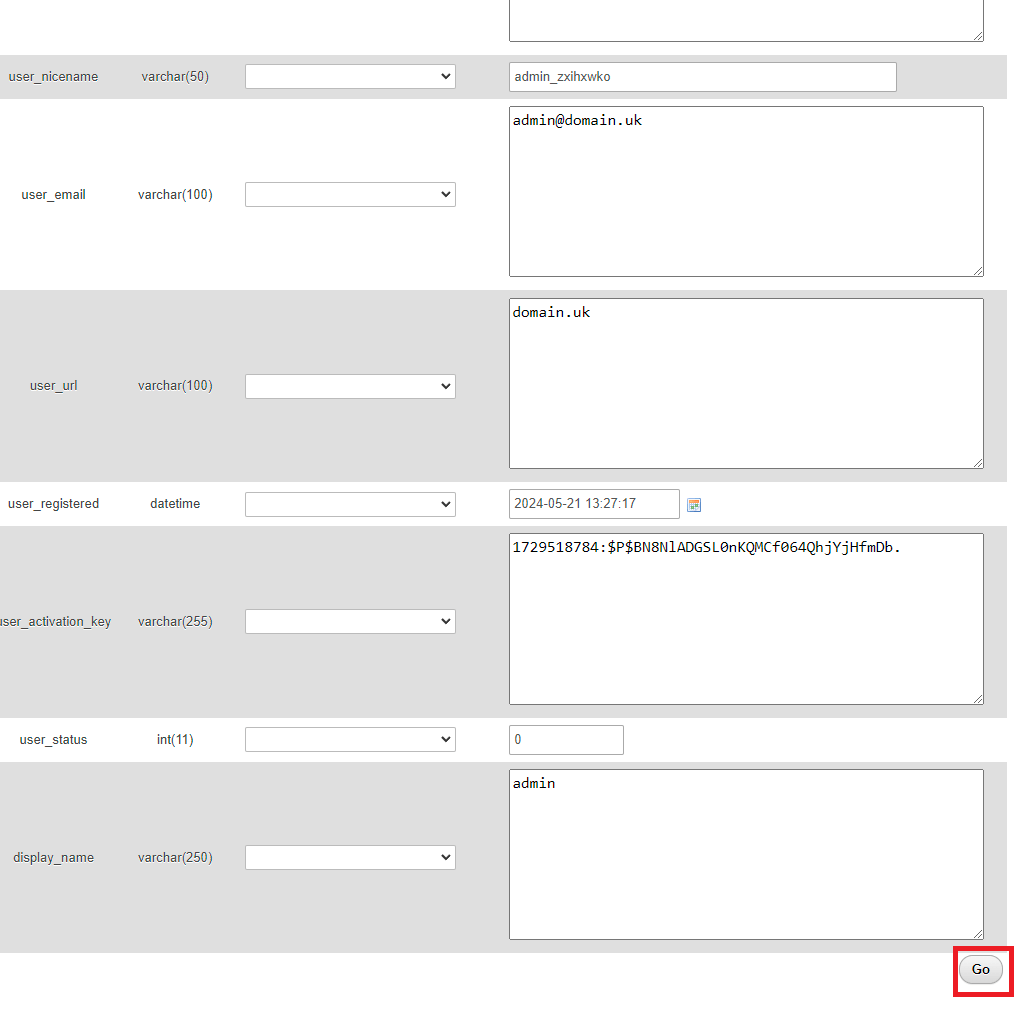
Scroll to the bottom of the page and click Go. This updates the database with your new password. You can now log in to WordPress using your new credentials.
Wrapping up
You have reset your WordPress password and regained access to your admin area. The login page method works when you have access to your admin email, while the phpMyAdmin method changes the password directly in your database when other options fail.
Store your new password securely using a password manager. Review our guide on WordPress security best practices to protect your site from unauthorised access. Our managed WordPress hosting includes automatic security updates and daily backups.
If you run into any trouble, get in touch and our team will be happy to help.


Running a WordPress site?
Get fast, secure and reliable WordPress Hosting with optimised for performance with AccelerateWP.
Get WordPress Hosting
Need multiple accounts?
Create fully isolated individual accounts for your clients and manage them all from one dashboard.
Get Reseller Hosting