Knowing your exact Windows version, edition and build number is useful when troubleshooting problems, checking software compatibility or confirming that system updates have applied correctly. Command Prompt gives you several ways to retrieve this information without opening the Settings app.
The four methods below range from a single-line version check to a full system summary. Each returns slightly different output, so choose the one that matches what you need.
Before you begin
- You need access to a Windows machine with Command Prompt available.
- No administrator privileges are required for the
verorsysteminfocommands. Thereg querycommand may require elevated permissions on some systems. - We recommend opening Command Prompt by pressing Windows key + R, typing
cmdand pressing Enter.
Check your Windows version using Command Prompt
Each command below targets a different level of detail. The ver command returns a quick version number, while systeminfo and the registry query return more complete information about your OS edition and build. Run whichever command gives you the detail you need.
Method 1: ver
The ver command returns the Windows version number in a single line. This is the fastest option when you only need to confirm the version at a glance.
verExample output:
Microsoft Windows [Version 10.0.19045.4046]This output shows the version number only. It does not display the edition (for example, Home or Pro) or the release label.
Method 2: systeminfo
The systeminfo command returns a full summary of your system configuration, including OS name, version, build number and processor architecture. Use this when you need a complete picture of your environment.
systeminfoRelevant lines from the output:
OS Name:        Microsoft Windows 10 Pro
OS Version:     10.0.19045 N/A Build 19045
System Type:    x64-based PC
The command takes a few seconds to run as it gathers hardware and network details alongside the OS information.
Method 3: wmic os get
The wmic command queries Windows Management Instrumentation to return your OS edition, version string and build number in a structured table. This is useful when you want a concise, machine-readable output.
wmic os get Caption, Version, BuildNumberExample output:
Caption                       Version      BuildNumber
Microsoft Windows 11 Pro      10.0.22631   22631
Note that wmic is deprecated in Windows 11 and may be removed in a future release. It still functions on current builds, but the registry query method below is the longer-term alternative.
Method 4: reg query
Querying the Windows registry directly returns the product name, release ID and current build number from the source. This method is reliable across Windows 10 and Windows 11 and does not depend on WMI.
reg query "HKLM\Software\Microsoft\Windows NT\CurrentVersion" | findstr /i "ProductName DisplayVersion CurrentBuild"Example output:
ProductName      REG_SZ    Windows 11 Pro
DisplayVersion   REG_SZ    23H2
CurrentBuild     REG_SZ    22631
Note that DisplayVersion replaces ReleaseId as the accurate release label from Windows 10 21H1 onwards. Using ReleaseId on newer builds returns an incorrect value.
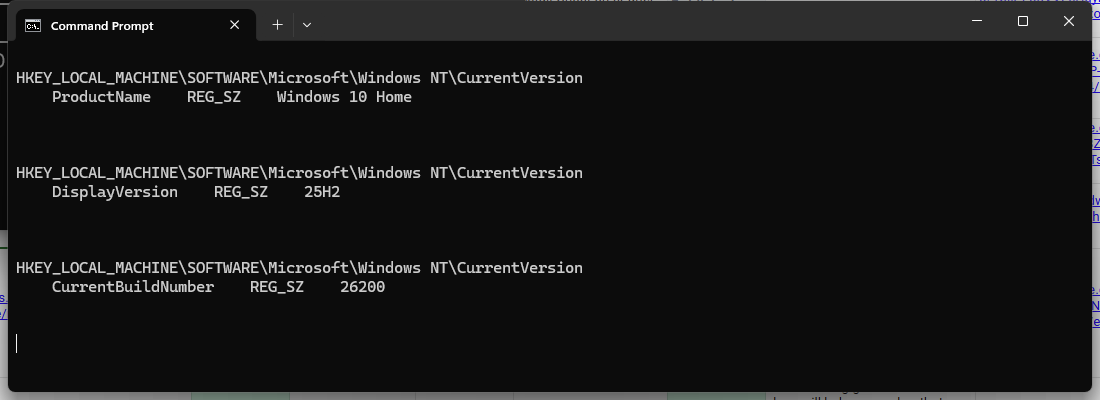
You now have four methods to retrieve your Windows version from Command Prompt, each returning a different level of detail.
Troubleshooting
The wmic command returns an error or is not recognised
On some Windows 11 builds, wmic has been disabled or removed as part of Microsoft’s deprecation process. If the command fails, use the reg query method instead, which returns equivalent information without relying on WMI.
The reg query command returns no output
If findstr returns no matches, the registry key path may differ on your system. Run the full query without the filter to review all available values:
reg query "HKLM\Software\Microsoft\Windows NT\CurrentVersion"Scroll through the output to locate ProductName, DisplayVersion and CurrentBuild manually.
If the full query does return those values, the filter itself is at fault: check that the pipe character (|) and the search terms are typed correctly. The /i flag makes the search case-insensitive, so the capitalisation of ProductName or CurrentBuild does not matter.
systeminfo takes a long time to complete
The systeminfo command queries network adapters and domain information alongside OS details, which can slow it down on some machines. If you only need the OS version, use ver or reg query for a faster result.
Wrapping up
You now have four Command Prompt methods for checking your Windows version, edition and build number. The ver command gives a quick version string, systeminfo returns a full system summary, and the registry query provides the most accurate release and build information on current Windows versions.
If you are working on a VPS or server environment, you may also find our guides on checking your Ubuntu version via terminal and connecting and using SSH useful for managing your server from the command line.
If you are running Windows-based applications, our VPS hosting plans give you full control over your server environment.

