LVE (Lightweight Virtual Environment) technology isolates each cPanel account on shared hosting into its own virtual environment. This prevents any single website from consuming excessive server resources and affecting other sites on the same server.
You will learn how LVE manages resources, how to monitor your usage and what to do when you encounter resource limit errors. Understanding these limits helps you optimise your site’s performance and know when to request additional resources.
Before you begin
- You need a cPanel account on our shared hosting platform.
- LVE limits apply automatically to all shared hosting accounts.
What LVE technology does
LVE operates at the kernel level to create isolated environments for each cPanel account. This isolation works similarly to container-based virtualisation but is specifically optimised for web hosting. Each account runs within its own “cage” with defined resource boundaries.
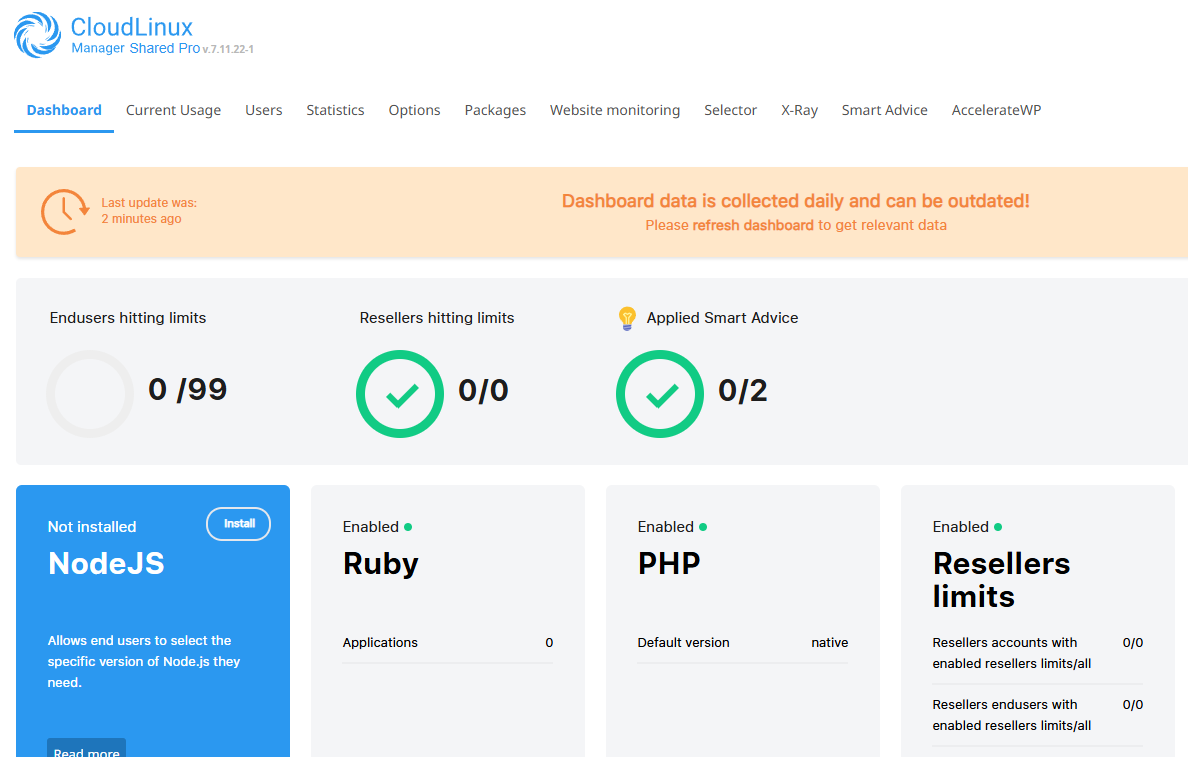
The technology monitors and controls five key resources:
- CPU usage: The percentage of processing power your account can consume
- Memory (RAM): The amount of physical memory allocated to your processes
- I/O operations: The rate of read and write operations to disk
- Number of processes: The total processes your account can run simultaneously
- Entry processes: The number of concurrent inbound connections allowed
These limits prevent resource abuse and maintain server stability. For example, LVE contains escalation-style attacks within WordPress environments by restricting the resources available to malicious processes. This gives you time to remove malware from WordPress before it affects other sites on the server.
How LVE limits interact with application settings
LVE enforces hard limits at the system level that override application-level configurations. You can adjust settings in your php.ini file, such as increasing the WordPress memory limit, but these changes cannot exceed the boundaries set by LVE.
Consider this example: if LVE allocates 1GB of physical memory to your account and you set memory_limit = 2048M in php.ini, your PHP processes will still be constrained by the 1GB LVE limit. The application setting becomes irrelevant because the system-level restriction takes precedence.
This hierarchy exists because LVE protects the entire server infrastructure. Application-level settings control how individual scripts behave, but LVE ensures those scripts cannot destabilise the server regardless of their configuration.
Monitor your resource usage
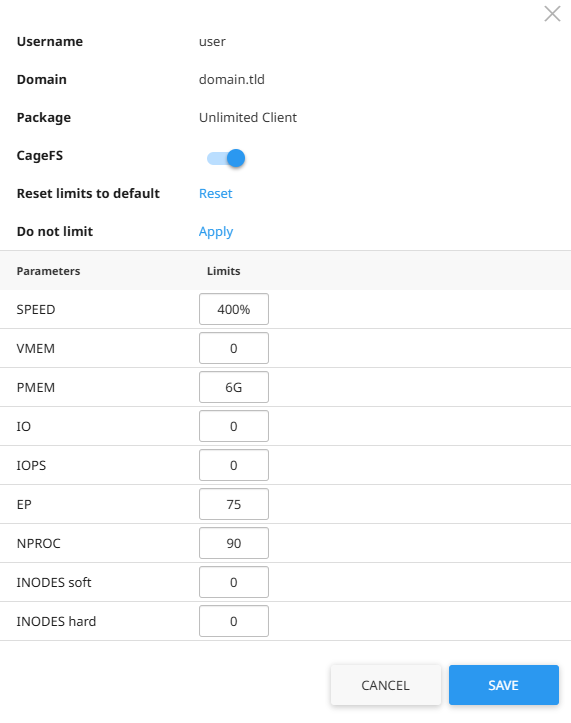
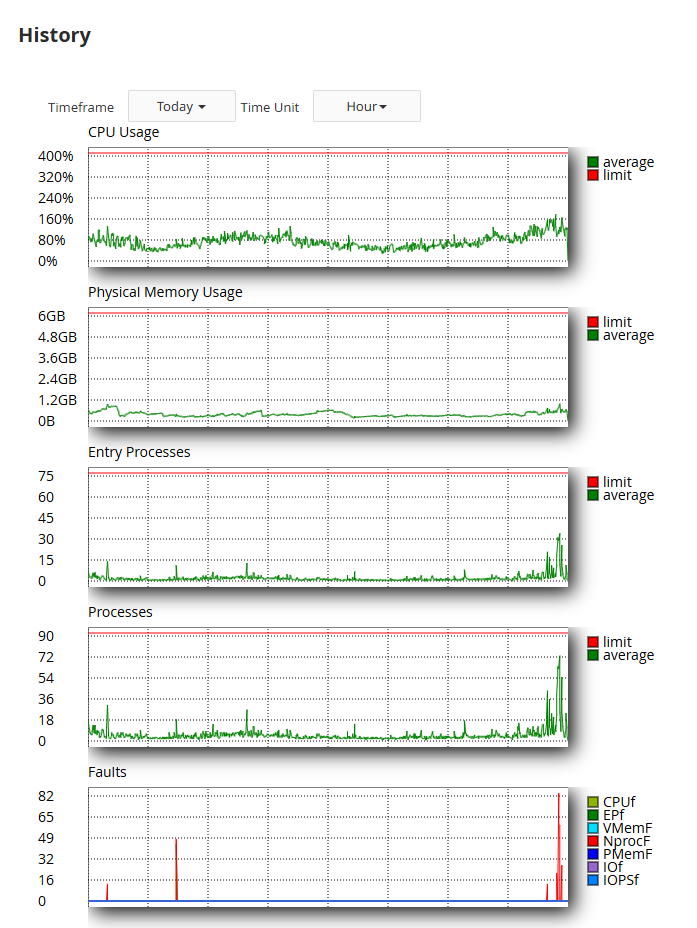
Our support team can access detailed LVE statistics for your account. These statistics track historical resource consumption and identify usage patterns over time. This data helps determine whether your current resource allocation matches your site’s requirements.
The monitoring system records several metrics:
- Peak resource usage during specific time periods
- Frequency of limit violations (faults)
- Resource consumption trends over days or weeks
- Which specific limits your account approaches most often
When you contact support about performance issues, this historical data allows us to identify whether resource constraints are causing problems. We can see if your site consistently hits CPU limits during peak traffic hours or if memory usage spikes when running specific processes.
Resolve 503 and 508 resource limit errors
Visitors see 503 or 508 errors when your account exceeds its LVE resource allocation. The server cannot fulfil requests because your site has consumed all available CPU, memory or entry processes. These errors protect the server but indicate your site needs optimisation or additional resources.
Three common causes trigger resource limit errors:
- Traffic spikes: Sudden increases in legitimate visitors or malicious bot traffic overwhelm available entry processes
- Inefficient code: Poorly optimised plugins, themes or custom code consume excessive CPU or memory per request
- Background processes: Resource-intensive cron jobs or automated tasks run during peak traffic periods
Start by troubleshooting website error codes to identify which resource limit you are hitting. Check your error logs for patterns that indicate when errors occur most frequently. If errors coincide with specific times of day, this suggests scheduled tasks or predictable traffic patterns are the cause.
Contact our support team if errors persist after basic troubleshooting. We can review your LVE statistics to identify which resource is causing the bottleneck and recommend specific optimisations or resource adjustments.
Further reading on resource optimisation
Resource management extends beyond LVE limits. WordPress sites benefit from implementing security plugins that prevent malicious traffic from consuming resources. These plugins block automated attacks before they reach your application layer, reducing the load on your LVE allocation.
Caching technologies also reduce resource consumption significantly. Server-level caching serves static versions of your pages without executing PHP or querying databases. This approach handles traffic spikes more efficiently because cached requests consume minimal CPU and memory compared to dynamic page generation.
The CloudLinux documentation provides technical details about how LVE technology works at the kernel level. Understanding these mechanisms helps you make informed decisions about resource allocation and optimisation strategies.
When to upgrade your account
Request increased resource allocations when your site consistently approaches or exceeds current limits. LVE statistics that show repeated faults indicate your site has outgrown its current allocation. This pattern suggests legitimate growth rather than temporary spikes or inefficient code.
Consider resource upgrades in these situations:
- Your site regularly hits limits during normal traffic periods
- You anticipate significant traffic growth from marketing campaigns or seasonal events
- You are implementing features that require additional processing power or memory
- Statistics show a single resource type consistently causes bottlenecks
Compare our hosting plans to review the resource limits included with each tier. Higher-tier plans provide increased allocations across all LVE metrics, which suits sites with growing resource demands across multiple areas.
Wrapping up
LVE technology protects shared hosting environments by isolating each account and enforcing resource limits. You now understand how these limits work, how to interpret resource usage statistics and when to request additional allocations. This knowledge helps you maintain optimal site performance within your hosting environment.
Monitor your resource usage patterns over time. Contact our support team if you notice consistent limit violations or performance degradation. Our shared hosting platform provides flexible resource allocations that scale with your site’s requirements.
Plans and tools mentioned in this guide
Did this guide solve your problem?
Still stuck?
Our UK support team answers tickets and live chat every day. Send us the guide you were following and where it stopped working.
Keep learning
Find a guide
Related guides

Starting from scratch?
Register a domain name and point it at your hosting in the same account.
Search Domains
Somewhere to put it
Perfect for websites and small businesses unlimited bandwidth with cPanel hosting.
Get cPanel Hosting