GPG (GNU Privacy Guard) encrypts your email end-to-end. Uses key pairs, a public key for others to encrypt messages to you and a private key for decryption.
GPG works similarly to SSH key authentication, using public/private key pairs for secure authentication.
Keep your private key secret. If someone gets it, they can decrypt everything sent to you.
Different encryption algorithms generate key pairs: RSA, AES-256, SHA-256. cPanel supports GPG key generation, import, and export directly in the control panel.
GPG encryption works alongside other email authentication and security measures to protect your communications.
GPG key creation in cPanel
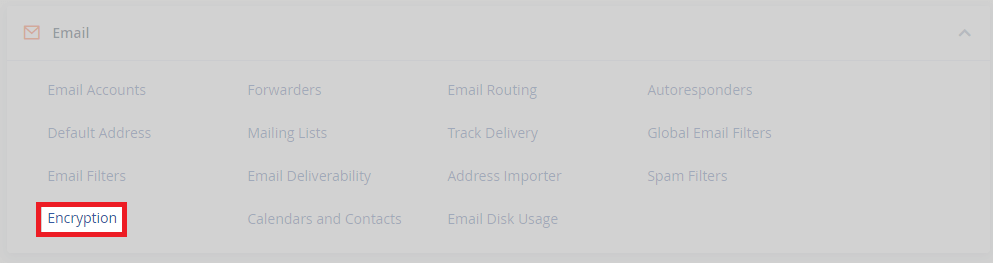
1. Login to your cPanel control panel. After you have logged in, click Encryption under the email section. Afterwards, this will take you to the cPanel encryption tool, where you can create and manage your keys.
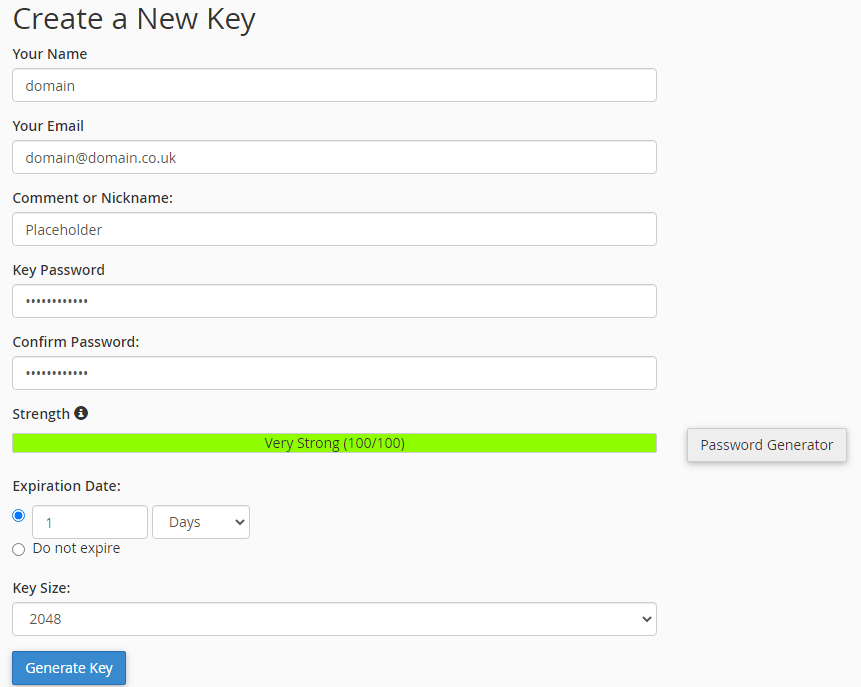
2. Within the encryption tool, you will need to enter some information. Including, your name and an email address. This email address secured by the GPG key.
3. You can also add comment or nickname. This is good if you have a lot of GPG keys in use and want to add easy to understand labels.
4. Generate a strong password for the key. Use the built-in password generator to create something secure. Store it safely. Use the same care you take when you manage your account passwords.
5. If you only want the GPG key to work for a specific time period, you can set an expiry date. Advanced users can set the key size. If you don’t need to set a key size, keep it as default.
- After clicking generate, please wait. Once the key is ready, you will see the following message.

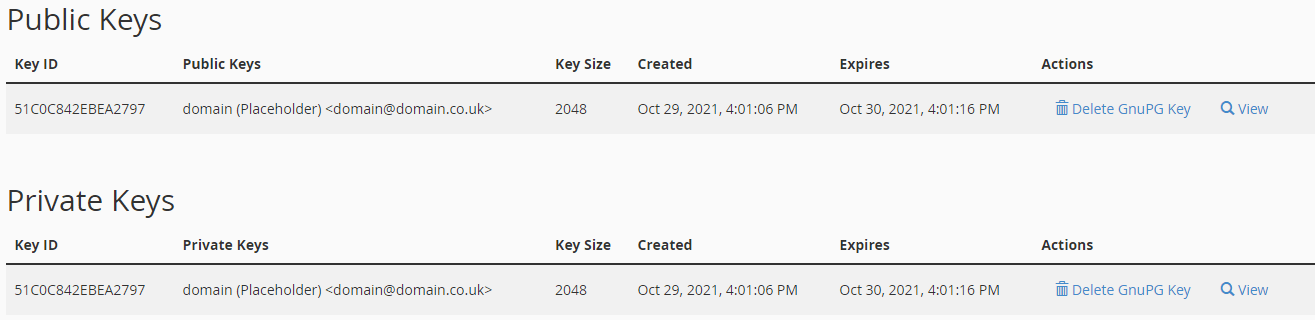
6. Once you can see the success message, refresh the page using F5. Scroll down the page. From here, you can view all of your public and private keys by clicking view.
Encrypted email considerations
Encrypted emails are slightly larger due to encryption overhead. If you’re sending large encrypted attachments, check our guide on email size limits to avoid rejection.


Ready to get started?
Launch your website with our reliable cPanel hosting with unlimited bandwidth and expert support.
Get cPanel Hosting