GPG (GNU Privacy Guard) encrypts your email end-to-end using key pairs. A public key allows others to encrypt messages to you, while a private key decrypts them. This prevents anyone intercepting your emails from reading their contents.
You will create a GPG key pair in cPanel, configure its settings and access it for use with your email client. Once complete, you can share your public key with correspondents who need to send you encrypted messages.
Before you begin
- You need access to your cPanel control panel.
- Keep your private key secret. Anyone who obtains it can decrypt all messages sent to you.
- We recommend using the built-in password generator to create a strong passphrase for your key.
Generate your GPG key pair
cPanel’s encryption tool creates both public and private keys in one operation. You will provide identifying information and security settings that determine how your key functions.
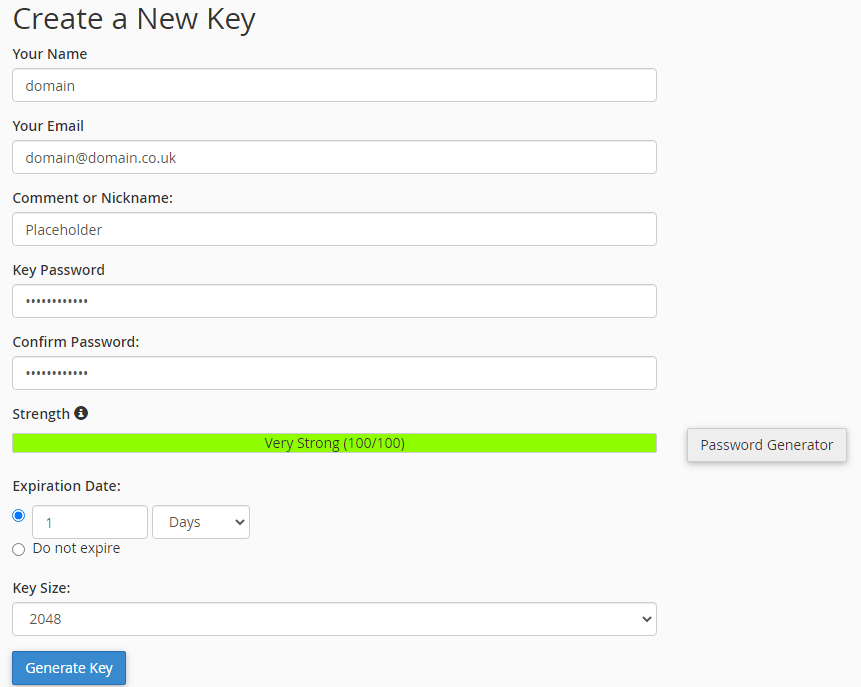
- Open the Encryption tool.
Log in to cPanel and locate the Email section. Click Encryption to access the key management interface. - Enter your identification details.
Fill in the Name field with your full name and the Email field with the address you want to protect. This email address becomes associated with the GPG key. - Add a comment.
The optional Comment field accepts a nickname or label. This helps you identify the key’s purpose if you manage multiple GPG keys. - Create a passphrase.
Click Password Generator to create a strong passphrase for your key. Store this securely using the same methods you use to manage your account passwords. You will need this passphrase to use your private key. - Configure expiry settings.
Set an expiry date if you want the key to stop working after a specific period. Leave this blank for a key that never expires. Advanced users can adjust the Key Size setting, though the default value works for most purposes. - Generate the key.
Click Generate Key and wait for the process to complete. Key generation can take several seconds depending on the key size. A success message confirms when your key pair is ready.
Access your keys
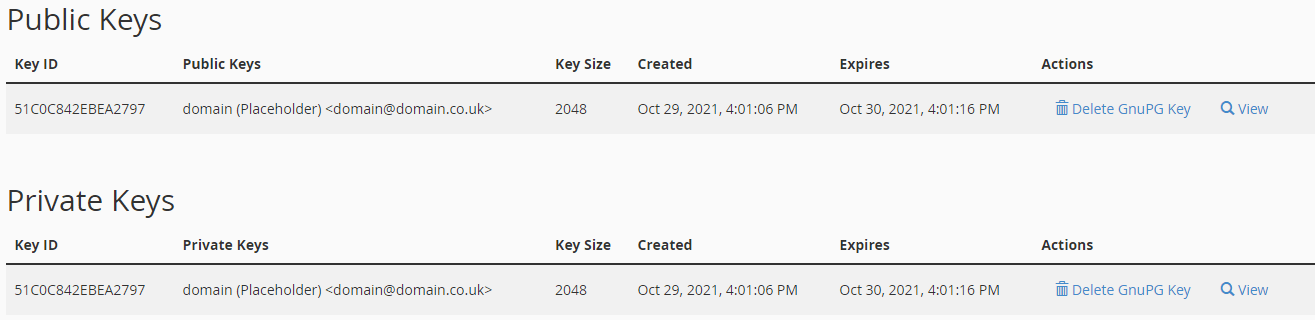
After generation completes, your public and private keys become available in the encryption tool. You need to refresh the page to see them in the key list.
- Refresh the page.
Press F5 or click your browser’s refresh button. This loads the updated key list. - Locate your keys.
Scroll down to the Public Keys and Private Keys sections. Your newly created keys appear in these lists. - View key details.
Click View next to either key to see its full contents. You can copy your public key from here to share with others, or export your private key for use in email clients.
GPG encryption works alongside email authentication measures to protect your communications. The encryption process adds overhead to message size, so check our guide on email size limits if you plan to send large encrypted attachments.
Wrapping up
You have created a GPG key pair in cPanel and can now access both your public and private keys. Share your public key with anyone who needs to send you encrypted messages. Keep your private key and its passphrase secure.
Review our guide on SSH key authentication to understand how public/private key pairs work in other contexts.
Did this guide solve your problem?
Still stuck?
Our UK support team answers tickets and live chat every day. Send us the guide you were following and where it stopped working.
Keep learning
Find a guide
Related guides

Email on your own domain
Every cPanel hosting plan includes mailboxes you manage yourself.
Get cPanel Hosting
Need the domain first?
Register the domain your mailboxes will sit on, with hundreds of extensions available.
Search Domains