Your Plesk contact email receives account alerts, renewal reminders, resource usage warnings and password reset links. An outdated email address means you miss critical notifications and cannot recover your account if you get locked out.
You will update your contact email through the Plesk account settings. The change takes effect immediately and all future notifications arrive at your new address.
Before you begin
- You need access to your Plesk control panel.
- We recommend using an external email address rather than one hosted on your Plesk server. This provides redundancy if your mail service experiences issues.
Change your Plesk contact email
You will access your account profile settings and update the email address field. Plesk stores this address separately from your mailbox configuration.
- Log in to Plesk.
Access your control panel at the URL provided when your account was created. - Open your account menu.
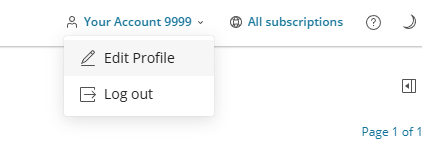
Click your account name in the top right corner of the screen. This displays a dropdown menu with account options.

- Select Edit Profile.
Click Edit Profile from the dropdown menu. This opens the account management area where you can modify your contact details.
- Update your email address.
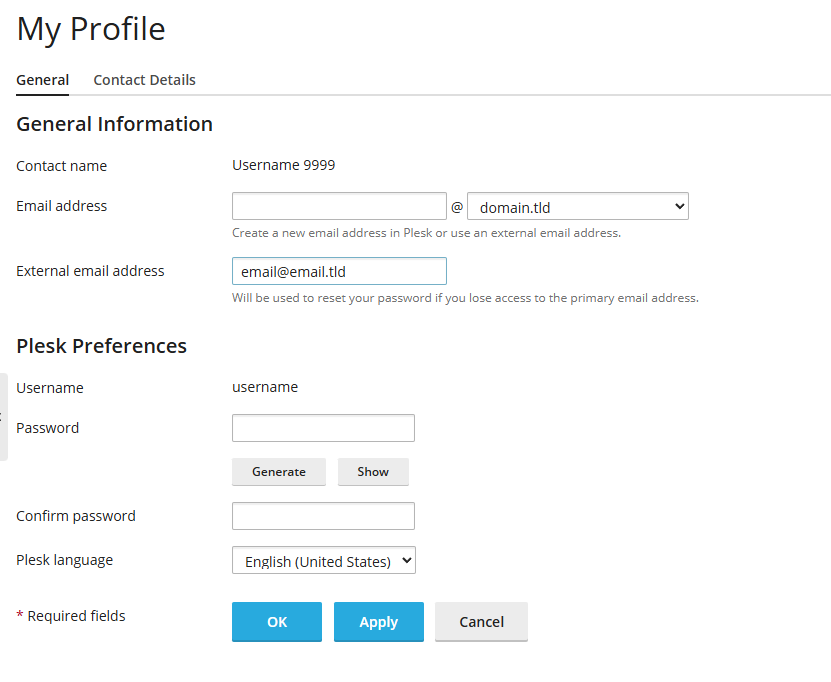
Find the Email field in the account configuration page. Replace the existing address with your new contact email. You can also add an external email address in the External email field for backup notification delivery.
- Save your changes.
Click Apply at the bottom of the page. Your new contact email is now active and will receive all future Plesk notifications.
Wrapping up
Your Plesk contact email is now updated. All account notifications, alerts and password reset links will arrive at your new address. Test the change by triggering a notification or checking your account settings confirm the correct email appears.
Review your other email settings while you are in Plesk. You might want to set up out-of-office replies or adjust spam filter settings. If you need to update your billing contact details with us, see our guide on changing account contact information.
Did this guide solve your problem?
Still stuck?
Our UK support team answers tickets and live chat every day. Send us the guide you were following and where it stopped working.
Keep learning
Find a guide
Related guides

Email on your own domain
Every cPanel hosting plan includes mailboxes you manage yourself.
Get cPanel Hosting
Need the domain first?
Register the domain your mailboxes will sit on, with hundreds of extensions available.
Search Domains