By default, Nginx includes its version number in the Server response header, making it visible to anyone who inspects your HTTP responses. Removing this information reduces the detail available to anyone scanning your server for known vulnerabilities tied to specific Nginx versions.
You will check what your server currently exposes, edit the Nginx configuration to suppress version information, then verify the change has taken effect.
Before you begin
- You need SSH access to your Linux server. See our guide on connecting to your server via SSH.
- Nginx must already be installed and running.
- You need sufficient privileges to edit
/etc/nginx/nginx.conf– either as root or viasudo. - We recommend taking a backup of your configuration file before making changes.
Check what your server header currently reveals
Before making any changes, it is worth confirming exactly what your server is broadcasting. The curl command fetches only the response headers without downloading the full page body, so you can see the Server field clearly.
Run the following command, replacing yourdomain.com with your actual domain name:
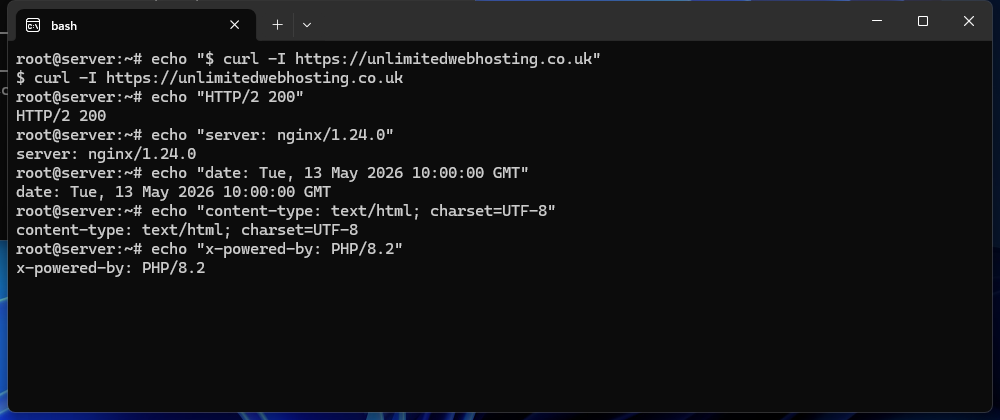
curl -I yourdomain.comIn a default Nginx installation, the output will include a line similar to the following, showing the full version number:
server: nginx/1.24.0This is the information you will suppress in the steps below.
Disable the Nginx server version in nginx.conf
The server_tokens directive controls whether Nginx includes its version number in response headers and error pages. Setting it to off removes the version string, leaving only the word nginx in the header rather than the full version number.
- Open the Nginx configuration file.
Use your preferred text editor to open the main configuration file. This example usesnano:
sudo nano /etc/nginx/nginx.conf- Locate the http block.
Find thehttp { }block in the file. This is where global HTTP settings are defined and whereserver_tokensshould be placed. - Add the server_tokens directive.
Inside thehttpblock, add the following line. If aserver_tokensline already exists, change its value tooffrather than adding a duplicate:
server_tokens off;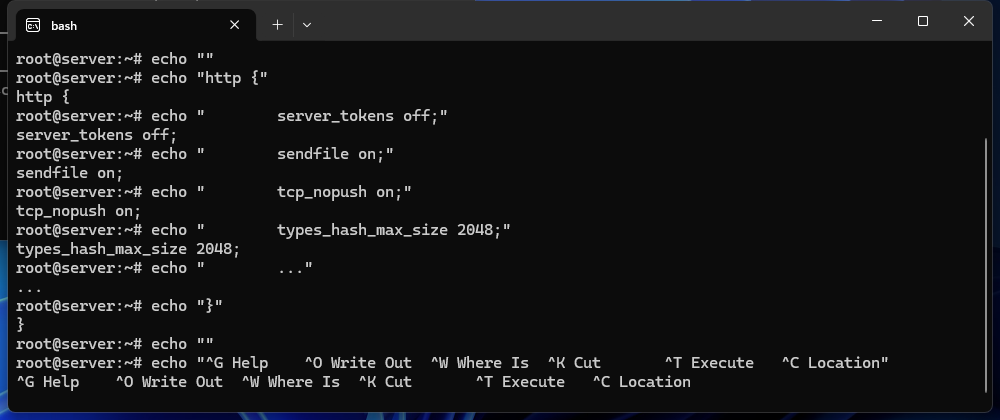
- Save and close the file.
Innano, pressCtrl + X, thenYto confirm, thenEnterto write the file. - Test the configuration.
Before reloading Nginx, check that the configuration file contains no syntax errors. A failed reload without testing can take your site offline:
sudo nginx -tYou should see syntax is ok and test is successful in the output. If you see an error, review the line number reported and correct it before proceeding.
- Reload Nginx to apply the change.
A reload applies the new configuration without dropping active connections:
sudo systemctl reload nginxNginx is now running with the updated configuration.
Verify the server header has changed
Run the same curl command you used earlier to confirm the version number no longer appears in the response:
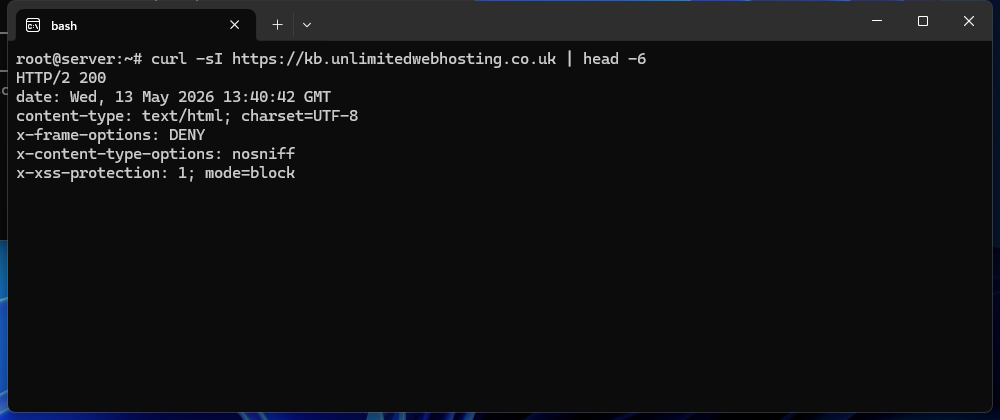
curl -I yourdomain.comThe Server header should now read nginx without a version number attached. If the output still shows the version, confirm the reload completed successfully by running sudo systemctl status nginx and checking for any errors.
Troubleshooting
The version number still appears after reloading
If curl -I still returns the version number after reloading, the directive may not have been saved to the correct block or file.
- Confirm
server_tokens off;is inside thehttp { }block, not outside it. - Check whether your distribution uses an included configuration directory. On many systems, site-specific files in
/etc/nginx/conf.d/or/etc/nginx/sites-enabled/can override the main file. Add the directive to the relevant included file if needed. - Run
sudo nginx -tagain to confirm the active configuration loaded without errors. - Try a full restart rather than a reload:
sudo systemctl restart nginx.
nginx -t reports a syntax error
A syntax error means Nginx cannot parse the configuration file. The error output will include the file name and line number where the problem was found.
- Open the file again and check the reported line. A missing semicolon at the end of a directive is the most common cause.
- Confirm the directive reads exactly
server_tokens off;with no typos. - Do not run
systemctl reload nginxuntilnginx -treports a clean result.
Wrapping up
You have checked your Nginx server header, added the server_tokens off directive to your configuration and confirmed the version number no longer appears in HTTP responses. This reduces the information available to automated scanners looking for servers running specific Nginx versions.
Hiding the server version is one part of a broader approach to server security. See our guides on securing your VPS, managing open ports with UFW and installing a free SSL certificate with Certbot for related hardening steps. You may also find our tips for securing your VPS useful for a broader overview.
If you manage multiple sites or need greater control over your server environment, take a look at our VPS hosting plans.

