Installing the MERN stack (MongoDB, Express.js, React, Node.js) on AlmaLinux is a great choice for VPS hosting. Compared to the LEMP stack (Linux, NGINX, MariaDB, PHP) – MERN offers more modern frameworks focusing more on Node.js based applications. With JavaScript running across the entire stack, it simplifies development for bigger teams and helps keep codebases maintainable.
A brief overview of what makes up the MERN Stack:
- MongoDB – a NoSQL Database which pairs well with JS.
- Express.js – The defacto standard for the Node.js backend.
- React – A very popular front-end library for building single-page applications.
- Node.js – Built off the V8 engine, powering the stack.
Preparing your VPS for MERN
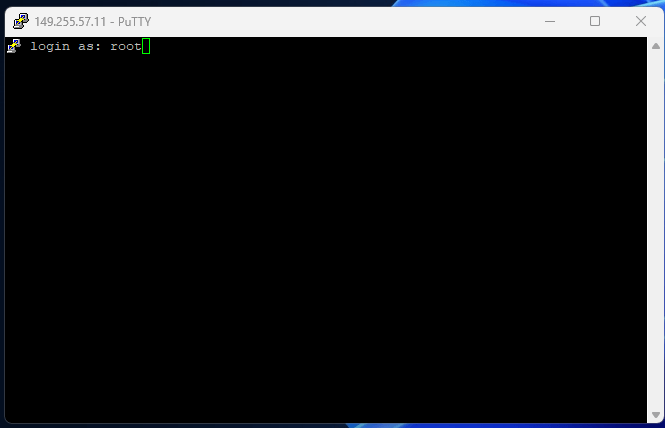
1. Log into your server using the credentials provided in your welcome email. Connect using PuTTY or a terminal window with your server’s IP address or hostname.
2. This guide is based on a new VPS with AlmaLinux installed. Make sure that all of the installed packages are updated using dnf using the command below.
dnf update -y3. To allow traffic to reach your applications through the firewall, you’ll need to open ports 80 (HTTP) and 443 (HTTPS). For more detailed information on managing firewall rules, see how to configure firewall ports. Check which services are currently open:
firewall-cmd --zone=public --list-services3.1 The following screenshot confirms that by default your firewall is not configured to allow connections of port 80 or 443. Run the following commands to enable traffic over those ports and reload the firewall.

firewall-cmd –permanent -–zone=public -–add-service=httpfirewall-cmd –permanent -–zone=public -–add-service=httpsfirewall-cmd -–reload3.2 Now, to check the current status of those ports in the firewall run the command from earlier again which should return the following output.
firewall-cmd --zone=public --list-services
Install Node.js
In most cases you can install node.js using dnf and the default package sources but if you want a specific version of nodejs you are better served using the NodeSource repository.
1. Install Node.js from the NodeSource repository. This provides the latest LTS version suitable for production environments:
curl -fsSL https://rpm.nodesource.com/setup_lts.x | bash –2. Install Node.js and npm:
dnf install -y nodejs3. You can then verify which versions are in use with the following command
node -v ; npm -vInstall MongoDB
1. MongoDB isn’t included in AlmaLinux’s default package repositories, so you’ll need to create a repository file manually. If you need to add other third-party repositories for additional dependencies, you may also want to install EPEL on AlmaLinux. Create the MongoDB repository file using nano or your text editor of choice (vi, vim, etc).
nano /etc/yum.repos.d/mongodb-org-7.0.repo[mongodb-org-7.0]
name=MongoDB Repository
baseurl=https://repo.mongodb.org/yum/redhat/8/mongodb-org/7.0/x86_64/
gpgcheck=1
enabled=1
gpgkey=https://www.mongodb.org/static/pgp/server-7.0.asc
2. After that’s added we can run dnf to install MongoDB on your VPS.
dnf install -y mongodb-org3. Finally, start and enable MongoDB, then verify its working with the status command.
systemctl start mongodsystemctl enable mongodsystemctl status mongodOnce MongoDB is installed and running, you can connect to MongoDB using mongosh to manage your databases.
Create Express server
1. To start we need to create a directory and then use the change directory command to enter that directory.
mkdir ~/my-mern-appcd ~/my-mern-app2. Moving on you need to initialise the Node.js application with the following command.
npm init -y3. After that we can install Express.js with node package manager or npm with the command below.
npm install express4. Now that Express is installed we need to add a server.js file in the my-mern-app directory you made earlier and add the code below.
nano server.jsconst express = require('express');
const mongoose = require('mongoose');
const app = express();
const PORT = process.env.PORT || 5000;
// Middleware
app.use(express.json());
// Connect to MongoDB
mongoose.connect('mongodb://localhost:27017/mydatabase')
.then(() => {
console.log('MongoDB connected');
})
.catch(err => {
console.error('MongoDB connection error:', err);
});
// Sample Route
app.get('/', (req, res) => {
res.send('Hello World!');
});
app.listen(PORT, () => {
console.log(`Server is running on port ${PORT}`);
});
5. Finally start Express.js with the command below.
node server.jsInstall and Build React with create react app
1. To start off install create react app app and use CD to enter your app directory.
npx create-react-app clientcd client2. Once you have finished your project you can build it with the following command.
npm run build

Need more power?
Get scalable resources with our VPS hosting with root access and optional software.
Get VPS Hosting
Starting something new?
Perfect for websites and small businesses unlimited bandwidth with cPanel hosting.
Get cPanel Hosting