Git tracks file changes across your project, allowing multiple developers to work on the same codebase without conflicts. You can create repositories directly in cPanel, clone existing projects from GitHub or GitLab and manage branches without command-line access.
This guide shows you how to set up Git repositories in cPanel and use the built-in version control interface to manage your projects.
Before you begin
- SSH access is required.
- You need access to your cPanel account.
- If cloning a repository, have your clone URL ready from GitHub or GitLab.
Understanding Git concepts
Git uses several core concepts to manage your code. A repository tracks all changes to your project files through a hidden .git folder. Repositories exist locally on your device and remotely on servers, allowing multiple developers to sync their work.
Branches let you work on different versions of your project simultaneously. The default branch is called master, but you can create additional branches to test changes without affecting the main codebase. A commit saves your changes as a snapshot, creating a version you can return to later. Push and pull operations sync changes between your local and remote repositories, while merge combines branches back together.
Create a Git repository in cPanel
You can create a new empty repository or clone an existing one from a remote source. Both options give you a working Git repository managed through cPanel’s interface.
- Log in to cPanel.
Access your cPanel account using your hosting credentials. - Open Git Version Control.
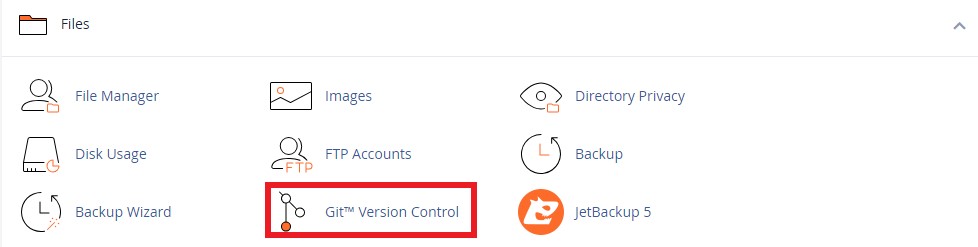
Scroll to the Files section and click Git Version Control. This displays all repositories currently tracked in your account.
- Start creating a repository.
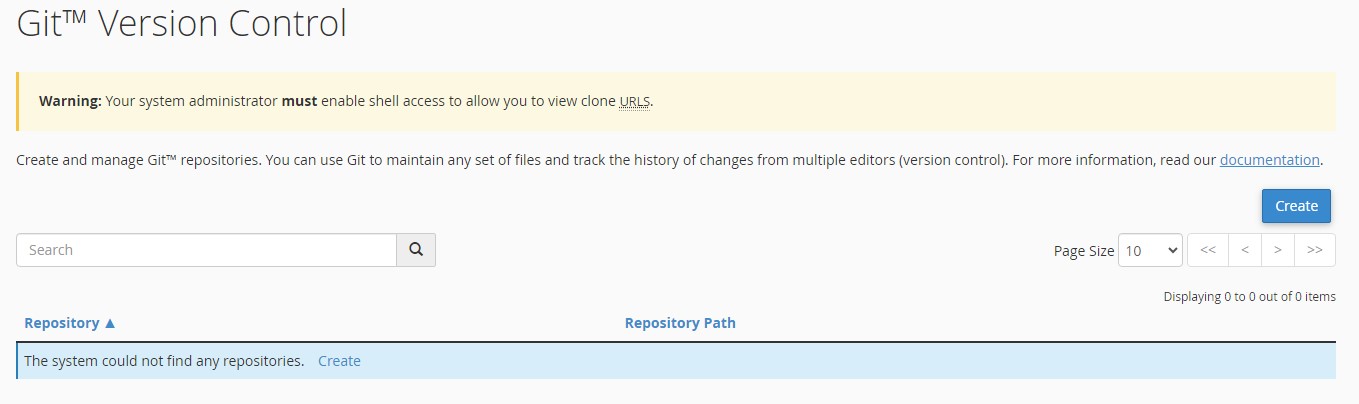
Click Create at the top of the page. This opens the repository creation form.
- Choose your repository type.
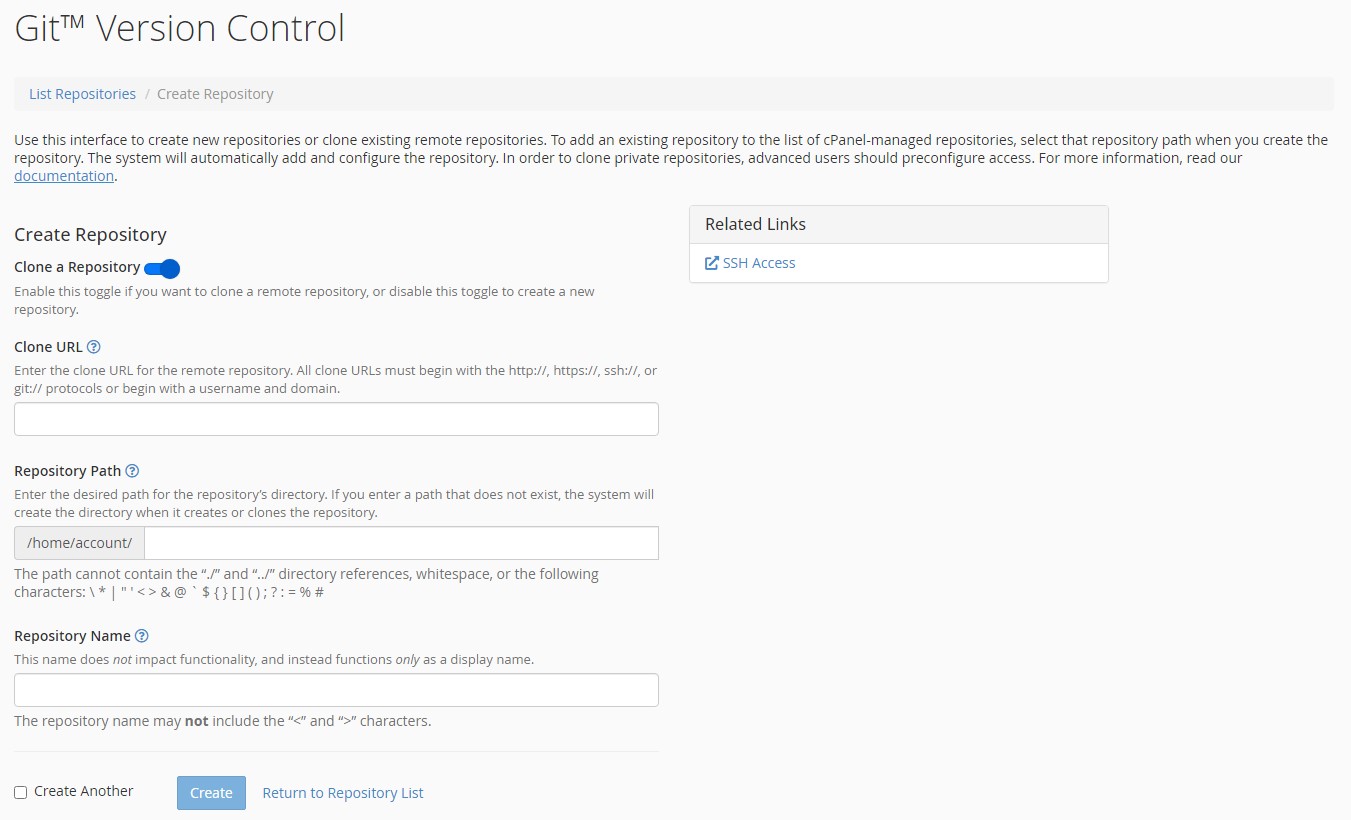
To create a new empty repository, untick Clone a Repository. To copy an existing repository from GitHub or GitLab, leave this option ticked and paste your clone URL into the field.
- Set the repository path.
Enter the directory path where you want to store the repository files. This path is relative to your home directory. - Name your repository.
Type a descriptive name in the Repository Name field. If you want to create multiple repositories in one session, tick Create another repository. - Create the repository.
Click Create. Large repositories may take several minutes to clone. Once complete, your new repository appears in the main Git Version Control list.
Manage your repositories
The Git Version Control interface provides tools to manage your repositories without using command-line Git. You can switch branches, view commit history and access repository files.
Click Manage next to any repository to open its management interface. The Basic Information section lets you rename the repository or switch to a different branch. The information pane displays details about your current branch, including recent commits and their authors.
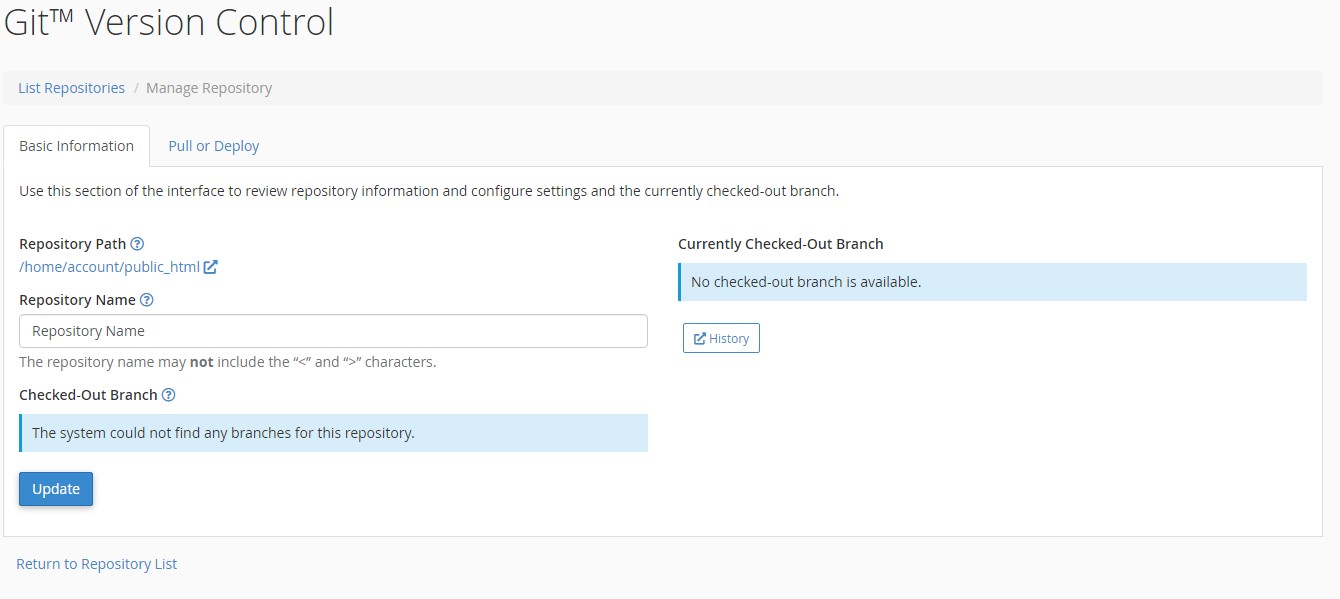
Click the dropdown arrow next to any repository in the main list to view additional options. This reveals the repository’s file path, a clone URL you can share with other developers and a link to browse the repository directory in cPanel’s File Manager.
The History button shows a complete log of commits, including who made each change and when. The Remove option removes the repository from cPanel’s Git interface but does not delete your files. Your repository files remain in their directory and you can re-add them to Git Version Control later if needed.
Wrapping up
You now have Git version control configured in cPanel. You created or cloned a repository and learned how to use the management interface to track changes and switch branches. The .git folder in your repository directory contains all version control data, so never delete it.
Review our guide on using SSH keys in cPanel to authenticate Git operations securely. Our Premium Hosting plans include SSH access and full Git support.
If you run into any trouble, get in touch and our team will be happy to help.
Plans and tools mentioned in this guide
Did this guide solve your problem?
Still stuck?
Our UK support team answers tickets and live chat every day. Send us the guide you were following and where it stopped working.
Keep learning
Find a guide
Related guides

Hosting that keeps up
cPanel hosting with the tools these guides use, backed by UK support.
Get cPanel Hosting
Keep your site secure
Protect your visitors with SSL certificates – from budget DV to premium EV certificates.
Get SSL Certificate