MySQL databases store all the content, settings and user data for applications like WordPress, Drupal and Joomla. Without a properly configured database, these applications cannot function and will display connection errors.
You will create a MySQL database in cPanel, configure a database user with appropriate permissions and connect it to your application. cPanel offers two methods: a guided wizard for beginners or manual setup for more control.
Before you begin
- You need access to your cPanel control panel.
- Note your database name, username and password after creation. Your application will need these credentials to connect.
Create a database using the wizard
The MySQL Database Wizard guides you through database creation in three steps. This method works well if you are setting up a single database for one application.
- Open the MySQL Database Wizard.
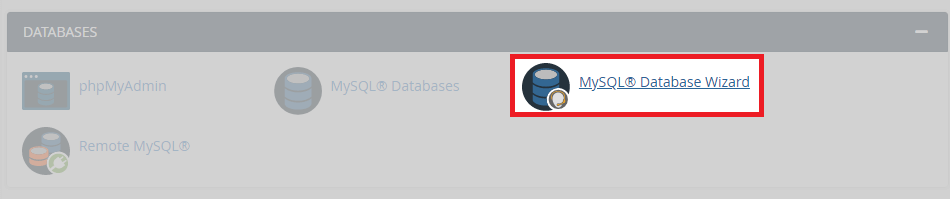
Log in to cPanel and locate the Databases section. Click MySQL Database Wizard.
- Name your database.
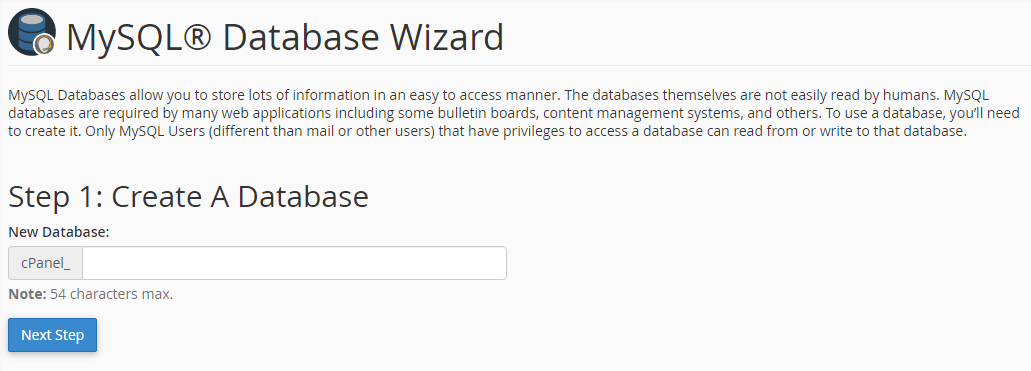
Enter a descriptive name in the New Database field. cPanel automatically adds your account username as a prefix. Click Next Step.
- Create a database user.
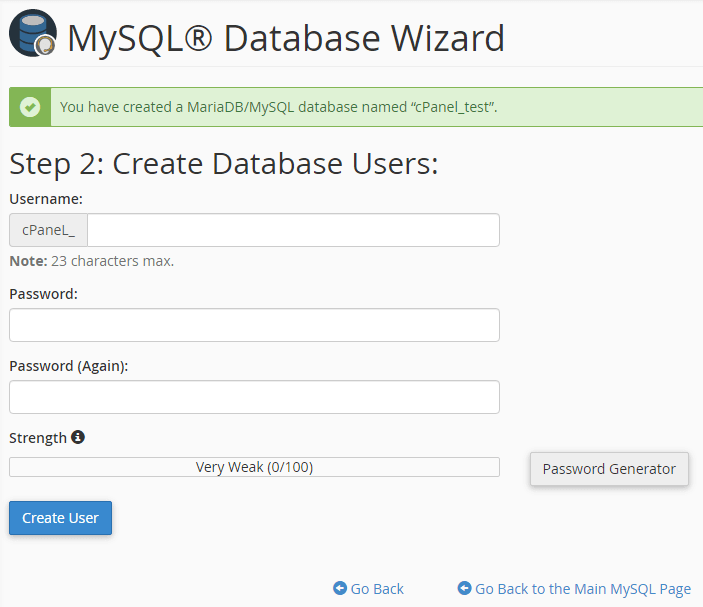
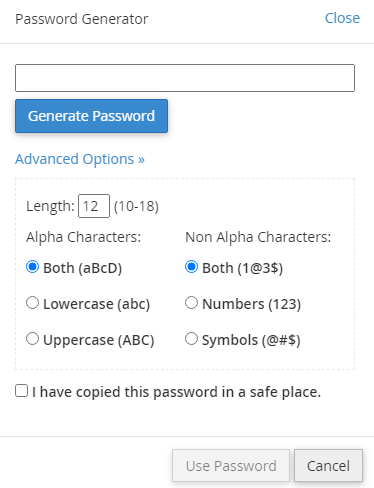
Enter a username and password. We recommend clicking Password Generator to create a strong password. Copy the generated password to a secure location before clicking Use Password, then click Create User.
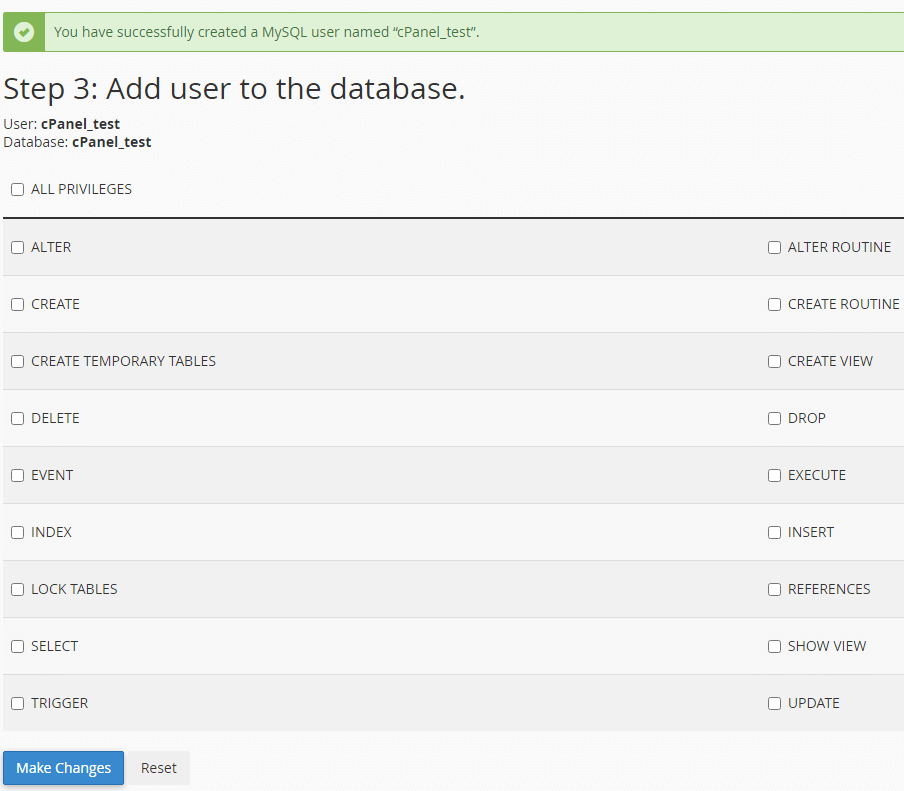
- Set user permissions.
Select ALL PRIVILEGES to grant full database access. This allows your application to read, write and modify database content. Click Next Step.
Your database is now ready. The wizard displays a completion message with your database name and username. You can create additional databases by clicking Create another database or return to cPanel.
Create a database manually
Manual database creation gives you more control over the process. This method works well when you need to create multiple databases or manage existing users separately.
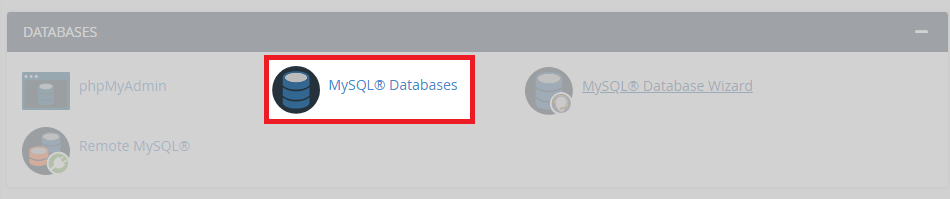
- Open MySQL Databases.
In cPanel, locate the Databases section and click MySQL Databases.
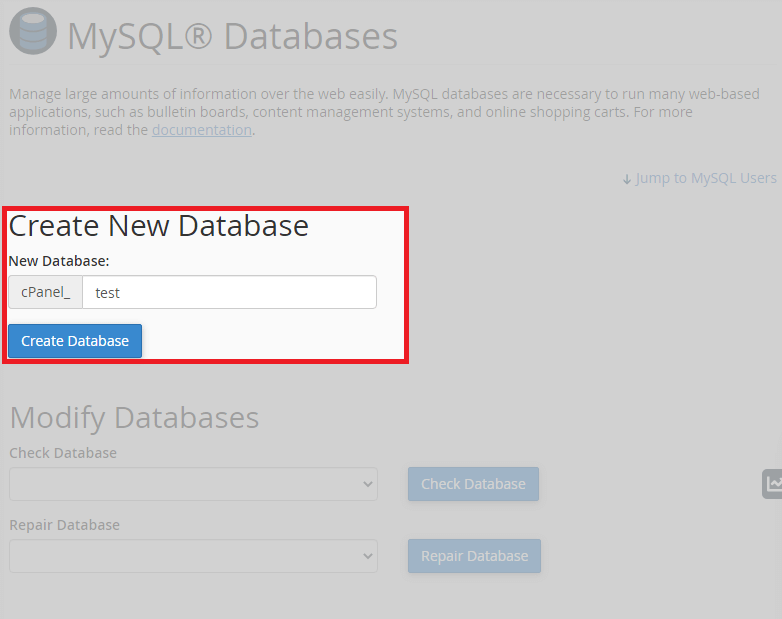
- Create the database.
Under Create New Database, enter your database name and click Create Database. Click Go Back after the confirmation message appears.
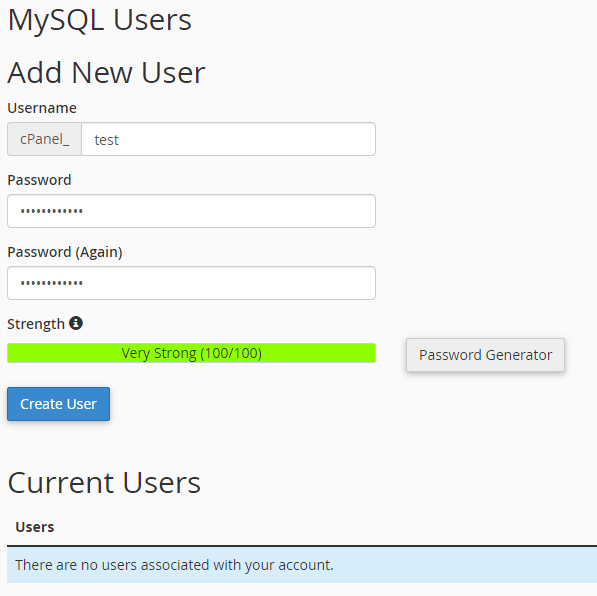
- Create a database user.
Scroll to MySQL Users and locate Add New User. Enter a username and password, then click Create User. Click Go Back after creation.
- Connect the user to the database.
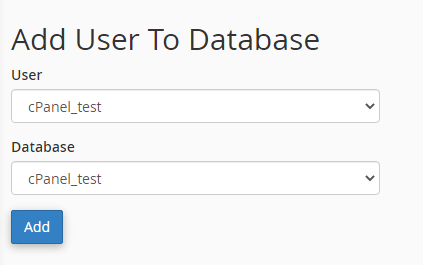
Scroll to Add User To Database. Select your username from the User dropdown and your database from the Database dropdown. Click Add.
- Set permissions.
Select ALL PRIVILEGES to grant full access, then click Make Changes.
Your database and user are now configured. You can create additional databases or users by repeating these steps.
Wrapping up
You have created a MySQL database in cPanel and configured a user with full permissions. Your application can now connect using the database name, username and password you created.
Keep your database credentials secure. Store them in a password manager or secure note. If you need to create additional databases for other applications, repeat the process with different names. Our guide on installing WordPress in cPanel shows you how to use these credentials during application setup.
Did this guide solve your problem?
Still stuck?
Our UK support team answers tickets and live chat every day. Send us the guide you were following and where it stopped working.
Keep learning
Find a guide
Related guides

Hosting that keeps up
cPanel hosting with the tools these guides use, backed by UK support.
Get cPanel Hosting
Keep your site secure
Protect your visitors with SSL certificates – from budget DV to premium EV certificates.
Get SSL Certificate