AutoSSL installs and renews SSL certificates automatically on your cPanel hosting account. This removes the manual work of configuring HTTPS and keeps your site secure without ongoing maintenance.
You will access the AutoSSL tool in cPanel, check which domains are protected and run the certificate installation manually if needed. Once configured, AutoSSL handles renewals automatically before certificates expire.
Before you begin
- Your domain’s DNS records must point to your server’s IP address.
- AutoSSL is included with all cPanel hosting plans.
What AutoSSL does
SSL certificates encrypt traffic between your visitors and your web server. This prevents attackers from intercepting sensitive data like passwords or payment information during transmission.
Traditional SSL installation required purchasing certificates, generating signing requests and configuring web server settings manually. AutoSSL eliminates this process by issuing free certificates and installing them automatically when you add a domain to your cPanel account. The system checks certificate expiry dates and renews them before they lapse, so your site stays protected without intervention.
Access the AutoSSL tool
The SSL/TLS Status tool shows which domains have active certificates and lets you trigger manual installations when needed.
- Log in to cPanel.
Access your control panel atyourdomain.co.uk/cpanelusing your cPanel username and password. - Open the SSL/TLS Status page.
Scroll to the Security section and click SSL/TLS Status. This opens the AutoSSL management interface.
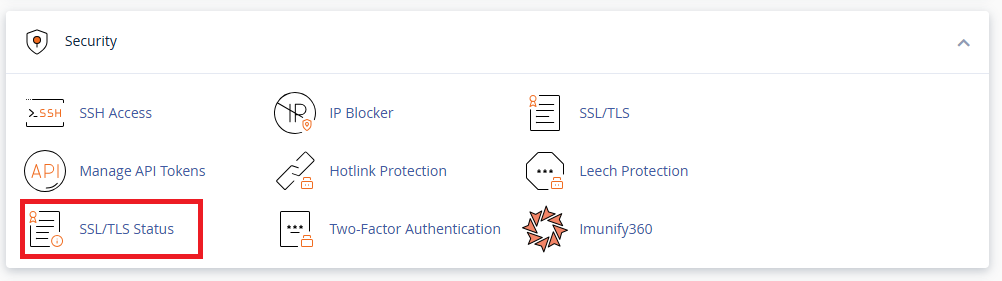
Check certificate status and run AutoSSL
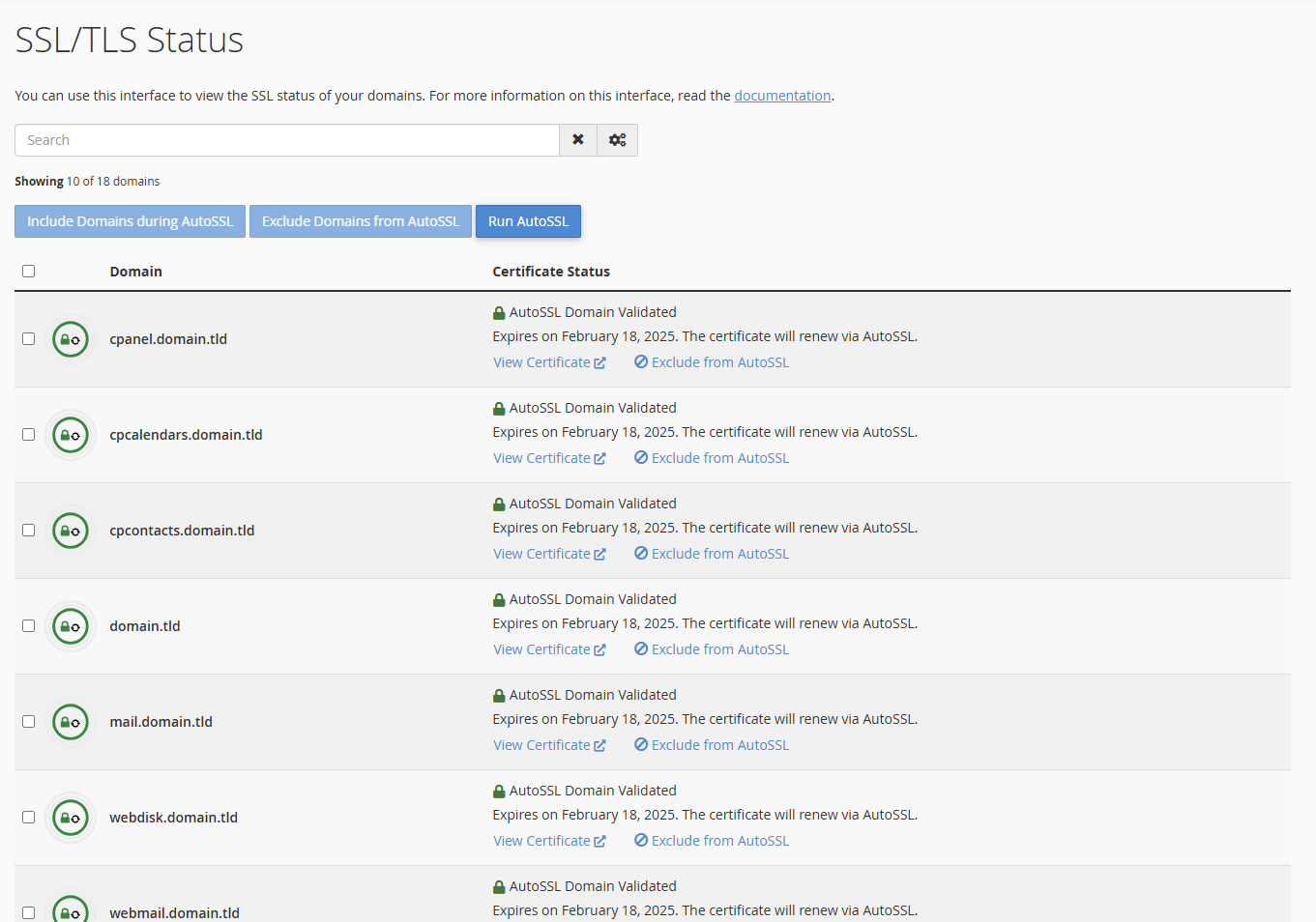
The SSL/TLS Status page displays all domains on your account and their current certificate state. You can exclude domains from automatic processing or trigger manual certificate installation.
- Review your domain list.
The main table shows each domain with its certificate status. Domains with valid certificates display a green checkmark and expiry date. - Run AutoSSL manually if needed.
If a domain shows no certificate or an expired one, click Run AutoSSL at the top of the page. The system attempts to issue and install a certificate immediately. - Exclude domains from AutoSSL.
To prevent AutoSSL from managing specific domains, tick the checkbox next to the domain name and click Exclude. This is useful for domains where you plan to install a custom certificate manually.
Troubleshooting AutoSSL failures
AutoSSL cannot verify domain ownership
AutoSSL validates domain ownership by checking DNS records. If your domain’s A record does not point to your server’s IP address, certificate issuance fails.
- Verify your domain’s DNS settings in your DNS zone editor.
- Wait up to 48 hours after changing DNS records for propagation to complete.
- Check that no firewall rules block HTTP validation requests on port 80.
Certificate installation succeeds but site shows warnings
Mixed content warnings appear when your site loads resources over HTTP after installing an SSL certificate. This happens when page elements reference the old HTTP protocol.
- Update your WordPress site URLs to use HTTPS in Settings → General.
- Use a plugin like Really Simple SSL to scan and fix mixed content automatically.
- Check your browser’s developer console for specific HTTP resources causing warnings.
Wrapping up
Your domains now have SSL certificates installed through AutoSSL. The system checks for expiring certificates daily and renews them automatically, so your site maintains HTTPS protection without manual intervention.
Check your site loads correctly over HTTPS by visiting https://yourdomain.co.uk in your browser. You should see a padlock icon in the address bar confirming the secure connection. Our cPanel hosting plans include AutoSSL at no additional cost.
If you run into any trouble, get in touch and our team will be happy to help.


Ready to get started?
Launch your website with our reliable cPanel hosting with unlimited bandwidth and expert support.
Get cPanel Hosting