WordPress contact forms often fail to send emails because shared hosting servers block unauthenticated mail by default. When visitors submit a form through WPForms, Contact Form 7, Elementor Forms or similar plugins, the message never arrives in your inbox. This happens because WordPress uses PHP’s mail function, which most servers reject without proper authentication.
You will fix this by configuring SMTP authentication through the WP Mail SMTP plugin. This forces WordPress to send mail through an authenticated email account on your domain, which servers accept reliably. Once configured, your contact forms deliver messages to your inbox every time.
Before you begin
- You need an email account on your domain (for example, contact@yourdomain.co.uk).
- Access to your WordPress admin area at
yourdomain.co.uk/wp-adminis required. - We recommend installing an SSL/TLS certificate on your mail service for secure connections. Our guide on securing mail in Plesk covers this process.
- For basic contact form creation without WordPress, see our PHP contact form guide.
Install the WP Mail SMTP plugin
The WP Mail SMTP plugin replaces WordPress’s default mail function with authenticated SMTP connections. This ensures your hosting server accepts outgoing mail from contact forms.
- Log in to your WordPress admin area.
Access this by adding /wp-admin to your domain:https://yourdomain.co.uk/wp-admin - Navigate to the plugins page.
In the left sidebar, hover over Plugins and click Add New. - Search for the plugin.
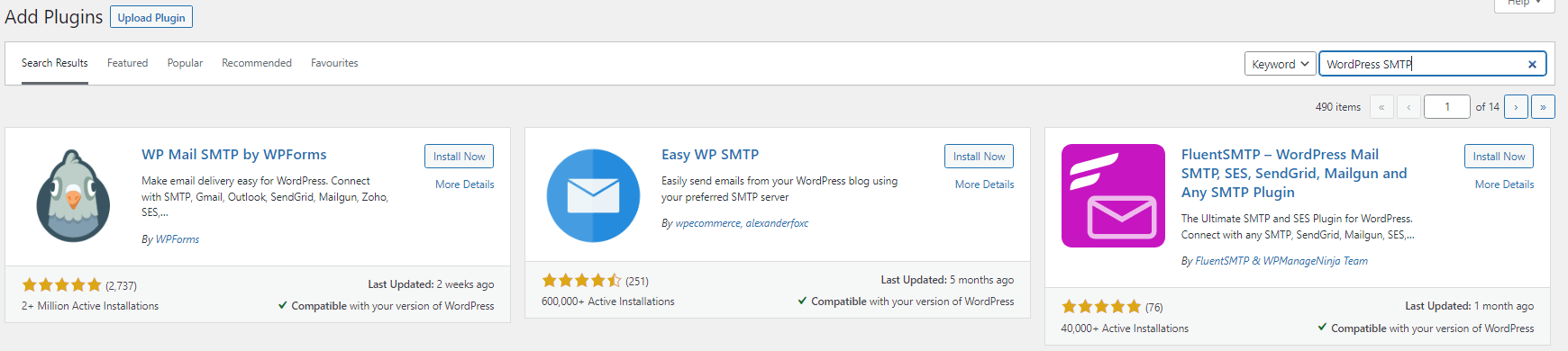
Enter “WP Mail SMTP” into the search box. The plugin by WPForms appears at the top of the results. - Install the plugin.
Click Install Now next to WP Mail SMTP by WPForms. WordPress downloads and installs the plugin automatically.
- Activate the plugin.
Once installation completes, click Activate. The plugin now appears in your WordPress admin sidebar under WP Mail SMTP.
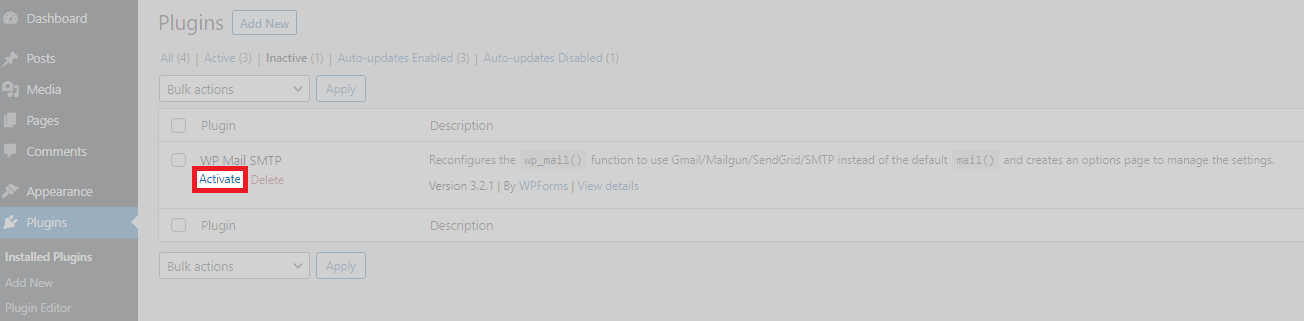
The plugin is now active and ready for configuration. The setup wizard should launch automatically after activation.
Configure SMTP settings using the setup wizard
The setup wizard guides you through configuring SMTP authentication. This connects WordPress to your email account so contact forms can send mail reliably. If the wizard does not launch automatically, skip to the manual setup section below.
- Start the setup wizard.
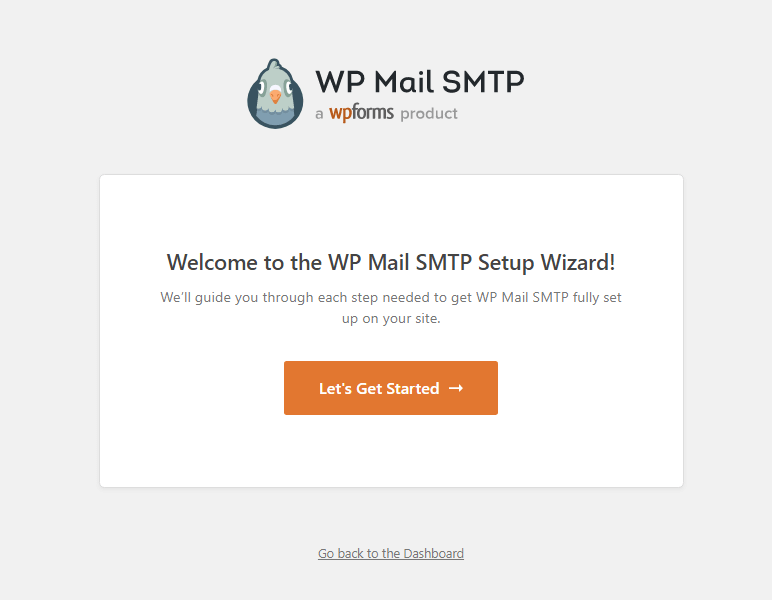
Click Let’s Get Started on the welcome screen. This launches the configuration process.
- Select your mailer type.
On the Choose Your SMTP Mailer page, select Other SMTP. This option works with any email account on your domain. Click Save and Continue.
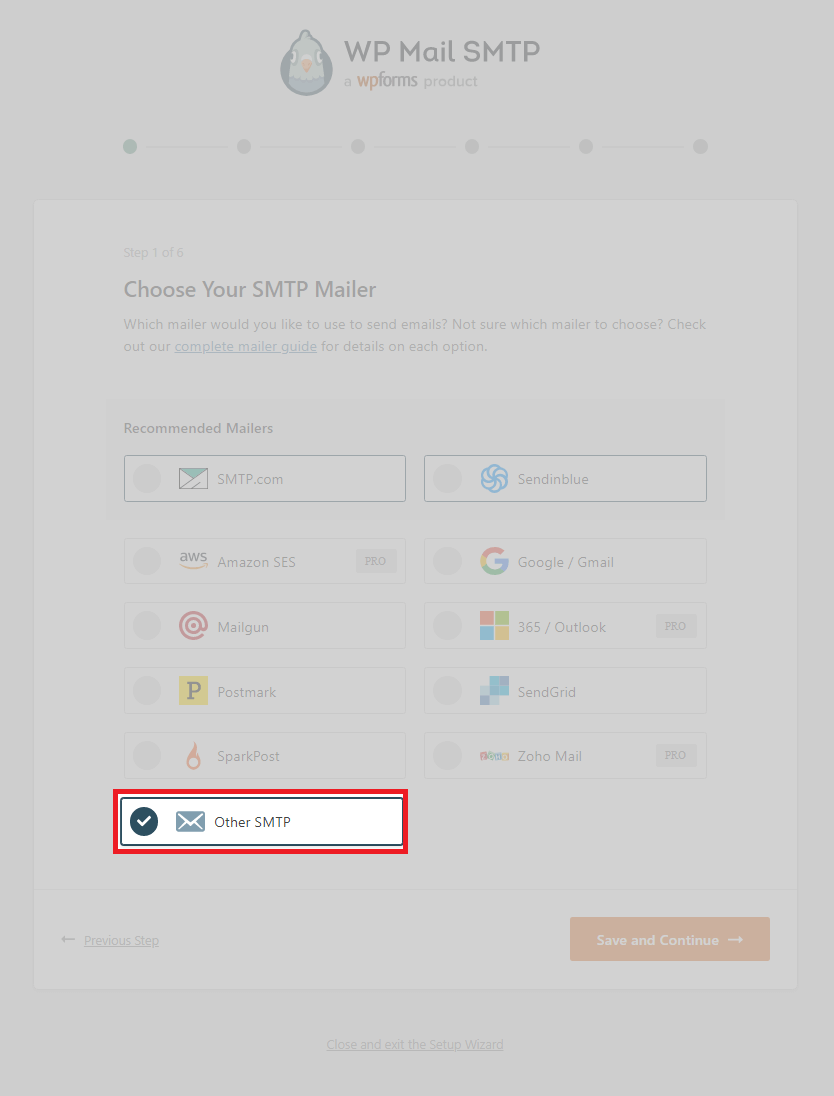
Remote SMTP services like Gmail, Mailgun and SendGrid will not work because shared hosting blocks external SMTP connections. You must use an email account that exists on your hosting server.
- Enter your SMTP hostname.
In the SMTP Host field, enter your domain name:yourdomain.co.uk. Replace this with your actual domain. This tells WordPress where to send mail.

- Configure encryption and port settings.
Change the SMTP Port to587. Under Encryption, select TLS. Port 587 with TLS encryption provides secure, authenticated mail delivery. Your mail service must have an SSL/TLS certificate installed for this to work. - Enable authentication.
Tick the Authentication checkbox. Shared hosting requires authenticated SMTP connections to prevent spam. Without this, the server rejects your mail. - Enter your email credentials.
In the SMTP Username field, enter your full email address (for example, contact@yourdomain.co.uk). In the SMTP Password field, enter the password for this email account.
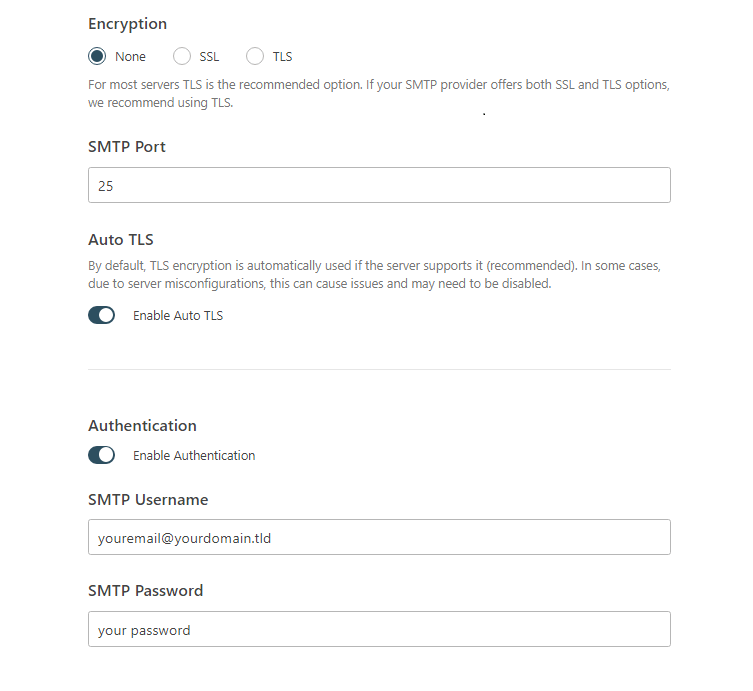
- Set your from address.
In the From Name field, enter the name you want to appear on outgoing emails (for example, “Your Company Name”). In the From Email field, enter the same email address you used for SMTP authentication. Tick Force From Email to ensure all contact forms use this address. Click Save and Continue.
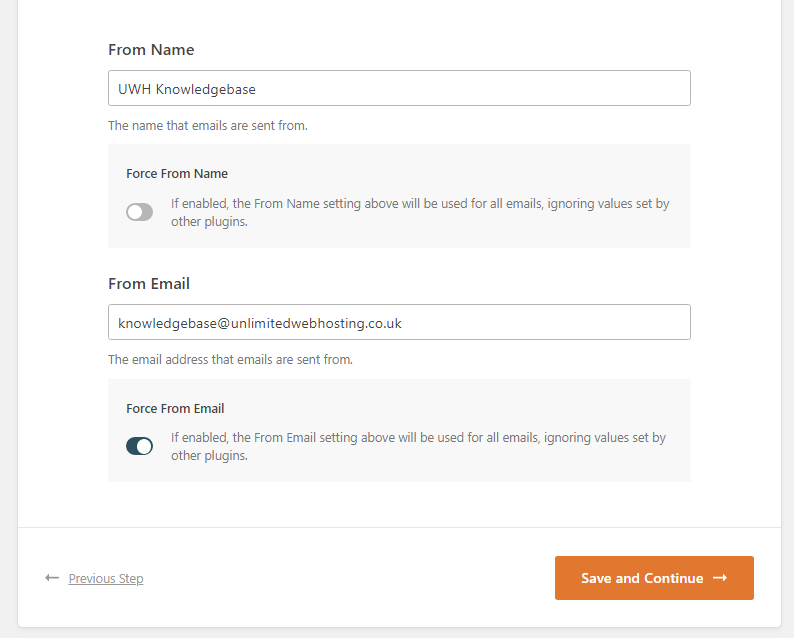
- Skip optional features.
The wizard prompts you to install additional plugins and features. These are not required for basic functionality. Uncheck all options and click Save and Continue.
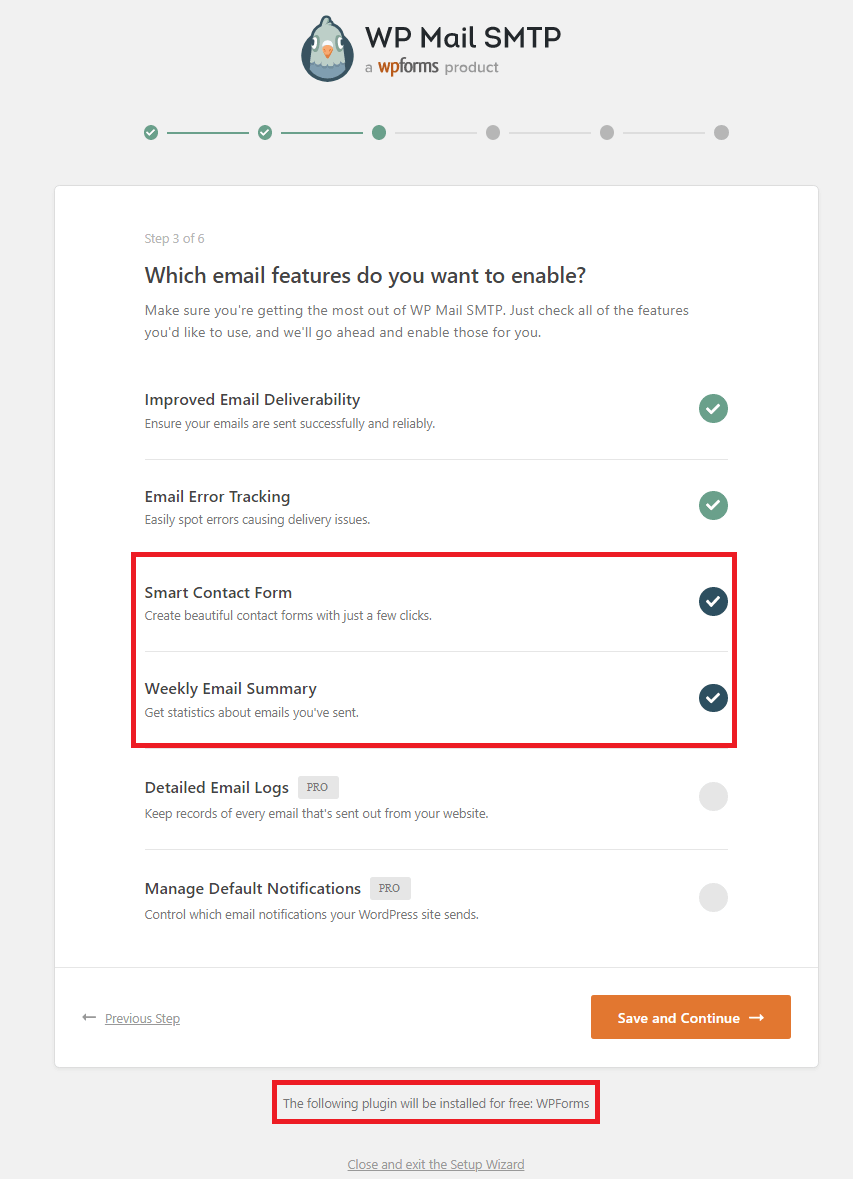
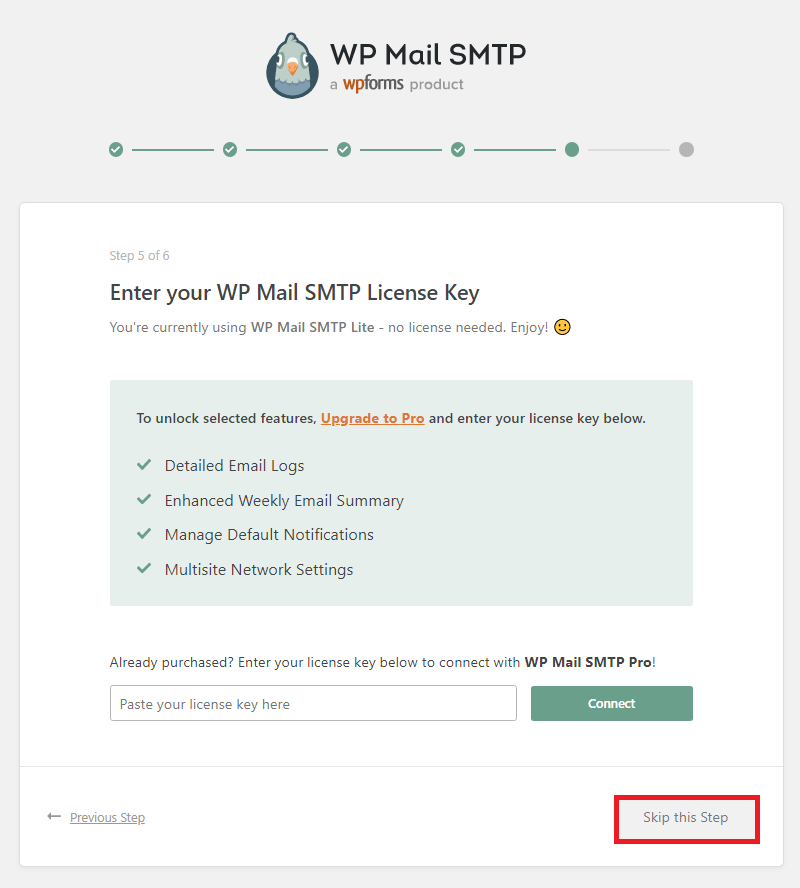
- Skip email collection and licensing.
The wizard asks for your email address and a license key. Click Skip this step on both screens. These steps are only relevant if you purchase the premium version.
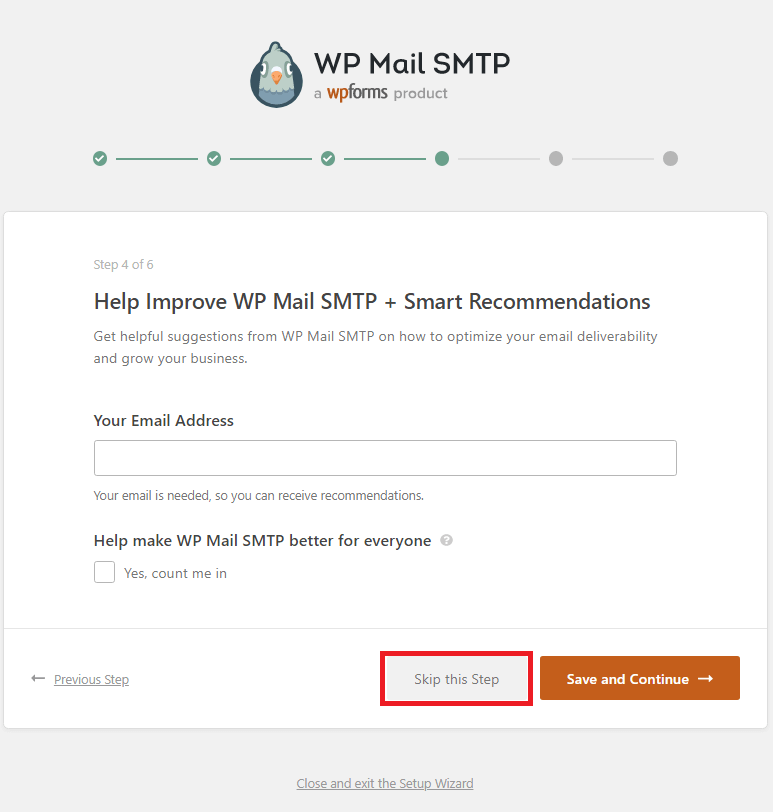
- Complete the wizard.
The wizard attempts to send a test email to verify your configuration. If the test fails, double-check your SMTP hostname, port, encryption settings and email credentials. Click Finish to exit the wizard.
Your SMTP configuration is now complete. WordPress contact forms will send mail through your authenticated email account.
Configure SMTP settings manually
If the setup wizard does not launch automatically, you can configure SMTP settings directly in the WordPress admin area. This method skips the wizard’s optional steps and provides faster access to core settings.
- Open the plugin settings.
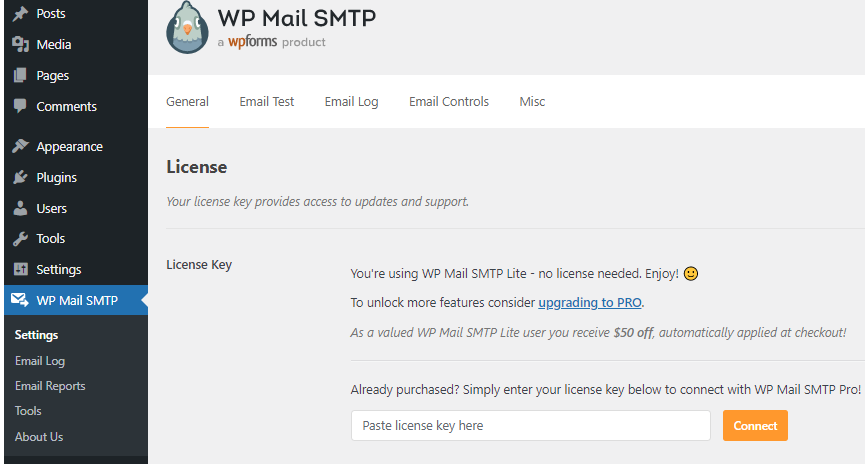
In the WordPress admin sidebar, hover over WP Mail SMTP and click Settings.
- Configure your from address.
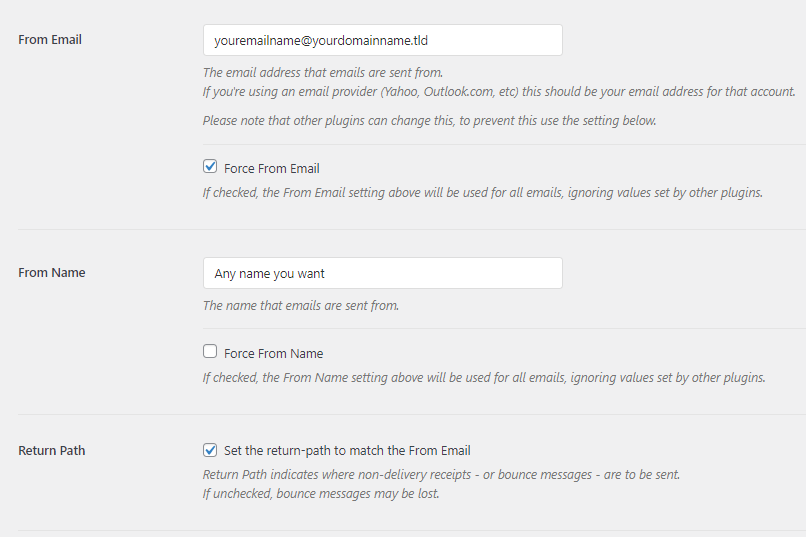
In the From Email field, enter the email address you want contact forms to send from (for example, contact@yourdomain.co.uk). Tick Force From Email to override any conflicting settings from other plugins. Optionally, tick Set the return-path to match the From Email to handle bounced messages correctly.
- Select Other SMTP as your mailer.
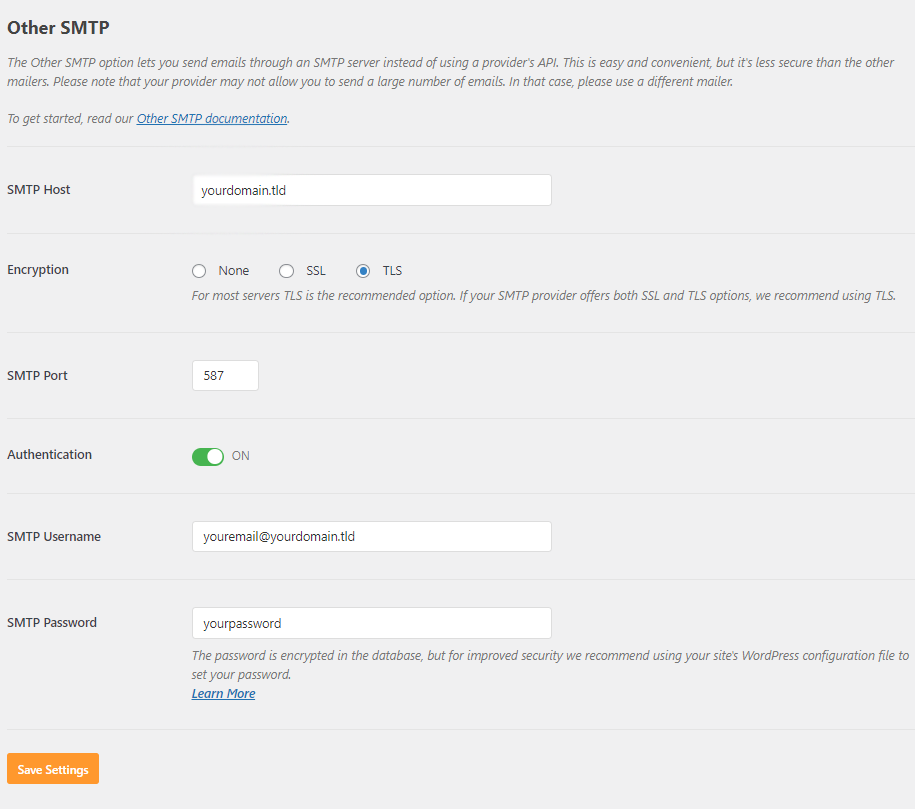
Scroll down to the Mailer section and select Other SMTP. This option works with email accounts hosted on your server. - Enter your SMTP host.
In the SMTP Host field, enter your domain name:yourdomain.co.uk - Configure encryption and port.
Set Encryption to TLS and change SMTP Port to587. Your mail service must have an SSL/TLS certificate installed for secure connections. - Enable authentication.
Tick the Authentication checkbox. Enter your full email address in the SMTP Username field and your email password in the SMTP Password field.
- Save your settings.
Scroll to the bottom of the page and click Save Settings. Your SMTP configuration is now active.
WordPress now sends all contact form emails through your authenticated SMTP connection. Test your forms to confirm messages arrive in your inbox.
Troubleshooting common SMTP issues
If contact forms still fail to send emails after configuration, these solutions address the most common problems.
Test emails fail with authentication errors
Authentication errors occur when your email credentials are incorrect or your mail service lacks an SSL/TLS certificate. The server rejects the connection because it cannot verify your identity.
- Verify your email address and password are correct. Log in to webmail to confirm your credentials work.
- Check that your mail service has an SSL/TLS certificate installed. Our guide on securing mail in Plesk covers this process.
- Confirm you are using port 587 with TLS encryption, not port 465 or 25.
Emails send but never arrive
When WordPress reports successful sending but messages do not reach your inbox, they are likely caught by spam filters or rejected by the receiving server.
- Check your spam folder. Contact form emails often trigger spam filters if your domain lacks proper email authentication records.
- Verify your from address matches the email account you configured for SMTP. Mismatched addresses cause delivery failures.
- Review your email logs in your hosting control panel. These show whether messages left the server and any rejection reasons.
Connection timeout errors
Timeout errors indicate WordPress cannot reach your SMTP server. This happens when your hostname is incorrect or your hosting environment blocks the connection.
- Confirm your SMTP host matches your domain name exactly. Typos prevent connections.
- Test your SMTP connection using an email client like Thunderbird or Outlook. If these also fail, your mail service may be misconfigured.
- Contact your hosting provider if the issue persists. Some environments require additional firewall rules for SMTP connections.
Further reading on WordPress email delivery
Understanding email authentication improves delivery rates beyond basic SMTP configuration. SPF, DKIM and DMARC records tell receiving servers your mail is legitimate, which reduces the chance of messages landing in spam folders. The Cloudflare guide to email authentication explains how these records work together to verify your domain’s identity.
Contact form plugins handle email differently. Some bypass WordPress’s mail function entirely, while others add their own SMTP settings that conflict with WP Mail SMTP. The WordPress plugin management documentation covers troubleshooting plugin conflicts and testing forms in isolation. If you use multiple form plugins, test each one individually after configuring SMTP to identify any compatibility issues.
For sites sending high volumes of contact form submissions, transactional email services provide better reliability than standard SMTP. These services specialise in automated email delivery and offer detailed analytics on open rates, bounces and spam complaints. However, they require API integration rather than SMTP configuration, which adds complexity to your WordPress setup.
Wrapping up
Your WordPress contact forms now send emails reliably through authenticated SMTP connections. You installed WP Mail SMTP, configured your domain’s email account with TLS encryption on port 587 and enabled authentication to meet server requirements. Contact form submissions from WPForms, Contact Form 7, Elementor Forms and other plugins now reach your inbox consistently.
Test your forms over the next few days to confirm delivery. Check that notification emails arrive promptly and review your spam folder if messages go missing. Consider adding SPF and DKIM records to improve deliverability further. Our managed WordPress hosting includes email accounts with SSL/TLS certificates configured automatically.
If you run into any trouble, get in touch and our team will be happy to help.


Running a WordPress site?
Get fast, secure and reliable WordPress Hosting with optimised for performance with AccelerateWP.
Get WordPress Hosting
Need multiple accounts?
Create fully isolated individual accounts for your clients and manage them all from one dashboard.
Get Reseller Hosting