Without pagination, WordPress loads all your posts onto a single page, which slows down load times and makes content harder to browse. Adding pagination splits your posts or content across multiple pages, giving visitors a cleaner experience and reducing the amount of data loaded at once.
There are five ways to add pagination in WordPress: through the built-in reading settings, by adding code to a theme template, by splitting a long post manually, by paginating a custom query, or by installing a plugin. The method you choose depends on what you are paginating and how much control you need over the output.
Before you begin
- You need access to your WordPress admin area at
yourdomain.co.uk/wp-admin. - To edit theme files directly, you need access to Appearance > Theme File Editor or your files via FTP.
- We recommend creating a backup of your site before editing any theme files.
- If you are adding pagination to a custom query, your theme must call
paginate_links()with the correcttotalandbasearguments.
Method 1: Use the built-in reading settings
WordPress includes a native setting that limits how many posts appear on your blog index and archive pages. Enabling this is the fastest way to add pagination without touching any code.
- Open the Reading settings.
In your WordPress admin sidebar, go to Settings then Reading.
- Set the posts per page limit.
Find the field labelled Blog pages show at most and enter the number of posts you want displayed per page. Ten is a common starting point.
- Save your changes.
Click Save Changes. WordPress will now split your blog index and archive pages automatically, adding previous and next navigation links.
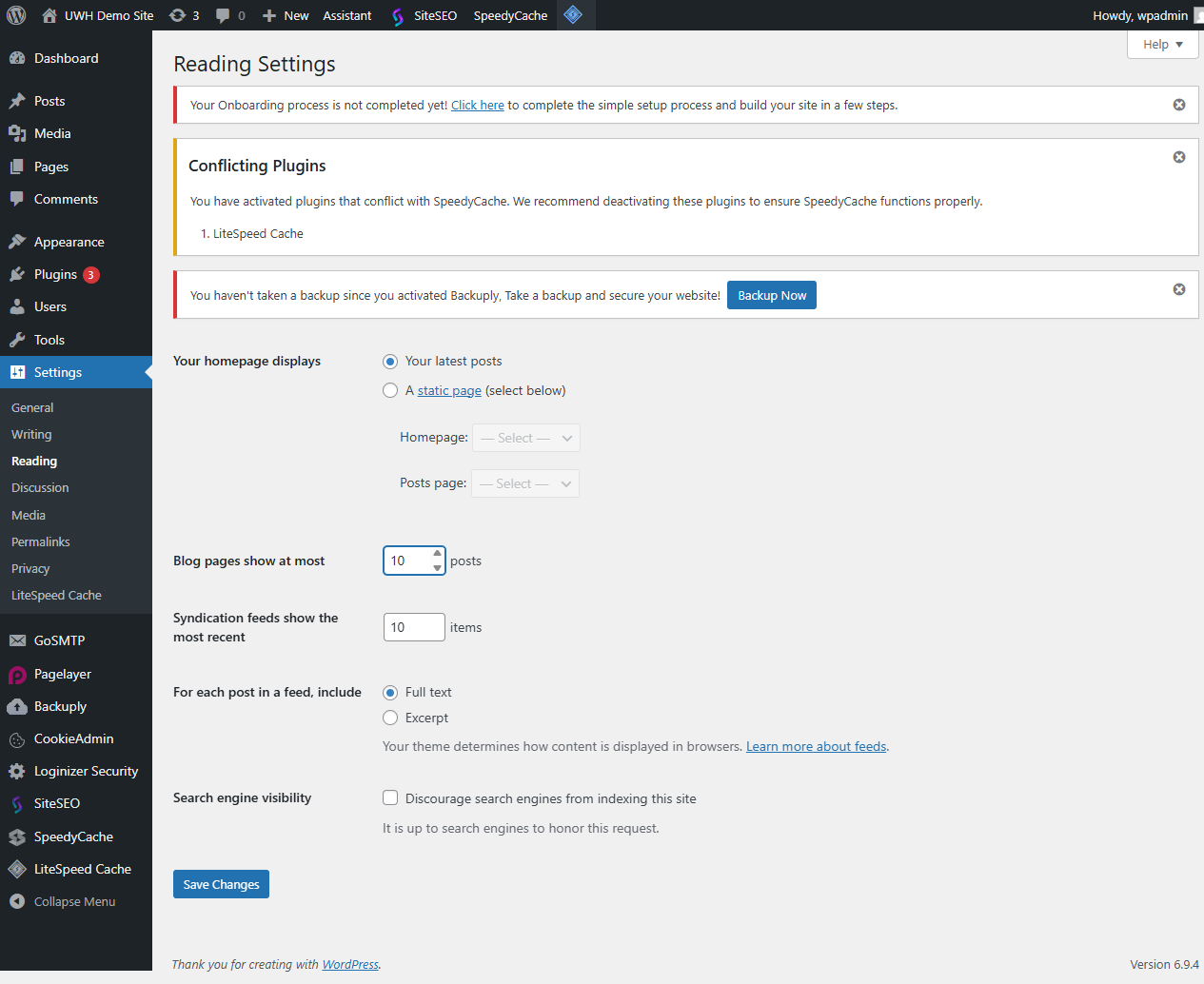
The Blog pages show at most field in Reading Settings.
Your blog index and archive pages now display a fixed number of posts per page with navigation links generated automatically by your theme.
Method 2: Add pagination to a theme template
If your theme does not display pagination links, or you want to control exactly where they appear, you can add the the_posts_pagination() function directly to a template file. This function outputs a navigation block with previous and next links, and optionally numbered page links.
- Open the theme file you want to edit.
Go to Appearance then Theme File Editor. Select the relevant template from the file list on the right, such as index.php, archive.php or category.php.
- Locate the end of your post loop.
Find the closing tag of your main post loop. This is typically where you see endwhile; or the closing of a while ( have_posts() ) block.
- Insert the pagination function.
Add the following code immediately after the loop ends. The mid_size argument controls how many page numbers appear either side of the current page.
<?php the_posts_pagination( array( 'mid_size' => 2, 'prev_text' => __( '« Previous', 'textdomain' ), 'next_text' => __( 'Next »', 'textdomain' ), ) ); ?>
- Save the file.
Click Update File. Visit your blog or archive page to confirm the pagination links appear in the correct position.
Your theme template now outputs pagination links after the post loop. If you are working with a custom WP_Query rather than the main query, see the section below on paginating custom queries.
Method 3: Split a single post across multiple pages
For long posts or pages, WordPress lets you insert manual page breaks using a special tag. Each break creates a new page within the same post, with navigation links added automatically.
- Open the post in the editor.
Go to Posts then All Posts and open the post you want to split.
- Switch to the code editor.
In the block editor, click the three-dot menu at the top right and select Code Editor. This lets you insert raw HTML tags.
- Insert the page break tag.
Place <!--nextpage--> at each point in the content where you want a new page to begin.
`Content for the first page.
<!–nextpage–>
Content for the second page.
<!–nextpage–>
Content for the third page.`
- Update or publish the post.
Click Update or Publish. WordPress splits the content at each tag and adds numbered page links at the bottom of each section.
Visitors can now move through the post page by page. This approach works independently of your posts-per-page setting.
Method 4: Paginate a custom query
When you run a custom WP_Query, the main query pagination settings do not apply. You need to pass the total page count from your custom query directly to paginate_links(), along with a correctly formatted base URL.
Add the following code after your custom query loop, replacing $the_query with the variable name you used for your WP_Query object.
`<?php $big = 999999999; // An unlikely integer used as a placeholder in the base URL
echo paginate_links( array( ‘base’ => str_replace( $big, ‘%#%’, esc_url( get_pagenum_link( $big ) ) ), ‘format’ => ‘?paged=%#%’, ‘current’ => max( 1, get_query_var( ‘paged’ ) ), ‘total’ => $the_query->max_num_pages, ) ); ?>`
The base argument tells WordPress the URL pattern to use when generating page links. The total argument comes from your custom query so WordPress knows how many pages to generate.
Method 5: Use a pagination plugin
Plugins are a good option if you want styled pagination without editing theme files. Most pagination plugins add a shortcode or widget you can drop into any template or page builder layout.
- Install a pagination plugin.
Go to Plugins then Add New Plugin. Search for a pagination plugin such as WP-PageNavi and click Install Now, then Activate.
- Configure the plugin settings.
Most plugins add a settings page under Settings or Appearance. Adjust the style, number of page links and text labels to match your theme.
- Place the pagination output.
Depending on the plugin, pagination is added automatically to archive pages, or you insert a shortcode or function call into your theme template at the point where you want links to appear.
Your chosen plugin now controls the pagination output. You can return to its settings at any time to adjust the appearance.
Troubleshooting pagination in WordPress
Pagination links do not appear
If no pagination links show on your archive or blog pages, the most likely cause is that your theme does not call a pagination function, or the posts-per-page limit is set higher than your total post count.
- Confirm the Blog pages show at most value in Settings > Reading is lower than your total number of published posts.
- Check that your theme template includes a call to
the_posts_pagination()orpaginate_links()after the post loop. - Switch temporarily to a default WordPress theme such as Twenty Twenty-Four to confirm whether the issue is theme-specific.
Clicking a page number returns a 404 error
A 404 on paginated URLs usually means your permalink structure needs refreshing. WordPress caches rewrite rules, and stale rules can break paged URLs.
- Go to Settings > Permalinks and click Save Changes without making any other changes. This flushes the rewrite rules.
- If you are using a custom query, confirm the
baseandformatarguments in yourpaginate_links()call match your permalink structure.
Pagination works on page 1 but breaks on later pages
This is a common issue with custom queries. When the paged query variable is not passed to your WP_Query, WordPress always loads page 1 regardless of the URL.
- Confirm your WP_Query arguments include
'paged' => get_query_var( 'paged' ). - Check that the
totalargument inpaginate_links()references$your_query->max_num_pagesand not a hardcoded number. - If a conflicting plugin is interfering with query variables, see our guide on disabling plugins using WP Toolkit to isolate the cause.
Wrapping up
You now have five ways to add pagination to your WordPress site: the built-in reading settings for standard blog archives, direct theme code for custom templates, the <!--nextpage--> tag for splitting individual posts, paginate_links() with the correct total and base values for custom queries, and a plugin for styled output without code changes.
Once pagination is working, review your site’s overall performance. Faster page loads improve the experience for visitors moving between pages. See our guides on increasing the WordPress memory limit and optimising WordPress images with AVIF for related improvements. You may also find the guide to WordPress caching useful for reducing load times on paginated archives.
Our WordPress hosting plans are configured to support WordPress permalink structures and custom query pagination out of the box.
Plans and tools mentioned in this guide
WordPress Hosting
Tuned for WordPress, with one-click installs.
From £5.99/mo
View WordPress HostingDid this guide solve your problem?
Still stuck?
Our UK support team answers tickets and live chat every day. Send us the guide you were following and where it stopped working.
Keep learning
Find a guide
Related guides

Running a WordPress site?
Get fast, secure and reliable WordPress Hosting with optimised for performance with AccelerateWP.
Get WordPress Hosting
Need multiple accounts?
Create fully isolated individual accounts for your clients and manage them all from one dashboard.
Get Reseller Hosting