Managing your billing details helps you track spending, plan budgets and maintain auditable records. You need to keep payment methods current to avoid service interruptions and ensure invoices are paid on time.
You will update payment methods, view billing history and configure recurring payments through your client area. Once set up, your services renew automatically and you maintain full visibility of all transactions.
Before you begin
- You need access to your client area.
- Have your payment card or PayPal account details ready.
- Missing a payment leads to service suspension after 2 weeks and termination after 4 weeks.
Add or update payment methods
Your client area stores all payment methods. You can add new cards, edit existing details or remove outdated methods. Keeping these current prevents failed payments and service interruptions.
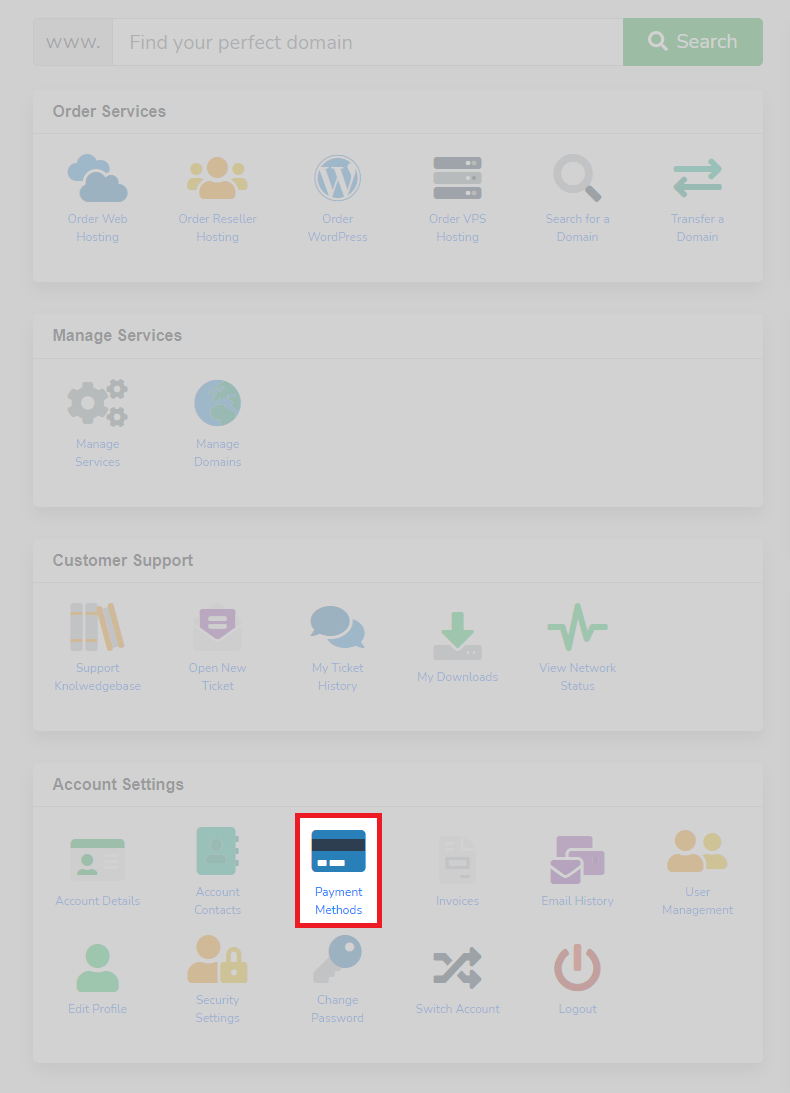
- Access the payment methods page.
Log in to your client area and click Payment Methods in the billing section.
- Add a new payment card.
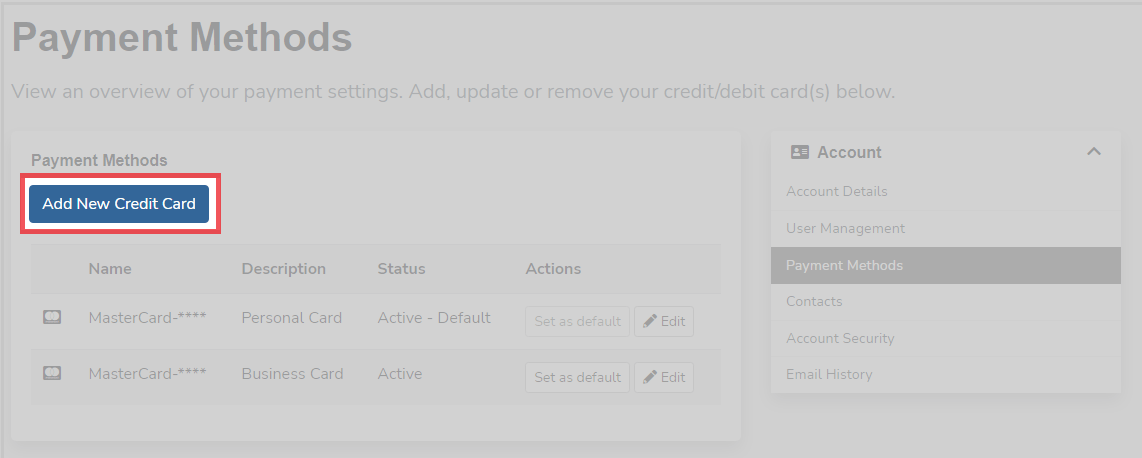
Click Add New Credit Card and enter your card details. This card becomes available for manual payments and automatic renewals.
- Edit existing payment methods.
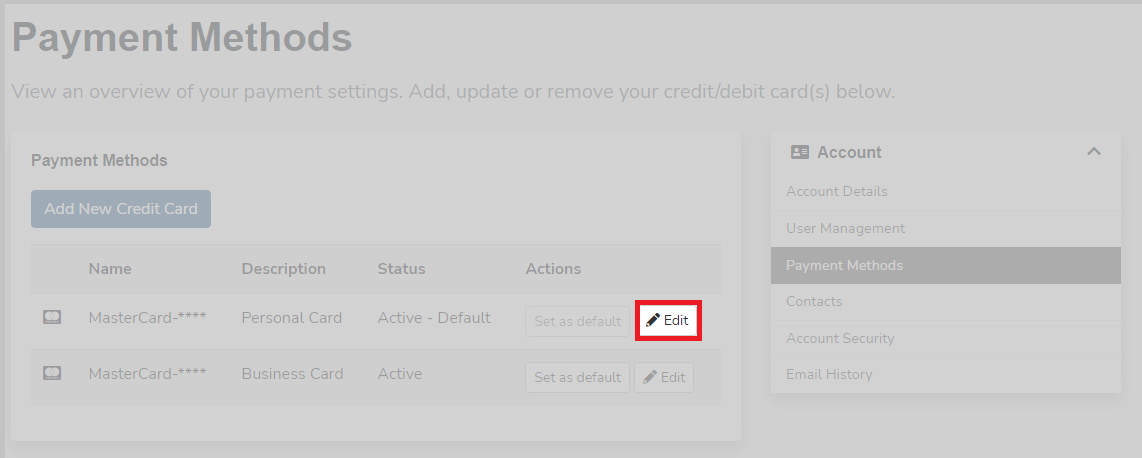
Click Edit next to any saved card to update expiry dates or billing addresses. Changes take effect immediately.
Pay invoices with PayPal
PayPal offers two payment options: one-time payments for individual invoices and recurring subscriptions for automatic renewals. One-time payments require manual action for each invoice, while subscriptions handle renewals automatically.
- Open your invoice.
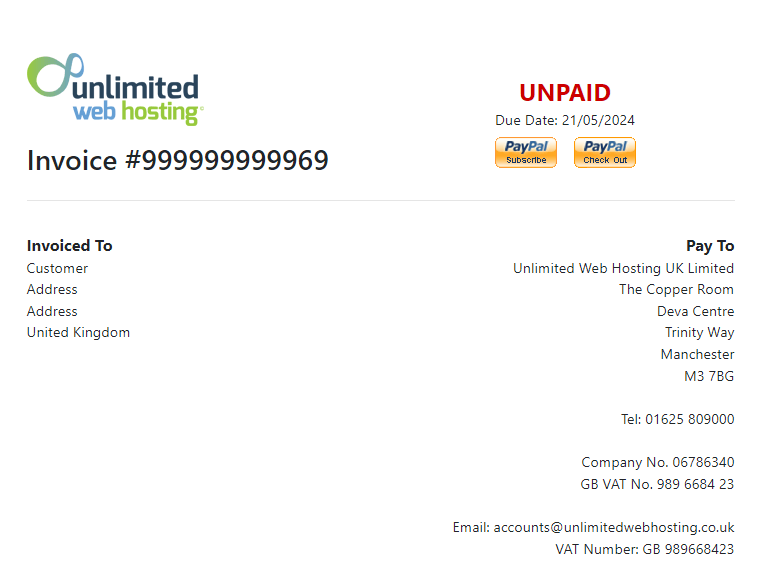
Navigate to Billing in your client area and click the invoice you want to pay.
- Complete the payment.
Click PayPal Checkout, log in to your PayPal account and confirm the payment. The invoice is marked as paid once PayPal processes the transaction.
Set up PayPal recurring payments
Recurring payments automate invoice settlement. PayPal charges your account automatically when each invoice is generated, removing the need for manual payments.
- Initiate the subscription.
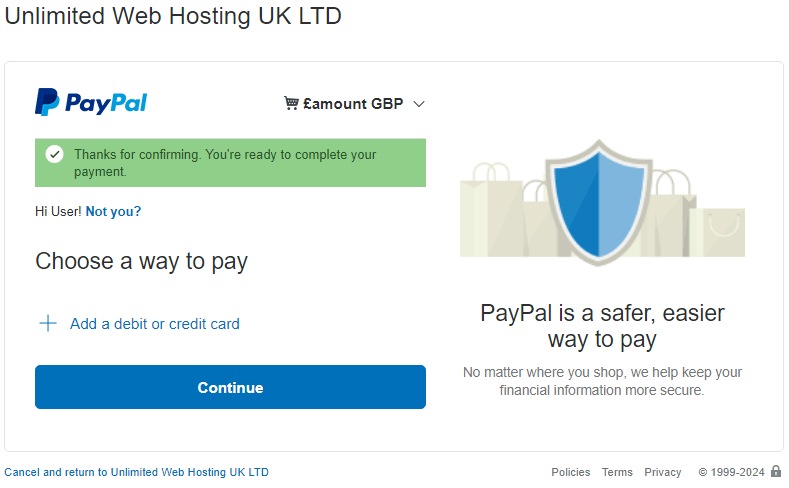
Open your invoice and click PayPal Subscribe. This opens a PayPal window showing subscription details. - Review subscription terms.
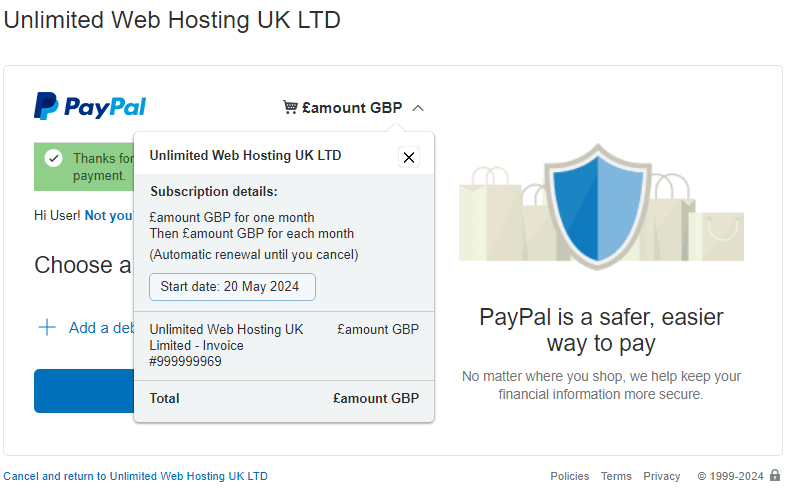
Use the dropdown menu to view billing frequency, amount and renewal dates. Verify these match your service terms.
- Confirm the subscription.
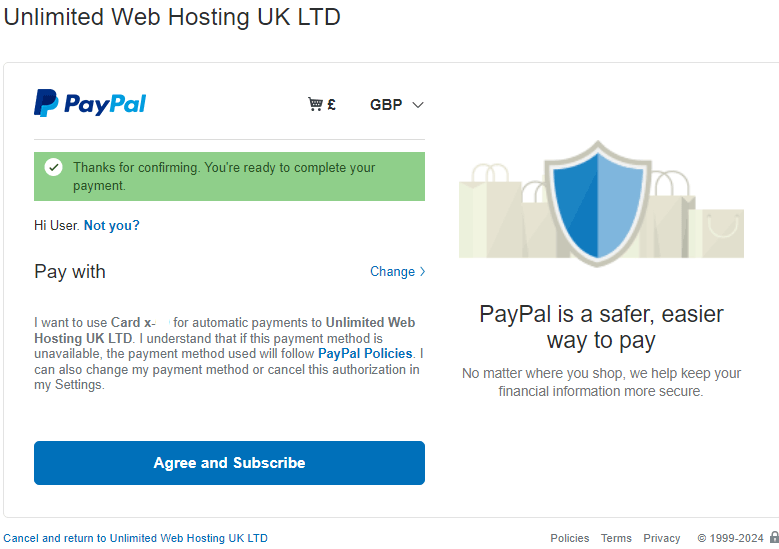
Click Agree and Subscribe to activate recurring payments. PayPal will charge your account automatically for future invoices.
Manage PayPal subscriptions
You control all PayPal subscriptions through your PayPal account. This includes changing payment sources, updating amounts and cancelling agreements. Only you can modify these settings; we cannot make changes on your behalf.
- Access PayPal settings.
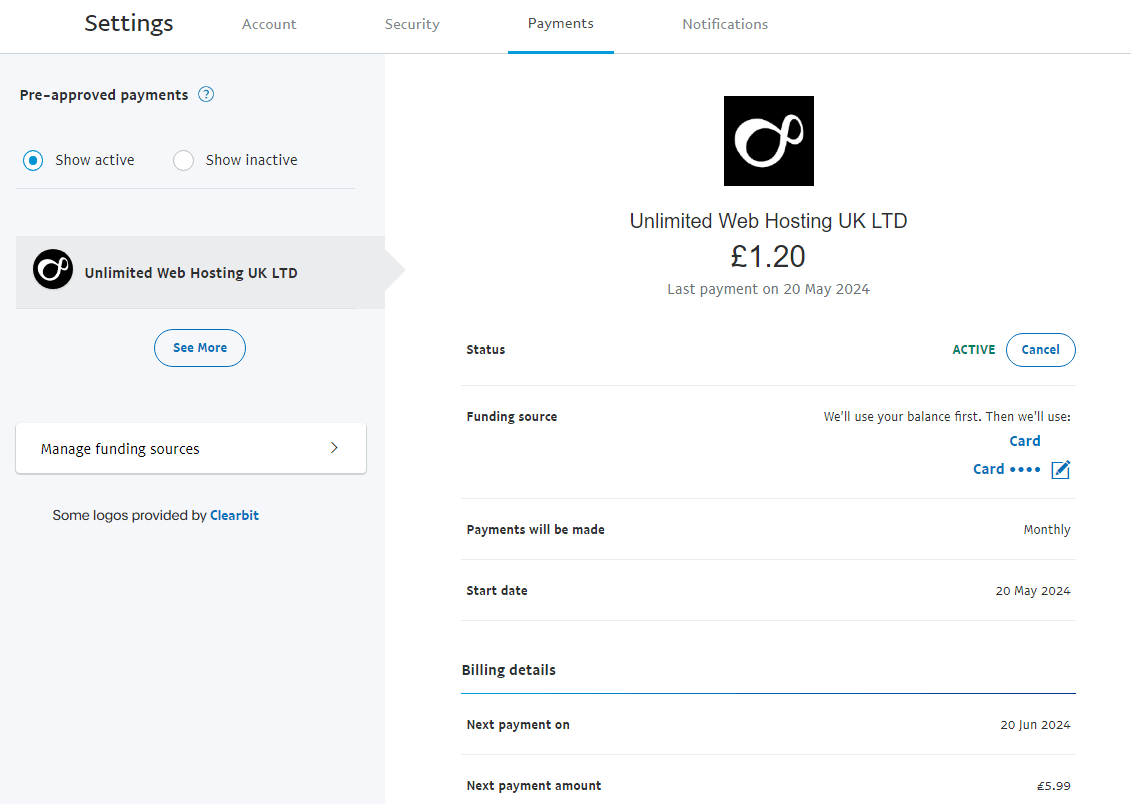
Log in to PayPal, click Settings and select Payments. - Open subscription management.
Click Manage Subscriptions and Pre-approved Payments to view all active agreements. - Modify your subscription.
Select the relevant agreement to change funding sources or cancel the subscription. To update payment amounts, you must cancel the existing agreement and create a new one through your invoice.
Price changes require you to recreate your PayPal agreement. We cannot update existing agreements automatically, so watch for billing notifications and update your subscription when prices change.
Manage Worldpay FuturePay agreements
FuturePay agreements handle recurring card payments through Worldpay. You manage these directly through the Worldpay portal, not your client area.
- Access the Worldpay portal.
Visit the Worldpay login page and enter your username and password. You received these credentials in your FuturePay confirmation email. - Select your agreement.
The recurring payments screen displays all active agreements. Click the agreement ID that corresponds to your UWH services. - Update payment details.
Click Change Payment Details at the top of the screen. Enter your new card information and click Submit to save the changes. - Process the next payment.
Worldpay will use the updated card for your next scheduled payment. Alternatively, open your invoice in the client area and click Pay Now to process an immediate payment with the new details.
View billing history
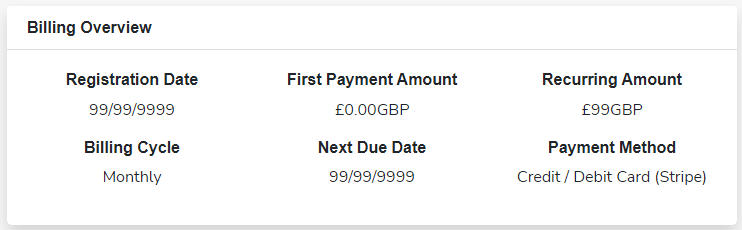
Your billing overview shows all transactions, renewal dates and payment history for each service. This helps you track spending and verify that payments processed correctly.
- Open service management.
Navigate to Manage Services in your client area and click the service you want to review. - View billing details.
Scroll to the bottom of the service page to see your complete billing overview, including past invoices, renewal dates and payment methods used.
Troubleshooting payment issues
Payment method declined
Card payments fail when details are outdated or your bank blocks the transaction. This prevents automatic renewals and can lead to service suspension.
- Verify your card expiry date and billing address are current.
- Contact your bank to confirm they are not blocking payments to UWH.
- Try adding a different payment method as a backup.
PayPal subscription not processing
PayPal subscriptions fail when your PayPal balance is insufficient or your linked payment method is invalid. You must resolve these issues directly through PayPal.
- Log in to PayPal and verify your funding source is valid.
- Check that your subscription remains active in PayPal settings.
- If the subscription was cancelled, create a new one through your next invoice.
Cannot access Worldpay portal
Lost Worldpay credentials prevent you from managing FuturePay agreements. You need these to update card details or cancel recurring payments.
- Search your email for “Worldpay FuturePay” to locate your original confirmation.
- Use the password reset option on the Worldpay login page.
- Contact our support team if you cannot recover access.
Further reading on payment security
We recommend reviewing your payment methods quarterly. Remove outdated cards, verify expiry dates and confirm that recurring payments remain active. This prevents service interruptions and reduces the risk of failed renewals. You should also change your client area password regularly, particularly after managing payment information.
Wrapping up
You can now manage all billing aspects through your client area. You added payment methods, configured recurring payments and reviewed billing history. Your services will renew automatically when payment details remain current.
Keep your contact details updated so renewal reminders reach you. Review your billing overview monthly to verify that charges match your active services. Our hosting plans include transparent billing with no hidden fees.
Plans and tools mentioned in this guide
WordPress Hosting
Tuned for WordPress, with one-click installs.
From £5.99/mo
View WordPress HostingDid this guide solve your problem?
Still stuck?
Our UK support team answers tickets and live chat every day. Send us the guide you were following and where it stopped working.
Keep learning
Find a guide
Related guides

Starting from scratch?
Register a domain name and point it at your hosting in the same account.
Search Domains
Somewhere to put it
Perfect for websites and small businesses unlimited bandwidth with cPanel hosting.
Get cPanel Hosting