When managing emails on your hosting account with Roundcube webmail, you may encounter greyed out emails in your inbox. This issue usually occurs after a server transfer due to incorrect configuration, but can be easily resolved by adjusting your Roundcube settings.
Understanding how to troubleshoot this issue is essential for maintaining a smooth email experience. If you’re experiencing other email problems, you might also want to check email size limits, as large emails can sometimes cause display issues in webmail clients.
In this short guide learn how to access Roundcubes settings and resolve this issue.
1. First start off by logging into your cPanel account.
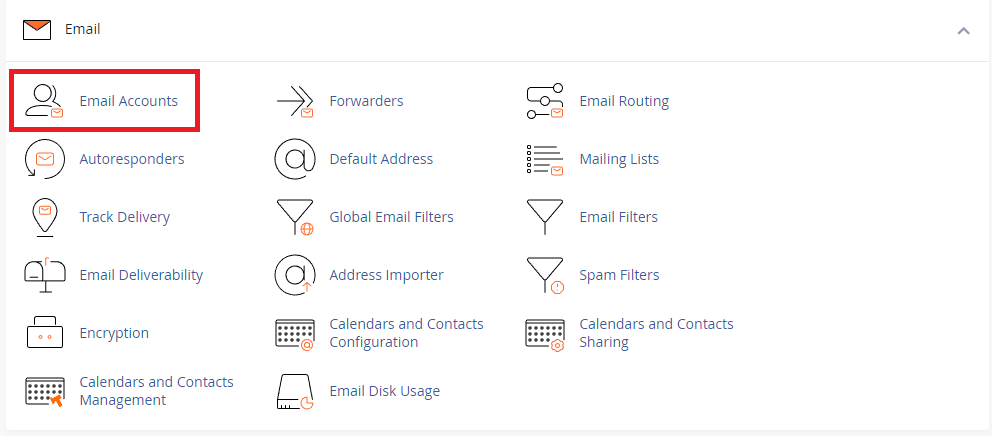
2. From your cPanel control panel click Email Accounts in the Email section as shown below.
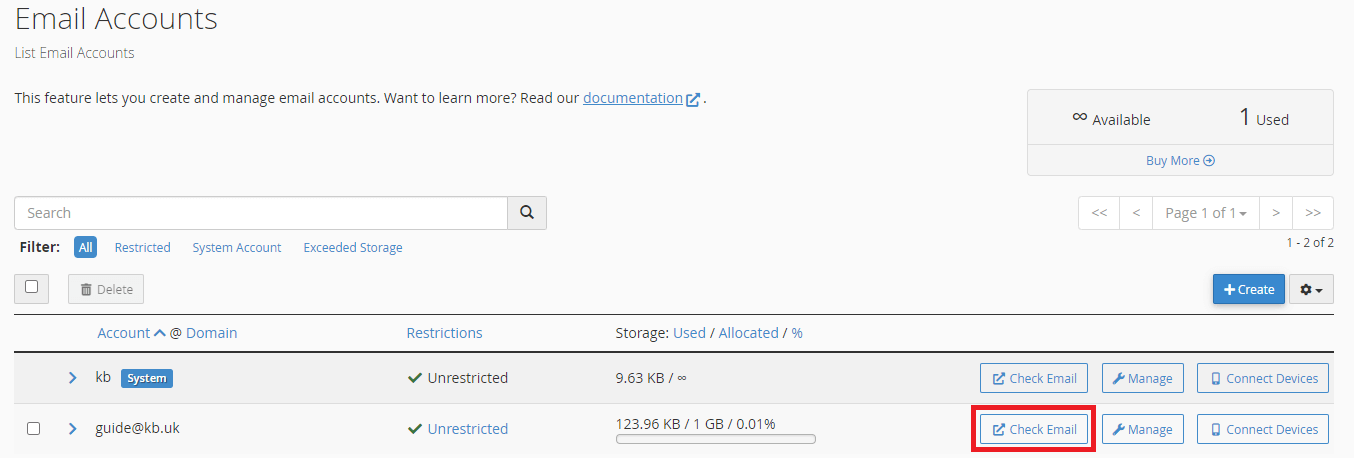
3. Now from the email accounts list click check email to enter that email account and alter its settings.
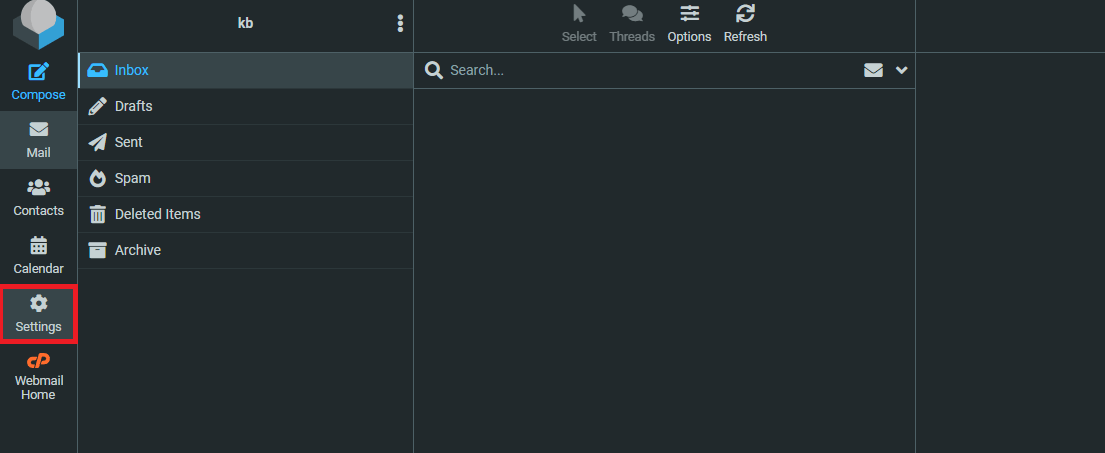
4. After that you can press on by clicking settings which has a cog icon beside it as below.
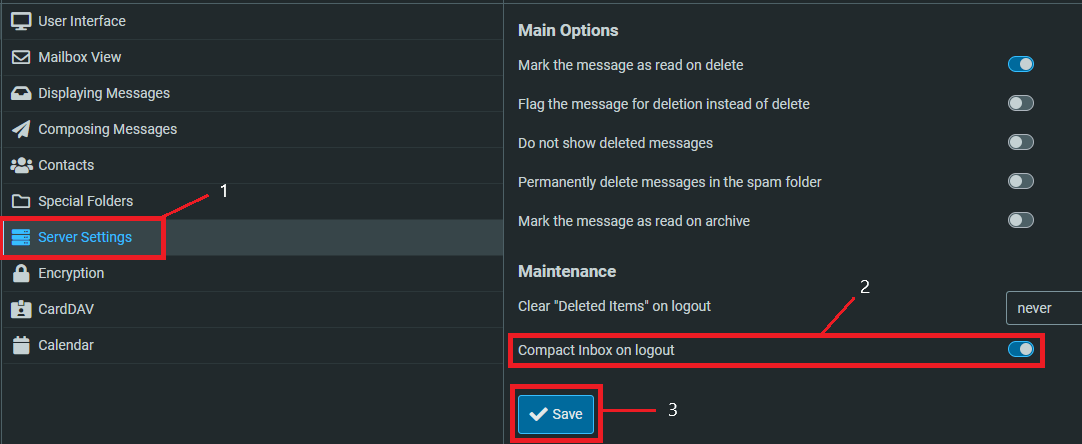
5. Finally follow the steps shown in the image below to enable the compact on logout setting which should resolve the issue of greyed out email in roundcube.
Use an alternative email client
If the issue persists, you might want to migrate emails with Outlook or another email client whilst the issue is being resolved. This ensures you can continue accessing your emails without interruption.
Try a different email client
Still having problems? Migrate emails with Outlook whilst you sort this out. At least you can keep working.
Worth checking email size limits too. Oversized messages sometimes cause display issues in webmail.
Get help
If the greyed out emails won’t clear or you’re seeing missing messages and sync problems, contact support. There might be server-side configuration issues we need to fix with admin access.


Ready to get started?
Launch your website with our reliable cPanel hosting with unlimited bandwidth and expert support.
Get cPanel Hosting