Google Workspace provides business email through Gmail alongside productivity tools like Drive, Calendar and Meet. Setting it up requires updating your domain’s MX records so email routes through Google’s servers instead of your hosting provider’s mail service.
You will disable your current mail service, remove existing MX records and add the records Google provides. DNS changes take time to propagate, so your email may not work immediately after making these changes.
Before you begin
- You need an active Google Workspace account with MX records provided by Google.
- Access to your cPanel or Plesk control panel.
- We recommend checking Google’s MX record documentation for the latest values before starting.
Set up Google Workspace in cPanel
You need to change your email routing setting and update your DNS records. This tells cPanel to stop handling email locally and directs all mail to Google’s servers.
- Log in to cPanel.
Access your control panel atyourdomain.co.uk/cpanelusing your hosting credentials. - Open Email Routing.
Scroll to the Email section and click Email Routing. This controls where incoming mail is delivered. - Change to Remote Mail Exchanger.
Select Remote Mail Exchanger from the options. This stops cPanel from accepting mail locally and allows external MX records to take over.
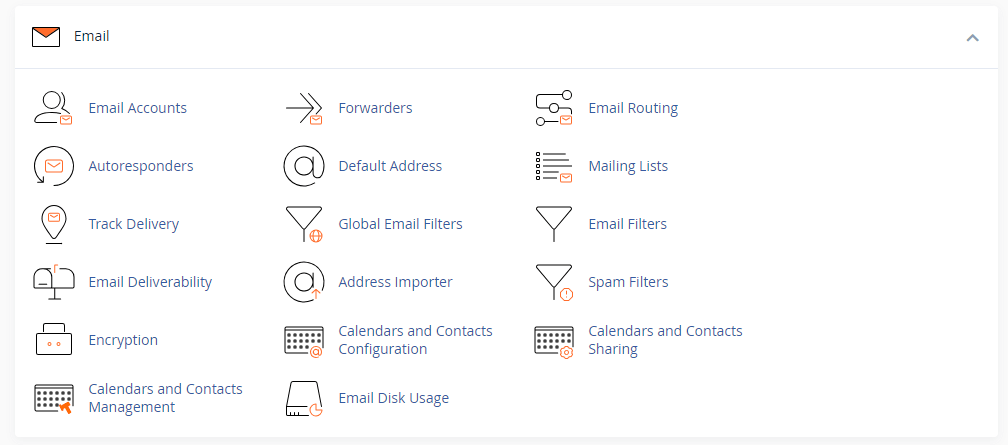
- Navigate to Zone Editor.
Return to the cPanel home page and find Zone Editor in the Domains section. This is where you manage DNS records. - Manage your domain’s DNS.
Click Manage next to the domain you are configuring. You will see all existing DNS records for this domain.
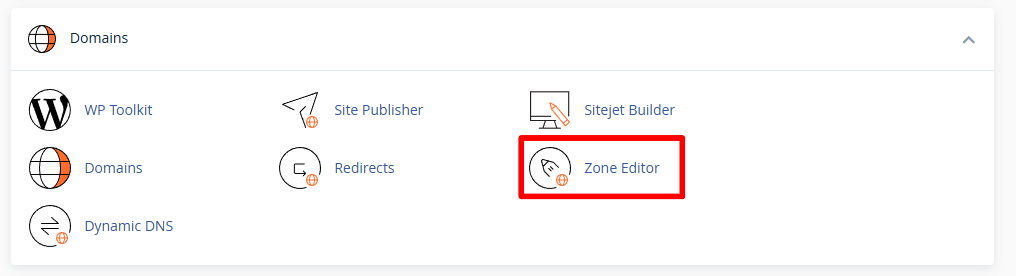
- Remove existing MX records.
Find any MX records in the list and delete them. Multiple MX records cause conflicts and prevent Google Workspace from receiving mail correctly. - Add Google’s MX records.
Click Add Record and select MX as the record type. Enter each MX record provided by Google, including the priority value. Repeat this step for all five Google MX records.
Your cPanel configuration is complete. DNS changes can take up to 48 hours to propagate fully, though most changes apply within a few hours.
Set up Google Workspace in Plesk
Plesk requires you to disable its mail service before updating DNS records. This prevents Plesk from intercepting email that should go to Google.
- Log in to Plesk.
Access your control panel using your hosting credentials. - Select your domain.
Find the domain you want to configure in your domain list and click on it. - Open Mail Settings.
Click Mail Accounts, then select Mail Settings from the options. This controls whether Plesk handles email for this domain. - Disable Plesk mail service.
Untick Activate Mail Service on the Domain and click OK. Plesk will no longer process incoming mail for this domain. - Navigate to DNS Settings.
Return to your domain overview and click DNS Settings. You will see all DNS records currently configured for this domain. - Remove existing MX records.
Delete any MX records in the list. Leaving old records in place causes mail delivery failures. - Add Google’s MX records.
Click Add Record and select MX as the record type. Enter each MX record provided by Google with its priority value. Add all five records Google provides.
Your Plesk configuration is complete. Allow time for DNS propagation before testing email delivery.
Wrapping up
Your domain now routes email through Google Workspace. You disabled your hosting provider’s mail service, removed conflicting MX records and added Google’s mail server details. Email sent to your domain will arrive in Gmail once DNS changes propagate.
Wait at least four hours before testing email delivery. Send a test message to an address on your domain and check your Google Workspace inbox. Review our guides on creating email accounts in cPanel and managing DNS records for related tasks.
Did this guide solve your problem?
Still stuck?
Our UK support team answers tickets and live chat every day. Send us the guide you were following and where it stopped working.
Keep learning
Find a guide
Related guides

Email on your own domain
Every cPanel hosting plan includes mailboxes you manage yourself.
Get cPanel Hosting
Need the domain first?
Register the domain your mailboxes will sit on, with hundreds of extensions available.
Search Domains