Web Host Manager (WHM) is a powerful tool that provides administrative access to your Reseller Hosting account. As a reseller, through WHM, you can create, modify, or remove cPanel accounts.
And, apply settings to multiple accounts simultaneously using packages. Separated accounts allows your clients to log into their own cPanel and manage their hosting independently, making WHM an essential reseller tool for effectively managing multiple client hosting environments.
Log in via client area
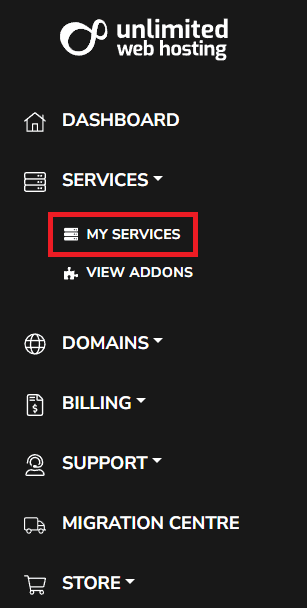
1. Log in to your account with unlimited web hosting and from the dashboard area expand “Services“, then click “My Services”.
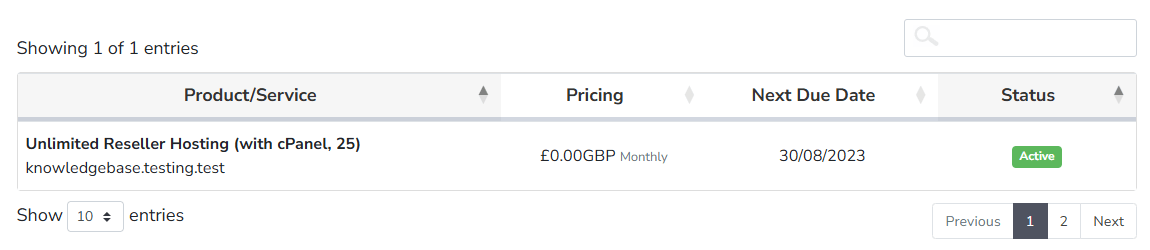
2. Afterwards, from the manage services area click on your Reseller service from the list.
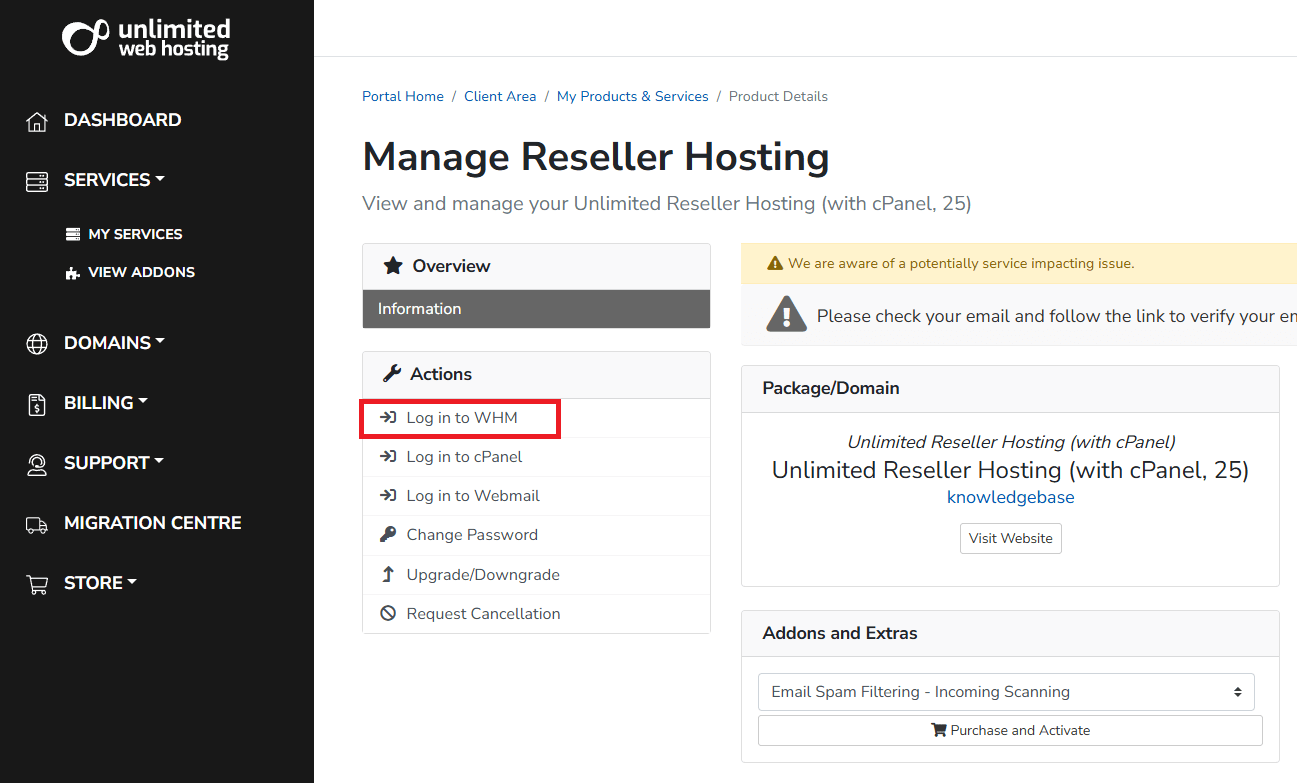
3. Finally using the actions menu click “Log in to WHM”.
Log in using hostname (URL) or IP
1. Access WHM directly using the login credentials from your welcome email, these should appear as follows:
WHM Username: knowledgebase
WHM Password: *******
WHM Control Panel URL: https://cloud000.thundercloud.uk:2087
(Once your domain has propagated, you may also use https://www.knowldgebase.tld:2087)
2. Now open the login screen using either:
- Your domain (if propagated) with either the port
:2087or/whm - The server hostname with either the port
:2087or/whm - Or the server IP with either the port
:2087or/whm
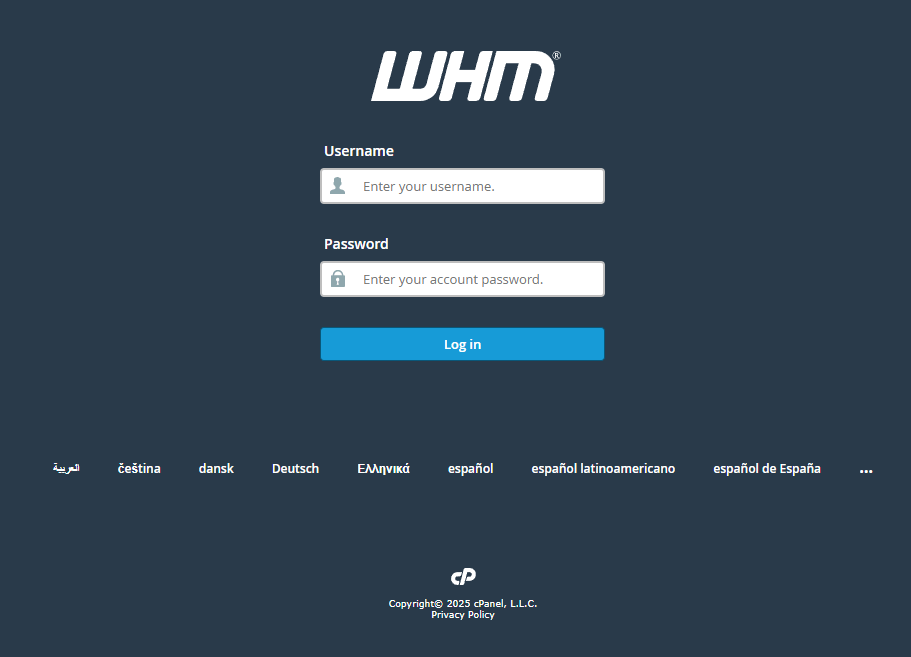
3. From the login screen enter your account credentials (Username, Password).


Need multiple accounts?
Create isolated individual accounts for your clients and manage them all from one dashboard.
Get Reseller Hosting
Need more control?
Upgrade to VPS hosting for scalable resources and root access to your server.
Get VPS Hosting