Your customers occasionally lose access to their cPanel accounts and need password resets. WHM provides a quick way to update their credentials without requiring them to access the control panel themselves.
You will locate the account in WHM’s List Accounts interface, enter a new password and confirm the change. The customer can then log in immediately with their updated credentials.
Before you begin
- You need access to WHM. See our guide on accessing your control panel.
- Customers should never have direct access to WHM.
Reset the cPanel password
WHM’s List Accounts page displays all cPanel accounts on your reseller hosting package. You will expand the account menu to access the password reset option.
- Log in to WHM.
Access WHM through your control panel login page. - Open List Accounts.
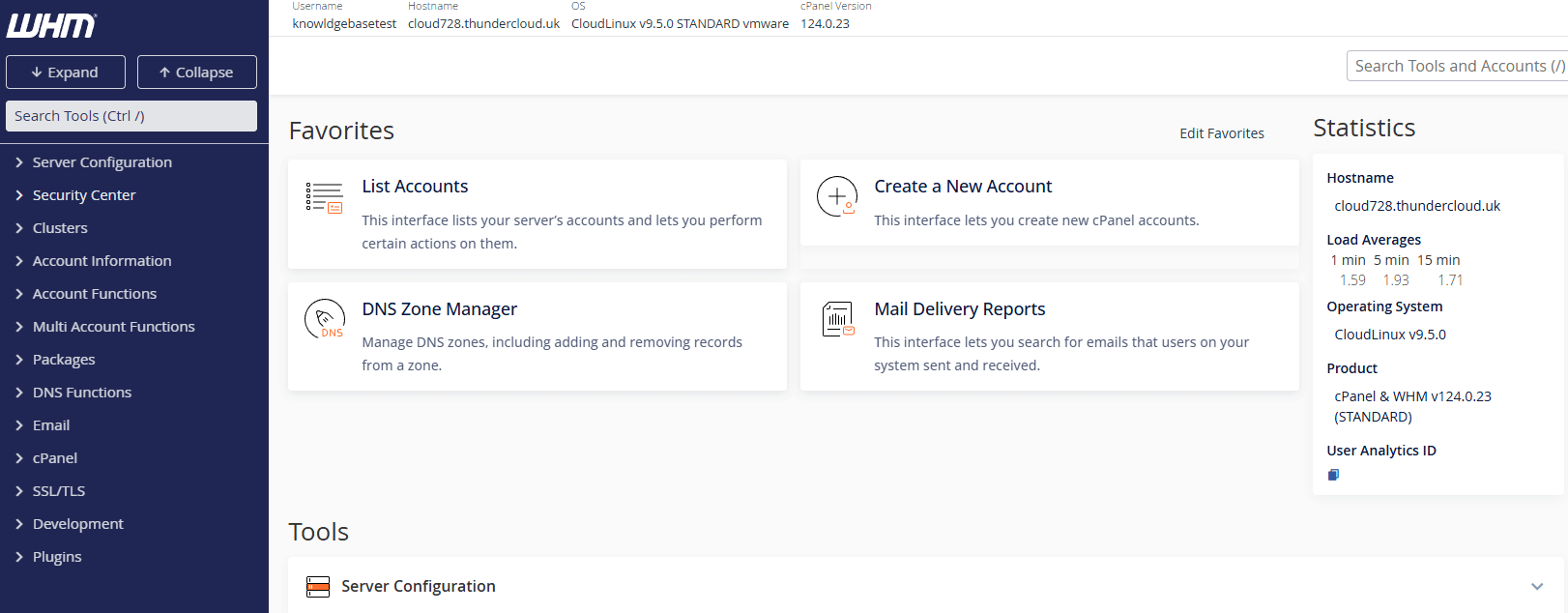
Click List Accounts under the Favourites section on the WHM home page. This displays all cPanel accounts associated with your reseller package.
- Expand the account menu.
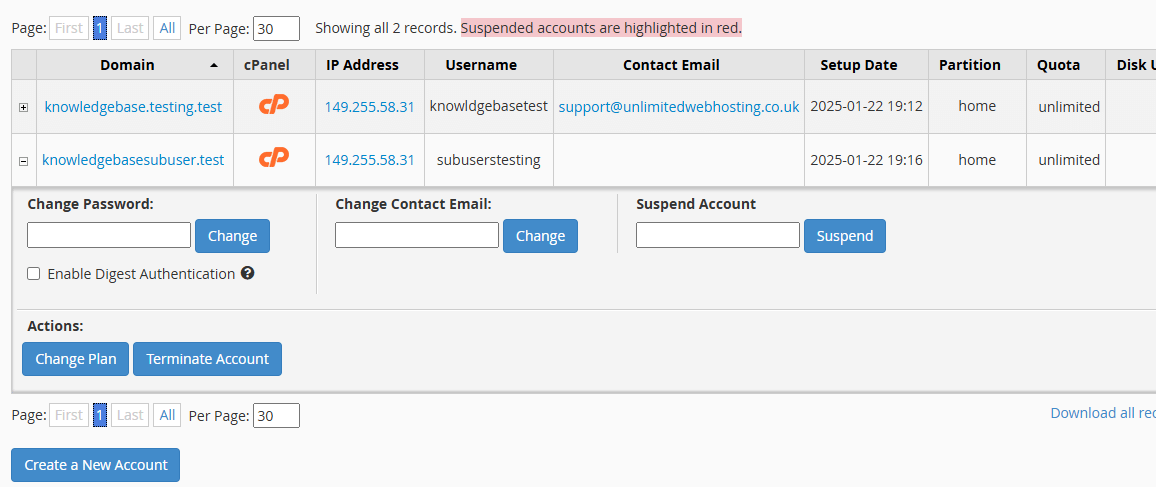
Find the customer’s account in the list and click the + symbol to the left of their username. This reveals account management options including password reset.
- Enter the new password.
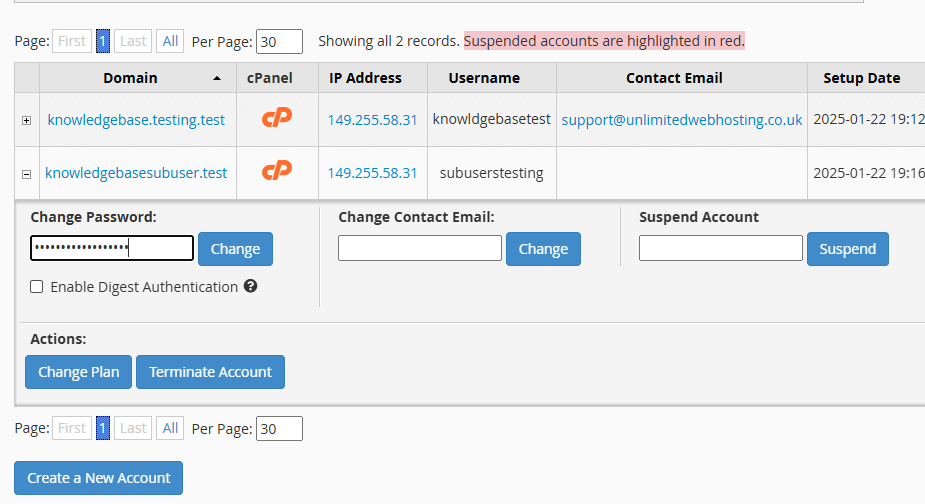
Type a secure password in the provided field. We recommend using a password manager to generate a strong credential. - Save the changes.
Click Change Password to update the account credentials. WHM processes the change immediately.
- Confirm the update.
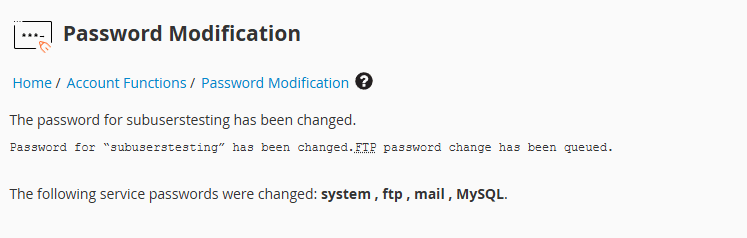
WHM displays a confirmation screen verifying the password change succeeded. The customer can now log in to cPanel with their new credentials.
Troubleshooting
Password reset fails with an error
WHM may display an error if the account is suspended or if there are connectivity issues with the server.
- Check that you can access your site and control panel normally.
- Verify the account is not suspended in the List Accounts interface.
- Contact our support team if the error persists after confirming account status.
Wrapping up
You have reset your customer’s cPanel password through WHM. The customer can now log in with their new credentials and access their hosting account immediately.
Review our guides on accessing your control panel and cPanel reseller hosting features to learn more about managing customer accounts through WHM.
Plans and tools mentioned in this guide
Did this guide solve your problem?
Still stuck?
Our UK support team answers tickets and live chat every day. Send us the guide you were following and where it stopped working.
Keep learning
Find a guide
Related guides

Need multiple accounts?
Create isolated individual accounts for your clients and manage them all from one dashboard.
Get Reseller Hosting
Need more control?
Upgrade to VPS hosting for scalable resources and root access to your server.
Get VPS Hosting