Switching users in Linux allows you to access different accounts without logging out of your current session. This is necessary when you need to perform administrative tasks, test user permissions or access files owned by different accounts.
You will learn three methods for switching users: sudo su for administrative access, su for direct user switching and login for local systems. Each method serves different scenarios depending on your access level and requirements.
Before you begin
- You need SSH access to your Linux server.
- For
sudomethods, your account must have sudo privileges. - For
sumethods, you need the target user’s password.
Check your current user
Before switching users, you can verify which account you are currently using. This helps confirm successful switches and prevents accidental changes to the wrong account.
- Open your terminal.
Connect to your server via SSH or open a local terminal window. - Run the whoami command.
Typewhoamiand press Enter. The output displays your current username.
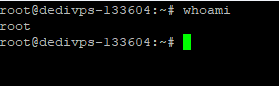
You can now switch to a different user account using one of the methods below.
Switch users with sudo
The sudo su command switches users using your own password rather than the target user’s password. This method requires sudo privileges on your account and is commonly used for administrative tasks.
- Open your terminal.
Connect to your server via SSH if you have not already done so. - Run the sudo su command.
Typesudo su username, replacing username with the target account name. Press Enter. - Enter your password.
When prompted, type your own password (not the target user’s password). The system authenticates your sudo privileges. - Verify the switch.
Runwhoamito confirm you are now operating as the target user.
This method is useful when you need temporary access to another account without knowing their password. You can now perform tasks as the target user or switch to a different account.
Switch users with su
The su command switches users by authenticating with the target user’s password. This method works without sudo privileges but requires you to know the password of the account you are switching to.
- Open your terminal.
Connect to your server via SSH if you have not already done so. - Run the su command.
Typesu username, replacing username with the target account name. Press Enter.
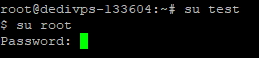
- Enter the target user’s password.
When prompted, type the password for the account you are switching to. The system authenticates and switches your session. - Verify the switch.
Runwhoamito confirm you are now operating as the target user.
This method is useful for testing user permissions or diagnosing access issues. You can now perform tasks as the target user or return to your original account by typing exit.
Switch users with login
The login command provides a full login session for the target user. This method is typically used on local systems or multi-user environments rather than remote servers.
- Open your terminal.
Access a local terminal on your Linux system. - Run the login command.
Typelogin username, replacing username with the target account name. Press Enter. - Enter the target user’s password.
When prompted, type the password for the account you are switching to. The system creates a new login session.
This method is not supported on our VPS platform but may be available on local systems or other server environments. You can now work within a full login session as the target user.
Wrapping up
You can now switch between Linux user accounts using sudo su, su or login commands. Each method serves different scenarios: sudo su for administrative access without the target password, su for direct switching with password authentication and login for full login sessions on local systems.
After switching users, you may need to check file ownership to verify access permissions or change file ownership with chown if adjustments are required. Our VPS management guide covers additional server administration tasks.
Did this guide solve your problem?
Still stuck?
Our UK support team answers tickets and live chat every day. Send us the guide you were following and where it stopped working.
Keep learning
Find a guide
Related guides

Need more power?
Get scalable resources with our VPS hosting with root access and optional software.
Get VPS Hosting
Starting something new?
Perfect for websites and small businesses unlimited bandwidth with cPanel hosting.
Get cPanel Hosting