You can control your VPS directly from your UWH client area without needing SSH access. This lets you perform essential server management tasks like starting, rebooting and shutting down your server when needed.
You will access the VPS management panel, execute basic server commands and monitor your server’s status and resource usage. This helps you maintain your server and diagnose performance issues quickly.
Before you begin
- You need access to your UWH client area.
- For Plesk-specific service restarts, see our guide on restarting Plesk services.
Access your VPS management panel
The VPS management panel sits within your client area services section. You need to navigate there first before you can control your server.
- Log in to your client area.
Visit the UWH client area and sign in with your credentials. - Open the manage services section.
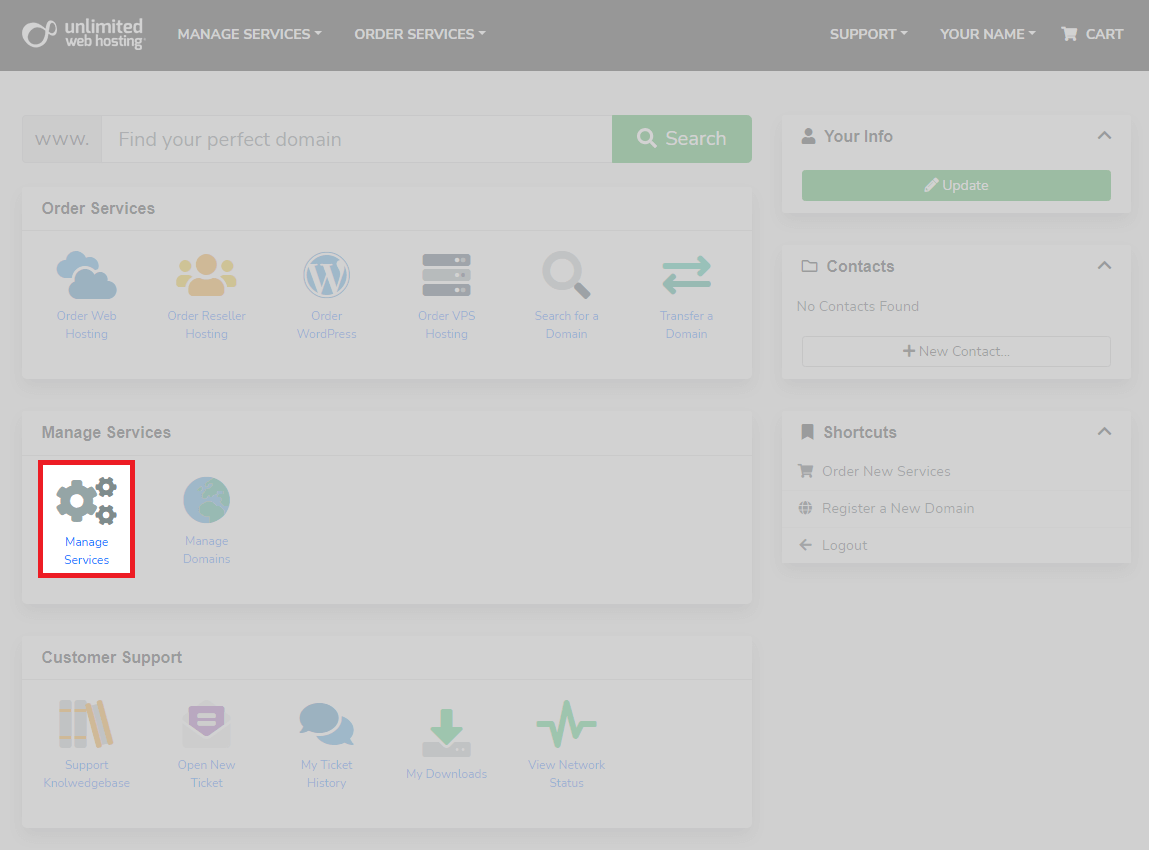
On the main dashboard, locate the Manage Services section and click Manage Services.
- Select your VPS.
Find your server in the list of services and click it to open the management panel.
You now have access to the VPS management panel where you can control your server and monitor its performance.
Execute server commands
The management panel provides buttons for common server operations. These commands let you control your server’s power state without SSH access.
- Locate the command panel.
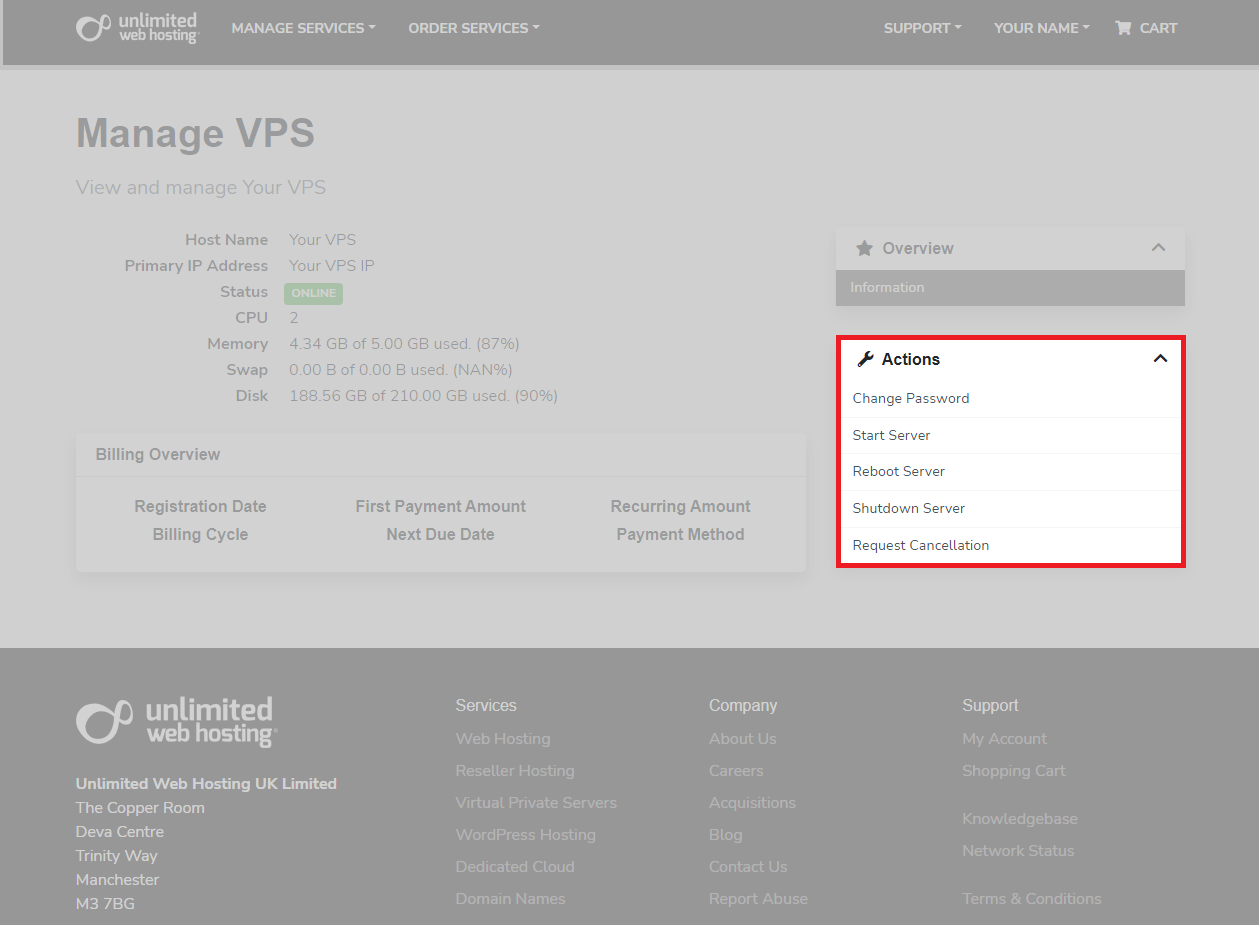
Scroll down to find the server management controls. This section displays buttons for Start, Reboot, Shutdown and Change Password.
- Choose your command.
Click the appropriate button for the action you want to perform. The Start button powers on a stopped server, Reboot restarts a running server and Shutdown powers it down gracefully. - Confirm the action.
A confirmation prompt appears for destructive operations like shutdown or reboot. Click Confirm to proceed with the command.
Your server executes the command immediately. Allow a few moments for the operation to complete before checking the server status.
Monitor server status and resources
The management panel displays real-time information about your server’s operational state and resource consumption. This helps you identify performance bottlenecks or confirm your server is running correctly.
- Check the server status.
Look for the status indicator at the top of the management panel. This shows whether your server is running, stopped or in a transitional state. - Review resource usage.
Scroll down to the information section to see your server’s last recorded CPU, memory and disk usage. High resource consumption often indicates performance issues or the need for an upgrade.
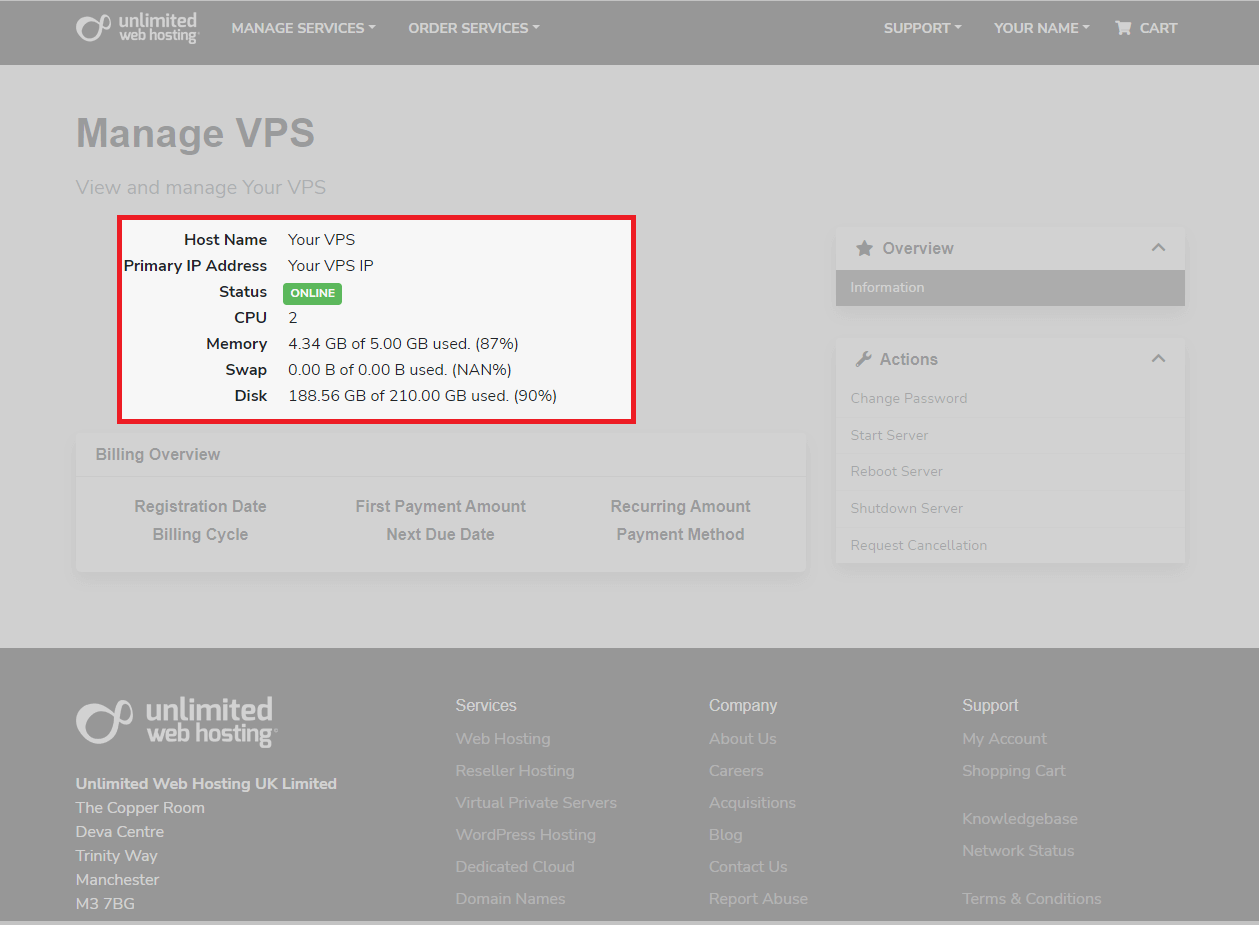
Resource monitoring updates periodically. Refresh the page to see the latest statistics if you suspect your server is experiencing issues.
Wrapping up
You can now manage your VPS through the client area without needing SSH access. You accessed the management panel, executed server commands and monitored your server’s status and resource usage.
Check your server’s resource usage regularly to spot performance issues early. Our VPS hosting plans scale with your needs when you need more capacity.
If you run into any trouble, get in touch and our team will be happy to help.
Plans and tools mentioned in this guide
Did this guide solve your problem?
Still stuck?
Our UK support team answers tickets and live chat every day. Send us the guide you were following and where it stopped working.
Keep learning
Find a guide
Related guides

Need more power?
Get scalable resources with our VPS hosting with root access and optional software.
Get VPS Hosting
Starting something new?
Perfect for websites and small businesses unlimited bandwidth with cPanel hosting.
Get cPanel Hosting