Plesk services occasionally need restarting to resolve login problems, email delivery failures or web hosting errors. A targeted restart fixes these issues with minimal downtime and no data loss.
You will restart Plesk services by connecting to your VPS via SSH and running specific commands based on the problem you are troubleshooting. This guide covers restarting all Plesk services, the control panel interface or individual components like email.
Before you begin
- This guide is for VPS customers only. Shared hosting customers should contact support for assistance.
- You need SSH access to your VPS. See our guide on connecting via SSH if you have not used it before.
- You must have root access or the ability to switch to a privileged user.
Connect to your VPS via SSH
You need an active SSH connection to run Plesk service commands. This establishes a secure terminal session where you can execute administrative commands.
- Open your SSH client.
Launch your SSH application. On Windows, this is typically PuTTY. On macOS and Linux, use the built-in Terminal application. - Enter your VPS connection details.
Type your VPS hostname or IP address into the connection field. The default SSH port is 22. - Initiate the connection.
Click Open in PuTTY or press Enter in Terminal. You will be prompted for your username and password. - Authenticate with your credentials.
Enter your username when prompted, then your password. The password will not display as you type. This is normal security behaviour.
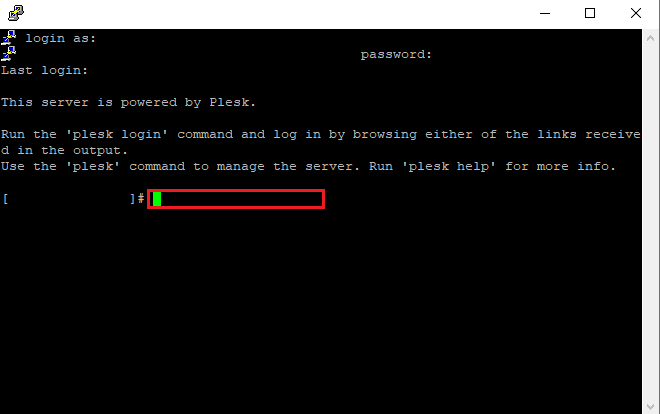
You are now connected to your VPS and can run Plesk service commands. The command you choose depends on which services are experiencing problems.
Choose the appropriate restart command
Plesk offers different restart commands for different scenarios. Using the most specific command minimises service interruption by only restarting what needs attention.
Restart all Plesk services
Use this command when multiple services are failing or after major updates. This performs a complete Plesk restart:
/etc/init.d/psa restartThis command stops and restarts all Plesk components including the control panel, web server, mail server and database connections. Expect 30-60 seconds of downtime across all Plesk services.
Restart the Plesk control panel only
If you cannot access the Plesk interface but websites and email are working, restart only the control panel service:
/etc/init.d/sw-cp-server restartThis restarts the administrative web interface without affecting your hosted sites or email delivery. You can log back into Plesk within 10-15 seconds.
Restart individual Plesk services
For problems with specific functions like email delivery or DNS resolution, restart only the affected service. Common individual service commands include:
- Mail server:
/etc/init.d/postfix restart - Web server (Apache):
/etc/init.d/httpd restart - Web server (nginx):
/etc/init.d/nginx restart - DNS server:
/etc/init.d/named restart
These targeted restarts resolve service-specific issues without interrupting unaffected components. After restarting the mail service, you can manage email settings in Plesk once the service is running again.
Wrapping up
You have restarted Plesk services using SSH commands tailored to your specific issue. Whether you restarted all services, the control panel or individual components, your VPS should now be functioning correctly.
Test the affected functionality after the restart completes. If you restarted the mail service, send a test email. If you restarted the control panel, log back into Plesk. For guidance on day-to-day VPS management tasks, see our guide on managing your VPS.
Did this guide solve your problem?
Still stuck?
Our UK support team answers tickets and live chat every day. Send us the guide you were following and where it stopped working.
Keep learning
Find a guide
Related guides

Need more power?
Get scalable resources with our VPS hosting with root access and optional software.
Get VPS Hosting
Starting something new?
Perfect for websites and small businesses unlimited bandwidth with cPanel hosting.
Get cPanel Hosting