The document root is the directory where cPanel serves your website files from. By default, this is the public_html folder, but you may need to change it when installing applications that require custom directory structures, running multiple site versions or organising files differently.
You will learn three methods to change the document root: configuring addon domains, creating symbolic links via SSH and using .htaccess redirects. Each approach suits different scenarios, from simple domain additions to advanced server configurations.
Before you begin
- Create a full backup of your website files and databases before making directory changes.
- You need access to your cPanel account.
- SSH access is required for the symbolic link method.
Why change the document root
Changing the document root allows you to serve website content from a location other than the default public_html directory. This flexibility supports several common scenarios that standard cPanel configurations cannot accommodate.
Third-party applications often require specific directory structures that conflict with cPanel defaults. URL shorteners, for example, typically need to operate from the root domain rather than a subdirectory. Development and staging environments benefit from separate document roots that isolate test code from production files. Custom site structures that organise content by project, client or application type also require non-standard directory configurations.
Configure addon domains with custom document roots
Addon domains in cPanel allow you to host multiple websites under one account. When creating an addon domain, you can specify a custom document root location instead of accepting the default directory structure.
- Log in to your cPanel account.
Access cPanel through your hosting control panel or by visitingyourdomain.co.uk:2083and entering your credentials. - Open the Addon Domains tool.
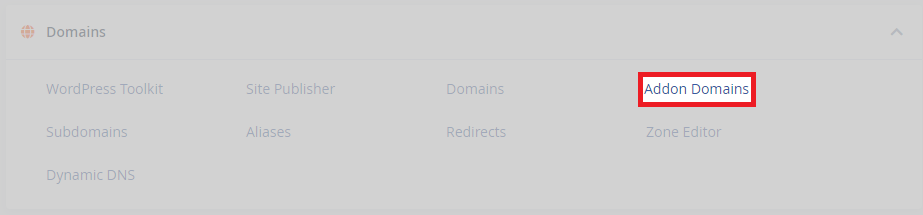
Scroll to the Domains section and click Addon Domains. This opens the interface for adding new domains to your account.
- Enter your domain details.
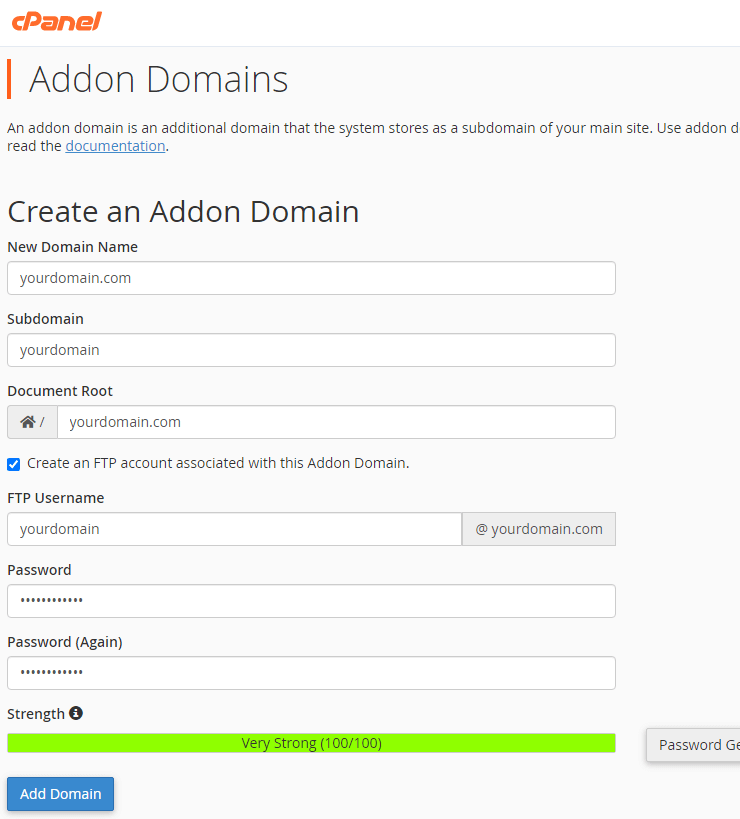
Type your new domain name in the New Domain Name field. cPanel automatically suggests a subdomain and document root path based on your domain. - Specify the document root location.
In the Document Root field, replace the suggested path with your preferred directory location. This tells cPanel where to serve files for this domain from. - Save the configuration.
Click Add Domain to create the addon domain with your custom document root. cPanel creates the directory if it does not already exist.
Your addon domain now serves content from the specified directory. This method works best when adding new domains rather than modifying existing ones, as it handles DNS configuration and directory creation automatically.
Create symbolic links via SSH
Symbolic links redirect one directory to another at the filesystem level. This approach maintains the appearance of serving files from public_html whilst actually loading content from a different location. It proves useful when applications expect files in specific directories but you need to store them elsewhere.
- Connect to your account via SSH.
Use an SSH client to access your hosting account. If you need help with SSH access, refer to our SSH key management guide. - Back up the existing public_html directory.
Create a compressed backup before making changes. This allows you to restore the original structure if something goes wrong.
tar -cvzf public_html_backup.tar.gz public_html- Remove or rename the current public_html directory.
You cannot create a symlink if a directory with that name already exists. Move the original directory out of the way first.
mv public_html public_html_old- Create the symbolic link.
Link your new directory to thepublic_htmllocation. Replace/path/to/directorywith your actual target directory andusernamewith your cPanel username.
ln -s /path/to/directory /home/username/public_html- Test the symbolic link.
Visit your website to confirm it loads correctly from the new location. If pages fail to display, check file permissions on the target directory. - Adjust permissions if needed.
Directories typically require 755 permissions and files need 644. Apply these recursively to your new document root if the site does not load.
chmod -R 755 /path/to/directory
find /path/to/directory -type f -exec chmod 644 {} \;
The symbolic link now redirects all requests for public_html to your specified directory. This method preserves cPanel’s expectation of a public_html folder whilst giving you flexibility in where files actually reside.
Redirect with .htaccess rules
.htaccess redirects tell Apache to serve content from a different directory without changing the filesystem structure. This approach works when you cannot or prefer not to modify directories directly, though it adds a small processing overhead to each request.
- Open the File Manager in cPanel.
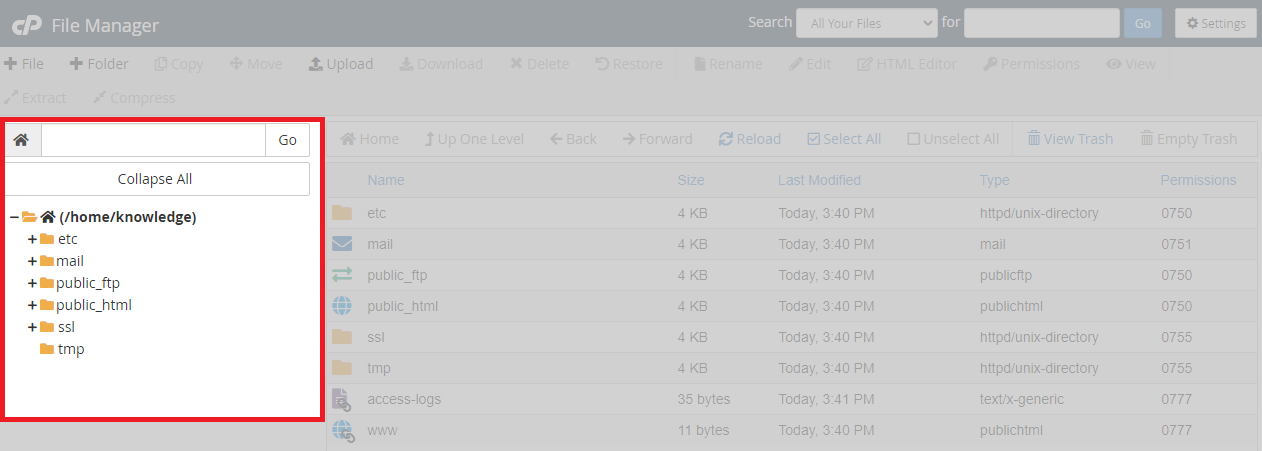
Navigate to the Files section and click File Manager. This opens the web-based file browser. - Navigate to your current document root.
Click onpublic_htmlin the directory tree. This is typically where your .htaccess file resides.
- Edit the .htaccess file.
Right-click on.htaccessand select Edit. If the file does not exist, create it by clicking File in the toolbar and entering.htaccessas the filename. - Add the redirect rules.
Insert the following code at the top of the file. Replacedomain.tldwith your actual domain and/path/to/directorywith your new document root location.
RewriteEngine On
RewriteCond %{HTTP_HOST} ^domain\.tld$ [NC]
RewriteRule ^(.*)$ /path/to/directory/$1 [L]- Save the changes.
Click Save Changes in the editor. The redirect takes effect immediately without requiring a server restart. - Test the redirect.
Visit your website to confirm it loads content from the new directory. Clear your browser cache if you see old content.
Apache now redirects all requests to your specified directory. This method requires no filesystem changes and works across different hosting environments, though it processes the redirect on every page load rather than at the system level.
Change the primary domain document root
The primary domain on a cPanel account uses a document root that cannot be changed through the standard interface. This restriction exists because the primary domain ties directly to the account’s core configuration files. Modifying it incorrectly can break email delivery, SSL certificates and other account-level services.
Non-root users must request support intervention to change the primary domain’s document root. If you have root access to your server, you can modify the configuration files directly through SSH.
For non-root users
Contact our support team with your requested document root path. Our team will update the configuration files and verify that all account services continue functioning correctly after the change.
For root users via SSH
Root access allows you to edit the user data files that define document root locations. This process requires careful attention to detail, as errors in these files can prevent websites from loading.
- Connect to the server via SSH.
Log in with root credentials. Standard user accounts cannot access the directories you need to modify. - Edit the user data files.
Open both the standard and SSL configuration files for the domain. Replaceusernamewith the cPanel account username anddomain.tldwith the actual domain name.
nano /var/cpanel/userdata/username/domain.tld
nano /var/cpanel/userdata/username/domain.tld_SSL- Locate the documentroot line.
PressCtrl+Win nano to open the search function. Typedocumentrootand press Enter. This jumps to the line you need to modify. - Update the document root path.
Replace the existing path with your new document root location. Ensure the path is absolute and starts from the root filesystem, not relative to the user’s home directory. - Save the changes.
PressCtrl+X, thenYto confirm, then Enter to save. Repeat this process for both the standard and SSL configuration files. - Remove cache files.
Delete any cached versions of the configuration files. These prevent your changes from taking effect until cleared.
rm -vf /var/cpanel/userdata/username/domain.tld.cache
rm -vf /var/cpanel/userdata/username/domain.tld_SSL.cache- Apply the configuration changes.
Run the following command to update user data, rebuild Apache configuration and restart the web server. This single command chains together all necessary operations.
/scripts/updateuserdatacache && /scripts/rebuildhttpdconf && service httpd restart- Verify the site loads correctly.
Visit the domain in a web browser. If you see errors, check that the new document root path exists and contains your website files.
The primary domain now serves content from your specified directory. Monitor email delivery and SSL certificate functionality over the next few hours to ensure the change did not affect other account services.
Troubleshooting document root changes
Document root changes can cause several common issues if directories, permissions or configurations are incorrect. These problems typically manifest as blank pages, permission errors or missing content.
Site displays a blank page or 403 error
Apache cannot access the new document root directory. This usually indicates incorrect permissions or ownership on the target directory.
- Verify the directory exists at the exact path you specified
- Check directory permissions are set to 755 using
ls -la - Confirm the directory owner matches your cPanel username
- Ensure parent directories in the path also have correct permissions
Images or CSS files fail to load
The website loads but displays without styling or images. This indicates that static files have incorrect permissions or the document root path points to a directory missing these assets.
- Check that all website files were moved to the new document root
- Verify file permissions are set to 644 for all static assets
- Review your website’s configuration for hardcoded paths that need updating
- Clear your browser cache to ensure you see current content
Symbolic link shows “Too many redirects” error
The symbolic link creates a loop where the target directory points back to itself or another symlink. This prevents Apache from resolving the actual file location.
- Use
ls -lato verify the symlink points to the correct absolute path - Check that the target directory is not itself a symlink
- Remove the symlink with
rm public_htmland recreate it with the correct path - Ensure no .htaccess rules in the target directory create additional redirects
If errors persist after checking these common issues, review our guide on troubleshooting website error codes for detailed diagnostic steps.
Further reading on cPanel directory management
Document root changes form part of broader server and file management practices. Understanding related concepts helps you make informed decisions about directory structures and avoid common configuration mistakes.
File permissions and ownership determine which users and processes can access directories. The chown command changes file ownership, whilst chmod modifies permission levels. Both commands prove essential when troubleshooting access issues after document root changes. Apache’s documentation on URL mapping explains how the web server translates URLs to filesystem paths, clarifying why document root location matters for site functionality.
Server restarts become necessary when configuration changes do not take effect immediately. Our guide on restarting Apache covers when and how to restart the web server safely. For VPS users managing multiple sites, understanding these concepts allows you to structure hosting environments that balance organisation with performance.
Wrapping up
You now know three methods to change the document root in cPanel. Addon domains work best for new sites, symbolic links maintain compatibility with applications expecting standard paths and .htaccess redirects offer a lightweight alternative when filesystem changes are not possible. Root users can modify primary domain configurations directly through SSH.
Test your site thoroughly after making document root changes. Verify that all pages load correctly, forms submit successfully and SSL certificates continue working. Check file permissions if you encounter access errors. Our cPanel hosting includes full SSH access and file management tools for flexible directory configuration.
If you run into any trouble, get in touch and our team will be happy to help.


Ready to get started?
Launch your website with our reliable cPanel hosting with unlimited bandwidth and expert support.
Get cPanel Hosting