Exporting your DNS zone from cPanel creates a complete record of your domain’s DNS configuration. You can use this file to archive records, audit your setup or migrate to another DNS service without losing any entries.
You will export your zone using either the cPanel backup tool or JetBackup 5, then locate the zone file in the downloaded archive. Both methods produce the same zone file format.
Before you begin
- You need access to your cPanel account.
- The JetBackup 5 method requires at least one backup snapshot to exist for your account.
Export DNS zone with cPanel backup
The cPanel backup tool creates a complete account backup that includes all DNS zones. This method works immediately without waiting for scheduled backups.
- Open the Backup tool.
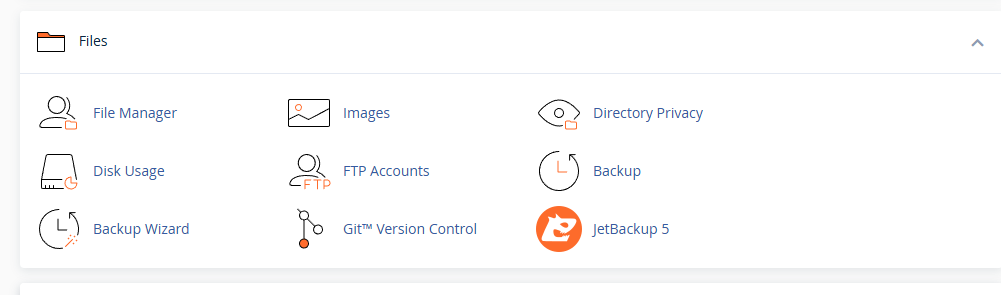
Log in to cPanel and scroll to the Files section. Click Backup to continue.
- Generate a full account backup.
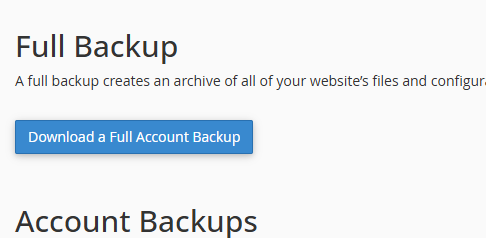
Under the Full Backup header, click Download a Full Account Backup. This creates a backup containing all DNS zones, files and databases for your account.
- Download the backup file.
Once the backup completes, it appears in the Backups Available for Download list. Click the latest backup to download it to your device. - Extract the backup archive.
Use your preferred extraction tool to unpack the downloaded backup file. This creates a folder containing your account data. - Locate the zone files.
Open the extracted backup folder and navigate to thednszonesdirectory. Each zone file uses the formatdomainname.tld.dband contains all DNS records for that domain.


You now have a complete export of your DNS zone. If you need to export zones for multiple domains, repeat this process or use the full backup method which captures all zones at once.
Export a zone with JetBackup 5
JetBackup 5 lets you export individual zone files without creating a full account backup. This method requires your account to have at least one backup snapshot available.
- Open JetBackup 5.
Log in to cPanel and scroll to the Files section. Click JetBackup 5 to continue. - Access the Domains tab.
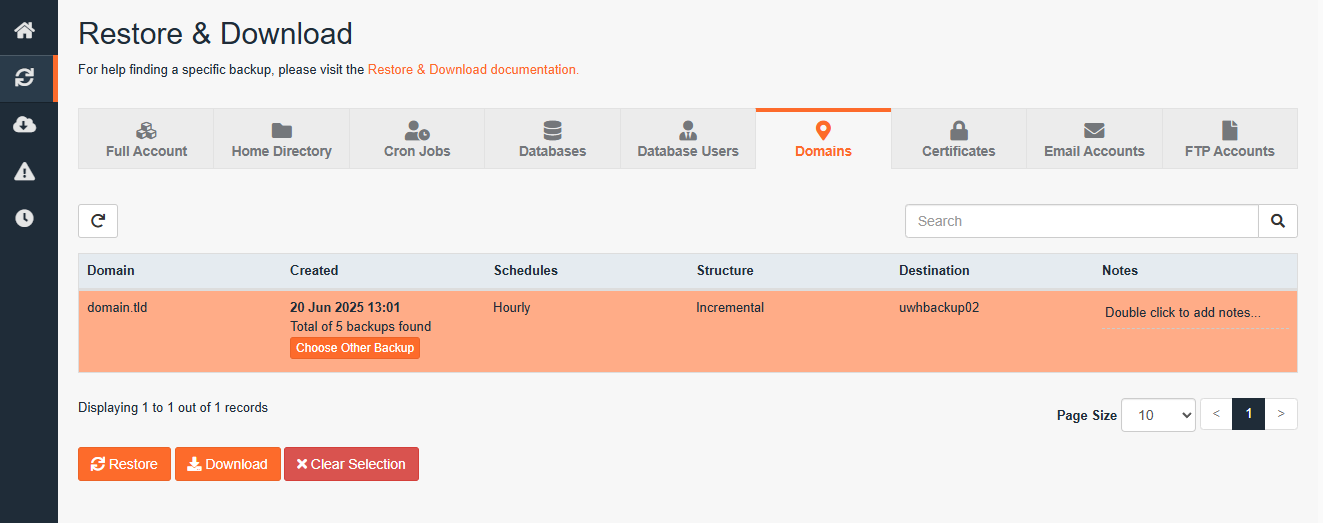
Click Restore & Download in the JetBackup 5 interface, then select the Domains tab. This displays all domains with available backups.
- Request the zone file download.
Find your domain in the list and click Download. A confirmation window appears showing the files to be included. Click Download again to proceed.

- Download the prepared file.
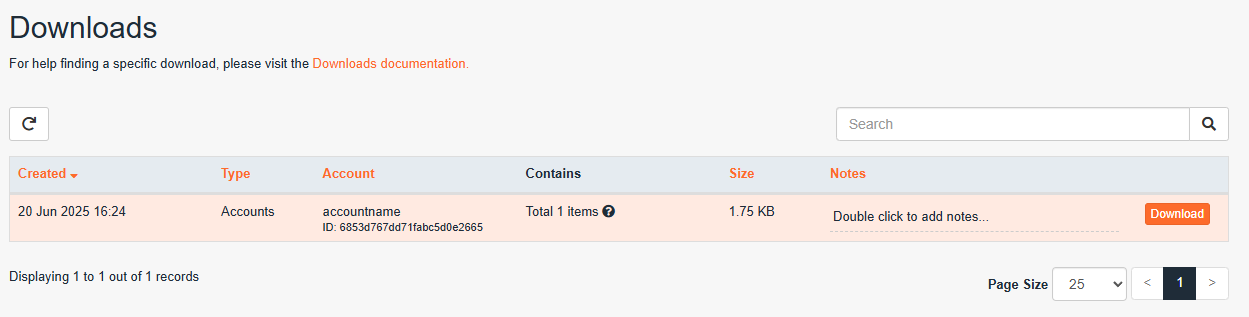
JetBackup 5 prepares your download and adds it to the Downloads queue. Click Downloads in the left menu, then click Download next to your zone file to save it to your device.

Your zone file is now exported and ready to use. The file contains all DNS records for the selected domain in standard zone file format.
Wrapping up
You have exported your DNS zone from cPanel using either the backup tool or JetBackup 5. The zone file contains all DNS records for your domain and can be imported into other DNS services or archived for reference.
If you are migrating your site, review our guide on using the cPanel transfer tool which handles DNS zones alongside files and databases. You may also want to perform a WHOIS lookup to verify domain ownership before making DNS changes. Our cPanel hosting includes automated backups and DNS management tools.
If you run into any trouble, get in touch and our team will be happy to help.


Ready to get started?
Launch your website with our reliable cPanel hosting with unlimited bandwidth and expert support.
Get cPanel Hosting