When a website shows a blank page or stops working unexpectedly, the cause is rarely visible to visitors. Servers are configured to suppress error output for security reasons, so the details are written to log files instead. Knowing where to find those files lets you diagnose the problem without guessing.
This article covers two types of log file available in cPanel: the web server error log and PHP error_log files. Each records a different category of error, so checking the right one saves time when troubleshooting.
Before you begin
- You need access to your cPanel account. See our guide on accessing your control panel if you are unsure how to log in.
- PHP errors are written to
error_logfiles at the directory level, so you may find multiple files across your account depending on how many scripts have encountered errors.
Understanding the two types of error log
Web server errors and PHP errors are recorded separately. Web server errors are generated by Apache itself, typically for issues such as missing files, permission problems or malformed requests. PHP errors are generated by your scripts and are written directly into the directory where the offending script lives.
For most WordPress issues, including broken plugins or theme conflicts, the PHP error_log files are the most useful starting point. Web server logs are better suited to diagnosing HTTP errors such as 500 responses or redirect loops.
View the web server error log in cPanel
cPanel provides a built-in viewer for recent web server errors. This shows the last few entries logged by Apache for your account and is a quick way to spot fundamental server-level problems.
- Log in to cPanel.
Access your account through your hosting control panel login page. - Locate the Metrics section.
Scroll down the cPanel home screen until you see the Metrics section. - Open the Errors tool.
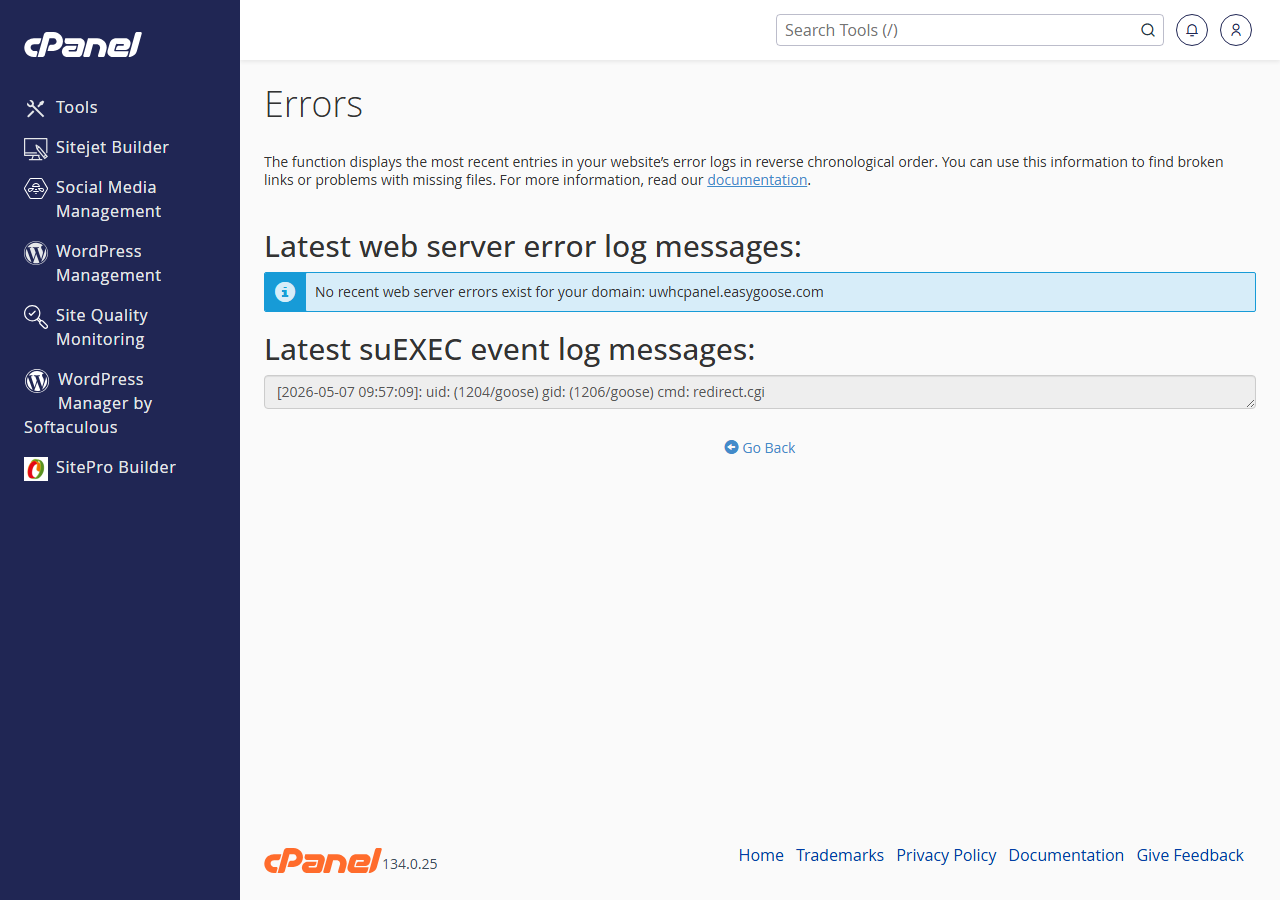
Click the Errors icon. cPanel displays the most recent web server error entries for your account.
The viewer shows a snapshot of recent entries rather than the full historical log. If the entries shown do not point to the cause of your problem, PHP error_log files are the next place to look.
Find PHP error_log files using File Manager
PHP writes errors to a file named error_log in the same directory as the script that triggered the error. A busy site can accumulate several of these files across different folders. The File Manager search function lets you locate all of them at once.
- Open File Manager.
From the cPanel home screen, click File Manager in the Files section. - Search for error_log files.
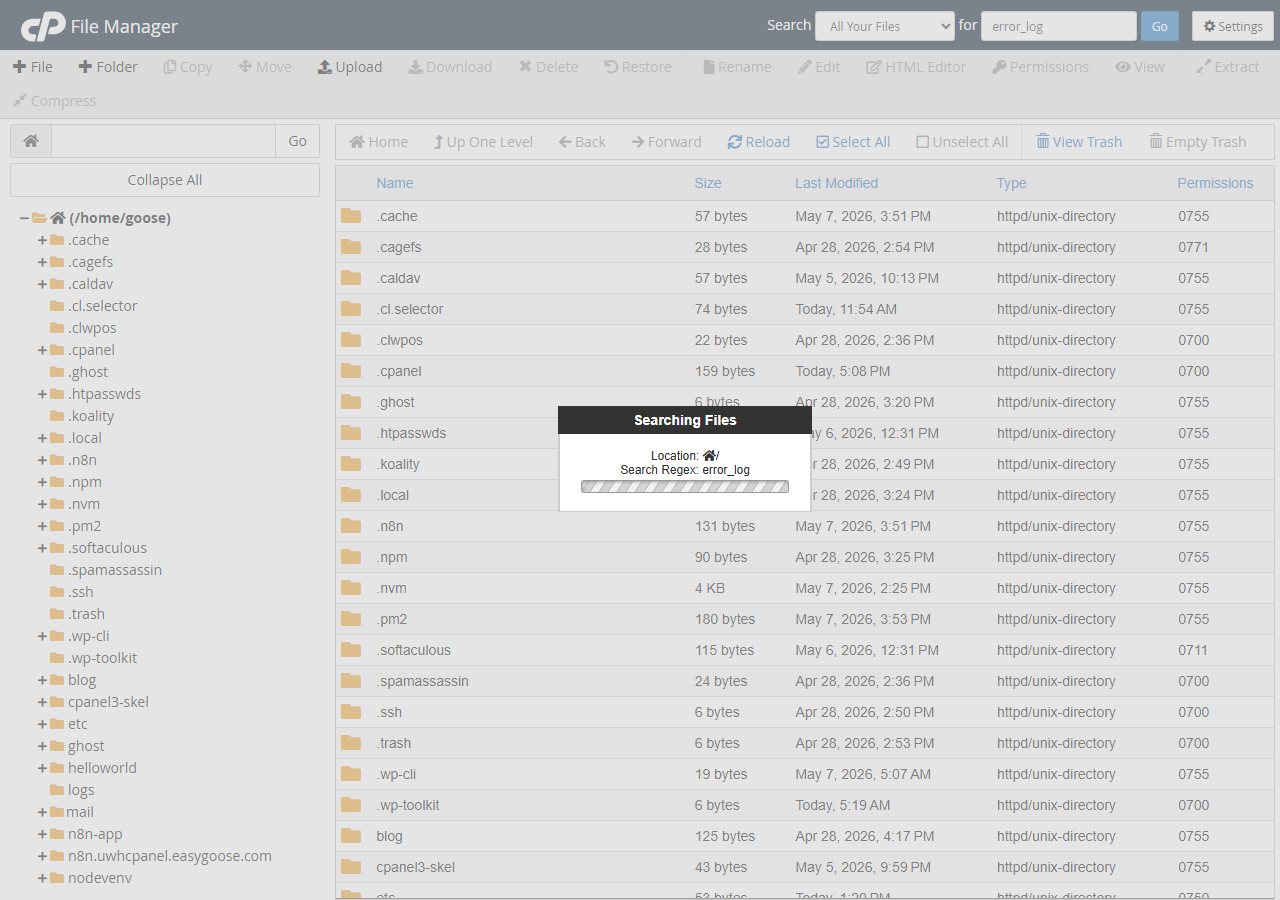
In the search box at the top right of File Manager, typeerror_logand click Go. Make sure the search scope is set to Web Root or Home Directory to cover all your files.
- Open the relevant file.
The results list shows the path of eacherror_logfile found. Right-click the file closest to the directory where your problem is occurring and select View to read its contents. - Read the error entries.
Each line in the file includes a timestamp, error type and the file path where the error occurred. Look for entries that match the time your site started misbehaving to narrow down the cause.
Once you have identified the error, you can search for the specific message or file path to find a fix, or pass the details to a developer.
Troubleshooting
No error_log files appear in the search results
If the search returns no results, PHP error logging may not be active for your account, or no errors have been triggered yet. You can confirm PHP error logging is enabled by checking your PHP configuration.
- Create a phpinfo file and look for the
error_logandlog_errorsdirectives to confirm logging is active. - Check that your search scope in File Manager covers the full home directory, not just a subdirectory.
- If you recently cleared your files or restored from a backup, previous log files may have been removed.
The error_log file is present but empty
An empty error_log file usually means the file was created by the server but no errors have been written to it since. This can happen after a manual clear or if the error occurred in a different directory.
- Check other
error_logfiles returned by the search, particularly those in your WordPress root directory or thewp-content/pluginsfolder. - Reproduce the error by visiting the affected page, then refresh the File Manager view and check the file again.
The Errors tool in cPanel shows no entries
The cPanel Errors viewer only shows recent entries and may be empty if no web server errors have occurred lately, or if the log has been rotated. PHP errors will not appear here at all as they are written to separate error_log files.
- For PHP-related issues such as plugin failures or white screens, always check the
error_logfiles via File Manager rather than the cPanel Errors tool. - See our guide on fixing website error codes for help interpreting common HTTP errors.
Wrapping up
You now know where to find web server errors using the cPanel Errors tool and how to locate PHP error_log files using File Manager’s search function. Reading these files gives you the information needed to identify what went wrong and where.
Once you have identified an error, the next step is usually to check the affected plugin, theme or script for updates, or to review the file path mentioned in the log entry. Our guides on removing malware from WordPress, creating a phpinfo file and using cPanel File Manager cover related tasks that may help with your investigation.
Did this guide solve your problem?
Still stuck?
Our UK support team answers tickets and live chat every day. Send us the guide you were following and where it stopped working.
Keep learning
Find a guide
Related guides

Hosting that keeps up
cPanel hosting with the tools these guides use, backed by UK support.
Get cPanel Hosting
Keep your site secure
Protect your visitors with SSL certificates – from budget DV to premium EV certificates.
Get SSL Certificate