HTTP error codes appear when something prevents your website from loading correctly. These errors frustrate visitors, reduce search visibility and signal problems that need immediate attention.
You will learn what causes the most common HTTP errors and how to fix them. Each section explains the error, identifies typical causes and provides actionable solutions. This guide focuses on client-side errors (400-series codes) that you can often resolve without contacting your hosting provider.
Fix error 400: bad request
A 400 error means the server cannot process your request because something about it is malformed or invalid. The problem originates on the client side, typically in how the browser sends the request or how the URL is structured.
Common causes include corrupted browser data, syntax errors in the URL, files that exceed size limits or mismatched request headers. You will fix most 400 errors by clearing browser data and checking the URL structure.
- Clear your browser cache and cookies.
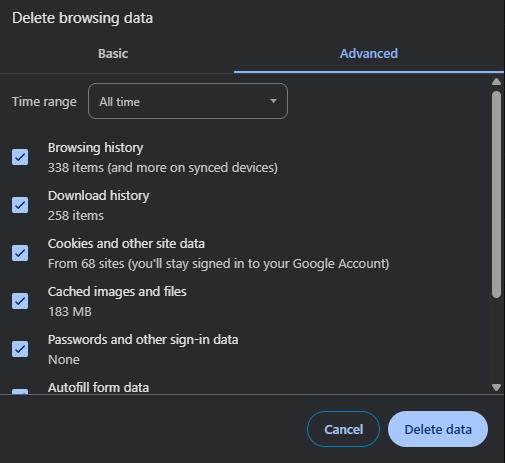
Corrupted cached data often causes 400 errors. In Chrome, click the three dots in the top right corner, select Settings, then Privacy and security. Click Clear browsing data, select Cached images and files and Cookies and other site data, then click Clear data.
- Check the URL for errors.
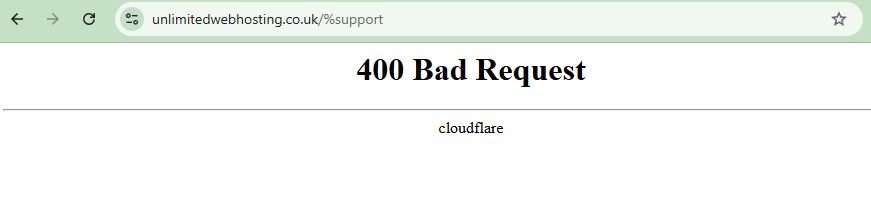
Review the address bar for typos, extra characters or formatting mistakes. Sometimes the error message will specify “Invalid URL”, confirming the problem lies in the web address itself.
- Reduce file upload sizes.
If the error occurs during file uploads, your file may exceed the server’s size limit. Compress images or split large files into smaller chunks before uploading. - Verify request headers.
For API requests or custom applications, confirm that headers match what the server expects. Mismatched content types or authentication headers trigger 400 errors.
After clearing browser data and checking the URL, reload the page. If the error persists, the problem may lie in how your application constructs requests rather than browser-side issues.
Fix error 401: unauthorised
A 401 error appears when the server requires authentication but the request lacks valid credentials. This prevents access until you provide correct login details or refresh your authentication token.
The error occurs when credentials are missing, incorrect or expired. Session tokens can expire after a period of inactivity, or your user account may lack the necessary permissions. You will resolve most 401 errors by logging in again or clearing authentication cookies.
- Verify your login credentials.
Confirm you are using the correct username and password. Password managers sometimes autofill outdated credentials, so check that saved passwords match your current login details. - Log out and sign back in.
This refreshes your session token and clears any authentication issues caused by expired sessions. Use the logout option in your account menu, then log in again with your current credentials. - Clear authentication cookies.
Follow the same process described in the 400 error section to clear cookies. This removes stored authentication data that may conflict with current login requirements. - Check API credentials.
If accessing resources through an API or third-party tool, verify that API keys or tokens are current and correctly formatted. Expired or malformed tokens cause 401 errors even when other credentials are correct. - Contact your administrator.
If you cannot resolve the error after checking credentials, your account may lack the required access level. Ask the site administrator to review your user permissions.
Once you log in successfully, the 401 error should disappear. If it persists, the problem may involve server-side authentication configuration rather than your credentials.
Fix error 403: forbidden
A 403 error means the server understood your request but refuses to fulfil it. Unlike a 401 error, authentication is not the issue. The server explicitly denies access based on permissions, security rules or IP restrictions.
Common causes include insufficient user privileges, IP addresses blocked by firewalls, incorrect file permissions on the server or security plugins blocking legitimate requests. You will need to check both user-level permissions and server-side security settings.
- Check your user permissions.
Confirm your account has permission to access the requested resource. Some areas of a website restrict access to specific user roles, such as administrators or editors. - Request elevated access.
If you need access to a restricted area, contact the site administrator to review your user role. They can grant additional permissions if appropriate. - Verify file permissions.
On the server, files and directories require specific permission settings. Directories typically need 755 permissions, while files need 644. Incorrect permissions prevent the server from serving content even to authorised users. - Review security plugin settings.
Security plugins sometimes block legitimate requests by mistake. If you use WordPress, disable plugins using WP Toolkit to test whether a security plugin causes the error. You can also whitelist your IP address in the plugin’s settings. - Check firewall rules.
Server firewalls may block your IP address if they detect suspicious activity. Contact your hosting provider to confirm whether your IP is blocked and request removal from the blocklist if necessary.
After adjusting permissions or security settings, test access again. If the error continues, the restriction may be intentional rather than a configuration problem.
Fix error 404: not found
A 404 error appears when the server cannot locate the requested resource. This is the most common HTTP error and occurs when URLs point to content that no longer exists or never existed at that location.
Causes include mistyped URLs, deleted content without proper redirects, server misconfigurations or DNS resolution problems. Frequent 404 errors damage user experience and harm search engine rankings. You will fix most 404 errors by correcting URLs and implementing redirects.
- Check the URL for accuracy.
Review the address bar for spelling mistakes or incorrect paths. A single typo in the URL causes a 404 error even when the content exists elsewhere on the site. - Reload the page.
Temporary network issues sometimes cause 404 errors. Refresh the page or try accessing it in a different browser to rule out local problems. - Update internal links.
If you moved or deleted content, update any internal links that point to the old location. Search your site’s content for references to the missing page and replace them with current URLs. - Implement 301 redirects.
For permanently moved content, create 301 redirects that automatically send visitors from the old URL to the new location. This preserves search engine rankings and prevents broken links. - Clear DNS cache.
DNS issues can make existing pages appear missing. Flush your DNS resolver cache to ensure your computer uses current DNS records. Try accessing the site from a different network to confirm whether DNS causes the problem. - Check server configuration.
Server misconfigurations can prevent proper routing to existing files. If you recently changed server settings or moved files, verify that paths and rewrite rules are correct.
After correcting URLs and implementing redirects, monitor your site for additional 404 errors. Regular checks help you catch broken links before they affect visitors or search rankings.
Further reading on HTTP error diagnosis
Server logs provide detailed information about HTTP errors that browser messages do not show. Access logs record every request to your server, including timestamps, response codes and request patterns. These logs help you identify whether errors affect specific pages, occur at particular times or originate from certain IP addresses.
Browser developer tools reveal client-side problems that server logs miss. Inspecting elements from your browser shows JavaScript errors, failed network requests and resource loading problems in the console. This helps you distinguish between server errors and client-side issues.
Some errors require specialised troubleshooting. If you encounter redirect loops, fixing too many redirects addresses that specific problem. For 508 errors about resource limits, understanding LVE limits explains how account resource caps work and when they trigger errors.
The Mozilla Developer Network HTTP status code reference provides comprehensive documentation for all HTTP response codes. This resource explains the technical meaning of each code and when servers should return them.
Wrapping up
You now know how to diagnose and fix the most common HTTP error codes. You learned to clear browser data for 400 errors, refresh authentication for 401 errors, check permissions for 403 errors and correct URLs for 404 errors. Each fix addresses the specific cause of the error rather than applying generic solutions.
Monitor your site regularly for HTTP errors. Check server logs weekly to catch problems early and review internal links after making content changes. Our web hosting plans include tools for monitoring site health and diagnosing errors.
If you run into any trouble, get in touch and our team will be happy to help.


Ready to get started?
Launch your website with our reliable cPanel hosting with unlimited bandwidth and expert support.
Get cPanel Hosting