Password-based SSH and SFTP logins are vulnerable to brute-force attacks. Key authentication replaces the password with a cryptographic key pair – a private key that stays on your machine and a public key installed on your server. Only someone holding the private key can connect, even if they know your username.
You will generate a key pair using PuTTYgen, add the public key to your cPanel account and configure Pageant to manage the private key for PuTTY and FileZilla connections.
Before you begin
- Download and install the PuTTY suite (includes PuTTYgen, Pageant and PuTTY). The installer package installs all components at once.
- You need access to your cPanel account.
Generate a key pair with PuTTYgen
PuTTYgen creates the public and private key files. The private key file stays on your Windows machine; the public key is copied into cPanel.
- Open PuTTYgen.
Launch PuTTYgen from the Start menu or the PuTTY installation folder. - Select key type and size.
Leave the key type set to RSA and the key size at 2048 bits or higher. ED25519 is also a good choice if your server supports it. - Generate the key pair.
Click Generate, then move your mouse randomly over the blank area of the window. PuTTYgen uses this movement to add randomness to the key generation process. - Set a key comment and passphrase.
Enter a comment in the Key comment field (your name or machine name works well for identification). Enter a strong passphrase in passphrase fields. This passphrase protects your private key – if the key file is ever copied by someone else, the passphrase prevents them from using it. - Save the private key.
Click Save private key and save the file with a.ppkextension to a location you will remember. Do not close PuTTYgen yet.
Add your public key to cPanel
Your public key needs to be installed in cPanel’s SSH Access manager so the server can verify your identity when you connect.
- Copy your public key.
In PuTTYgen, select all the text in the box labelled Public key for pasting into OpenSSH authorized_keys file and copy it. - Open SSH Access in cPanel.
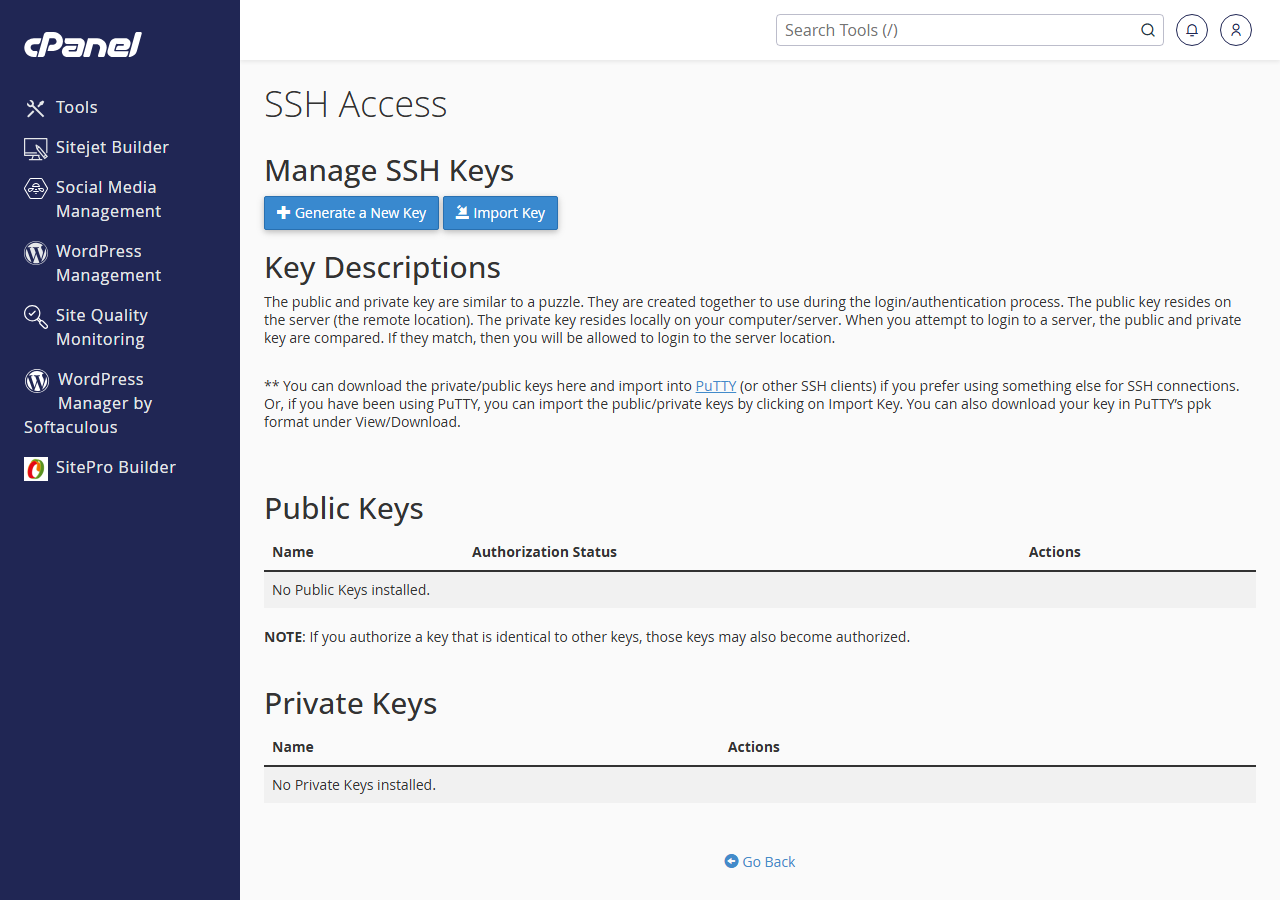
Log in to cPanel, locate the Security section and click SSH Access. - Import the public key.
Click Manage SSH Keys, then click Import Key. Paste your public key into the public key text box, give the key a name and click Import. - Authorise the key.
Back on the Manage SSH Keys screen, click Manage next to your imported key, then click Authorize. A confirmation message confirms the key is active.
Load your private key in Pageant
Pageant is a background key agent that holds your decrypted private key in memory, making it available to PuTTY and FileZilla without requiring your passphrase on every connection.
- Start Pageant.
Launch Pageant from the Start menu. It runs as a small icon in the Windows system tray – look for the computer with a hat icon. - Add your private key.
Right-click the Pageant icon and select Add Key. Browse to your.ppkfile and click Open. - Enter your passphrase.
Enter the passphrase you set in PuTTYgen. Pageant decrypts the key and holds it in memory. You will not be prompted for the passphrase again until you restart Pageant.
Connect with PuTTY and FileZilla
With Pageant running and your key loaded, PuTTY and FileZilla will automatically use key authentication when connecting to your server – no password is required at the connection prompt.
For FileZilla, open File > Site Manager, locate your connection profile and remove any saved password. As long as Pageant is running, FileZilla picks up the key from it automatically.
To make Pageant start automatically with Windows and always have your key ready, add a shortcut to Pageant (with your .ppk file as a command-line argument) to your Windows Startup folder.
Wrapping up
You generated an SSH key pair with PuTTYgen, installed the public key in cPanel and configured Pageant to make the private key available to PuTTY and FileZilla. Your SSH and SFTP connections now use key authentication instead of a password.
Store your .ppk file in a secure location and keep the passphrase recorded somewhere safe. If you also work on macOS or Linux, see our guide on adding an SSH key to GitHub. For broader SSH usage, see how to connect and use SSH. Our cPanel hosting plans support SSH key authentication and SFTP access as standard.

