The cPanel file manager provides a visual interface for managing your website files. You can upload, edit, move and delete files without configuring an FTP client. This makes it ideal for quick file operations and basic site maintenance.
You will learn how to access the file manager, navigate your directory structure and use the main file operations. The tool works directly in your browser and requires no additional software.
Before you begin
- You need access to your cPanel account. See our guide on how to access your control panel.
Access the file manager
The file manager lives in the Files section of cPanel. You will open it from your main cPanel dashboard.
- Log in to cPanel.
Access your control panel using the login details provided in your welcome email. - Open the file manager.
Scroll to the Files section and click File Manager. The tool opens in a new browser tab.
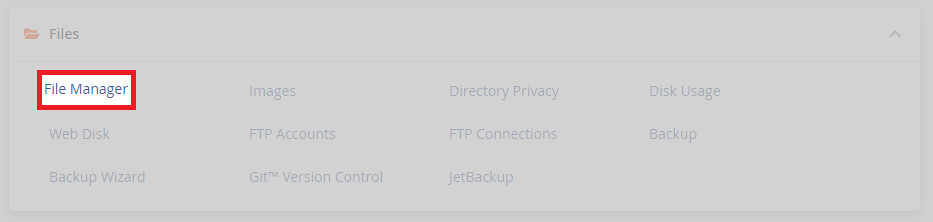
The file manager interface is now open. You can navigate your hosting account’s directory structure and perform file operations.
Navigate your directories
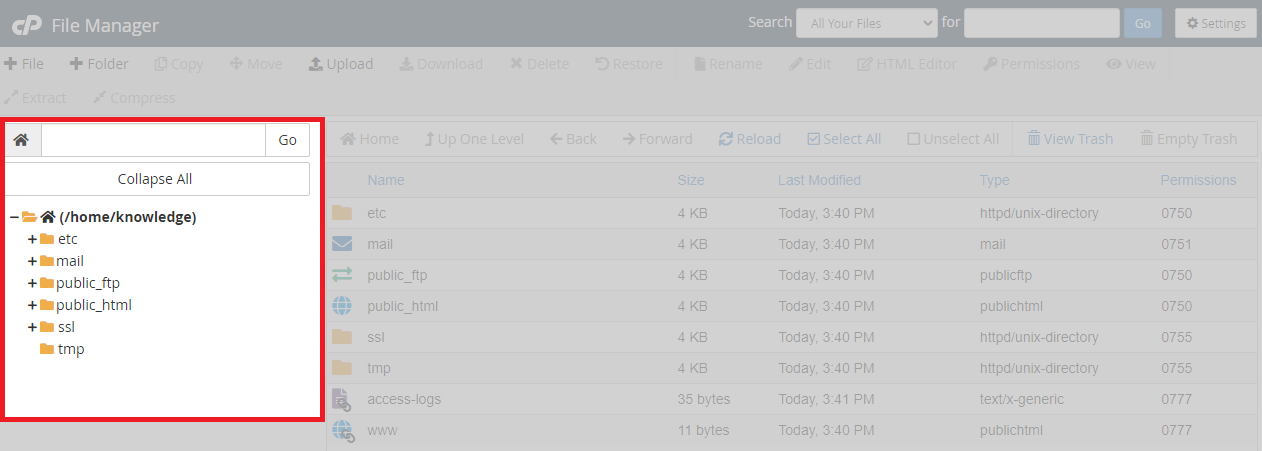
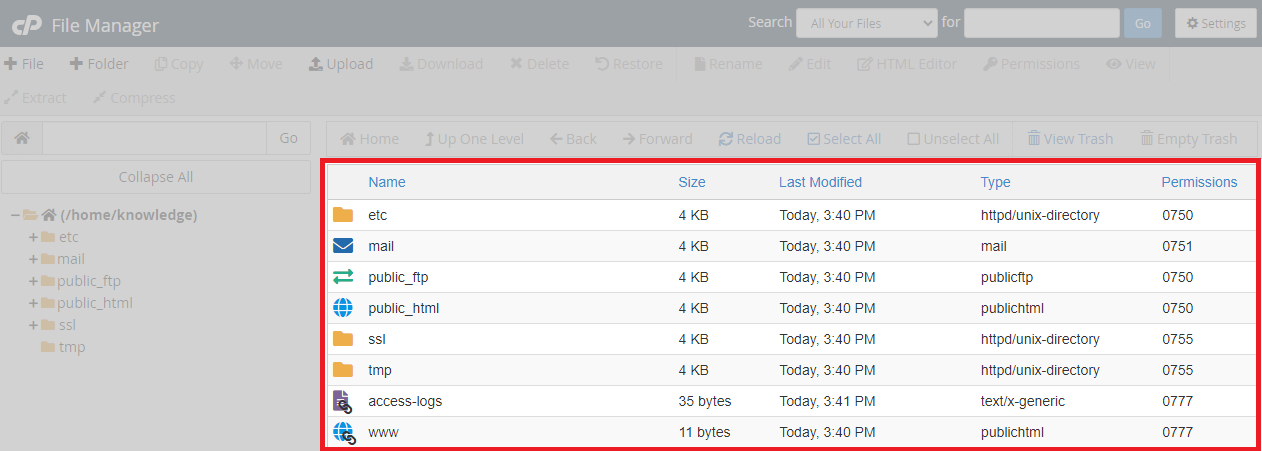
The file manager splits into two columns. The left column shows your directory tree, while the right column displays the contents of whichever folder you select. This layout lets you move between folders and view files at the same time.
- View your directory tree.
The left column lists all directories in your account. Click any folder name to expand it and see subdirectories.
- Browse folder contents.
The right column shows files and subdirectories within your selected folder. Double-click any folder to open it and view its contents.
- Use the navigation controls.
The toolbar includes Home, Up One Level, Back and Forward buttons. These help you move between directories without clicking through the tree structure.
You can now move freely through your directory structure. The navigation controls let you return to previous locations or jump back to your home directory.
Manage files and folders
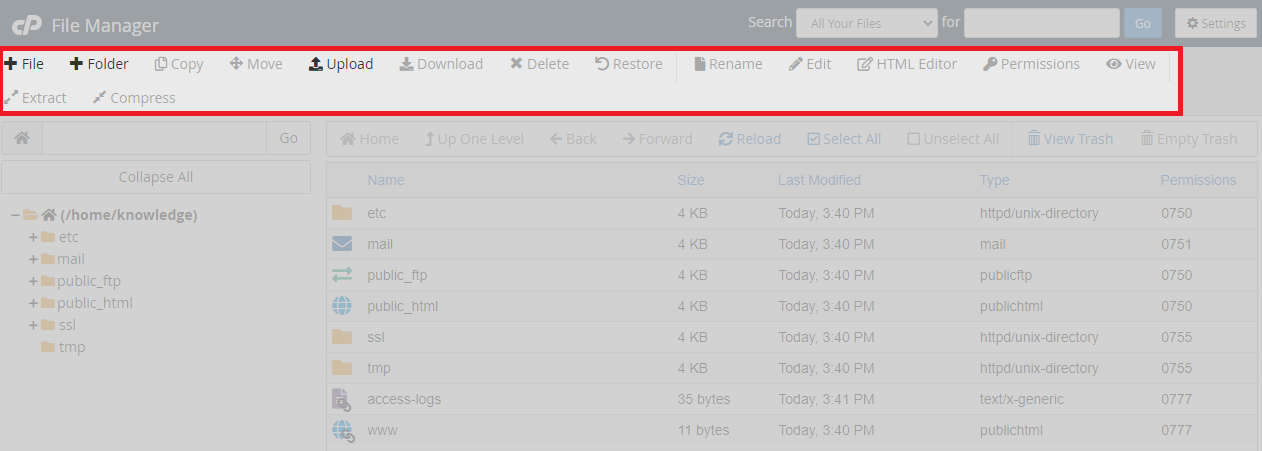
The toolbar provides buttons for common file operations. You select files or folders first, then click the relevant command button to perform an action.
- Select items.
Click any file or folder to select it. Hold Ctrl (Windows) or Cmd (Mac) while clicking to select multiple items. The Select All button selects everything in the current folder. - Use command buttons.
The toolbar includes buttons for uploading, creating, editing, copying, moving and deleting files. Click Upload to add files from your computer, or New File to create a blank file in the current directory.
- Drag and drop files.
You can drag files from your desktop directly into the file manager window. This uploads them to whichever folder you currently have open. - Reload to see changes.
Click the Reload button after making changes. This refreshes the file list and confirms your operations completed successfully.
You can now perform all common file operations through the cPanel interface. The drag-and-drop feature makes uploading files particularly quick.
Wrapping up
You can now navigate your hosting account’s file structure and manage files through the cPanel file manager. You learned how to access the tool, move between directories and use the command buttons for file operations. The visual interface handles most common tasks without requiring FTP configuration.
For more advanced file operations or automated transfers, consider setting up an FTP account. Our cPanel hosting includes the file manager on all plans.
If you run into any trouble, get in touch and our team will be happy to help.


Ready to get started?
Launch your website with our reliable cPanel hosting with unlimited bandwidth and expert support.
Get cPanel Hosting