When your WordPress site shows a blank white screen or behaves unexpectedly, PHP errors are often the cause. WordPress includes a built-in debugging system that you can activate by editing a single configuration file, giving you visibility of the errors your site is generating.
By the end of this guide, you will have WP_DEBUG configured in your wp-config.php file and be able to view or log PHP errors to diagnose what is going wrong.
Before you begin
- You need access to your site’s files via cPanel File Manager or an FTP client.
- Locate your
wp-config.phpfile in the root directory of your WordPress installation, typicallypublic_html/. - We recommend taking a backup of your site before editing core configuration files.
- Never leave
WP_DEBUGset totrueon a live site once you have finished diagnosing the problem.
Enable WP_DEBUG in wp-config.php
WordPress reads its debug configuration from constants defined in wp-config.php. Setting WP_DEBUG to true tells WordPress to report all PHP errors and notices, including those triggered by plugins and themes. By default this constant is set to false, so errors are suppressed.
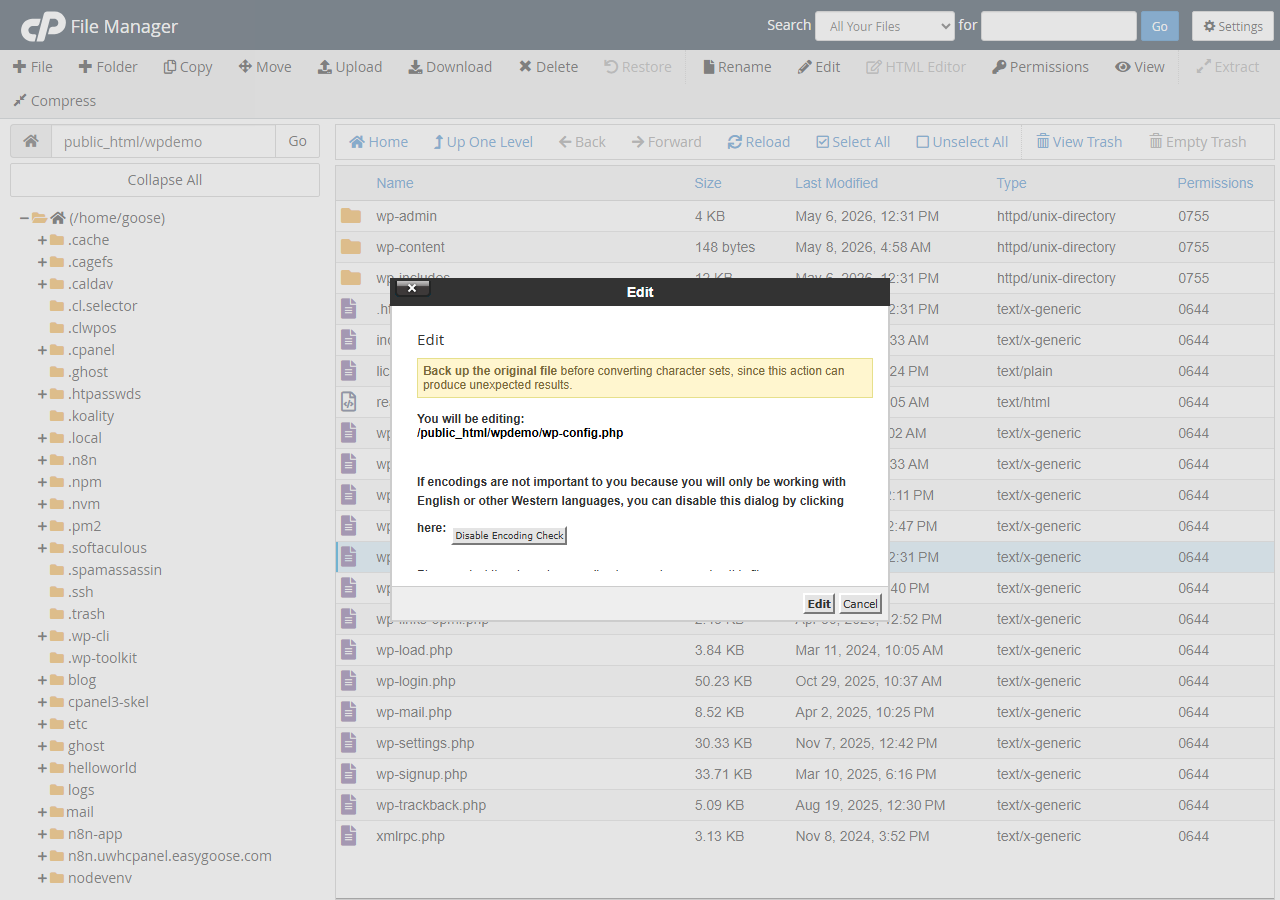
- Open your wp-config.php file.
Log in to cPanel File Manager and navigate to your WordPress root directory. Right-clickwp-config.phpand select Edit. - Find the WP_DEBUG constant.
Search the file for the line that readsdefine( 'WP_DEBUG', false );. This line is present in all standard WordPress installations. - Set WP_DEBUG to true.
Changefalsetotrueso the line reads as follows:
define( 'WP_DEBUG', true );- Save the file.
Click Save Changes in File Manager. PHP errors will now appear on screen when you visit your site. - Reproduce the problem.
Visit the page or perform the action that was causing the issue. Any PHP errors will be displayed directly in the browser, showing you the file, line number and error message. - Disable WP_DEBUG when finished.
Once you have identified the error, setWP_DEBUGback tofalseand save the file. Leaving debug mode active on a live site exposes internal file paths and error details to visitors.
Log errors to a file instead of displaying them
Displaying errors on screen is useful during local development, but on a live site you may prefer to write errors to a log file so they are not visible to visitors. The three constants below work together: WP_DEBUG activates error reporting, WP_DEBUG_LOG writes errors to a file, and WP_DEBUG_DISPLAY controls whether they appear on screen.
Add or update the following lines in wp-config.php, above the line that reads /* That's all, stop editing! Happy publishing. */:
define( 'WP_DEBUG', true );
define( 'WP_DEBUG_LOG', true );
define( 'WP_DEBUG_DISPLAY', false );
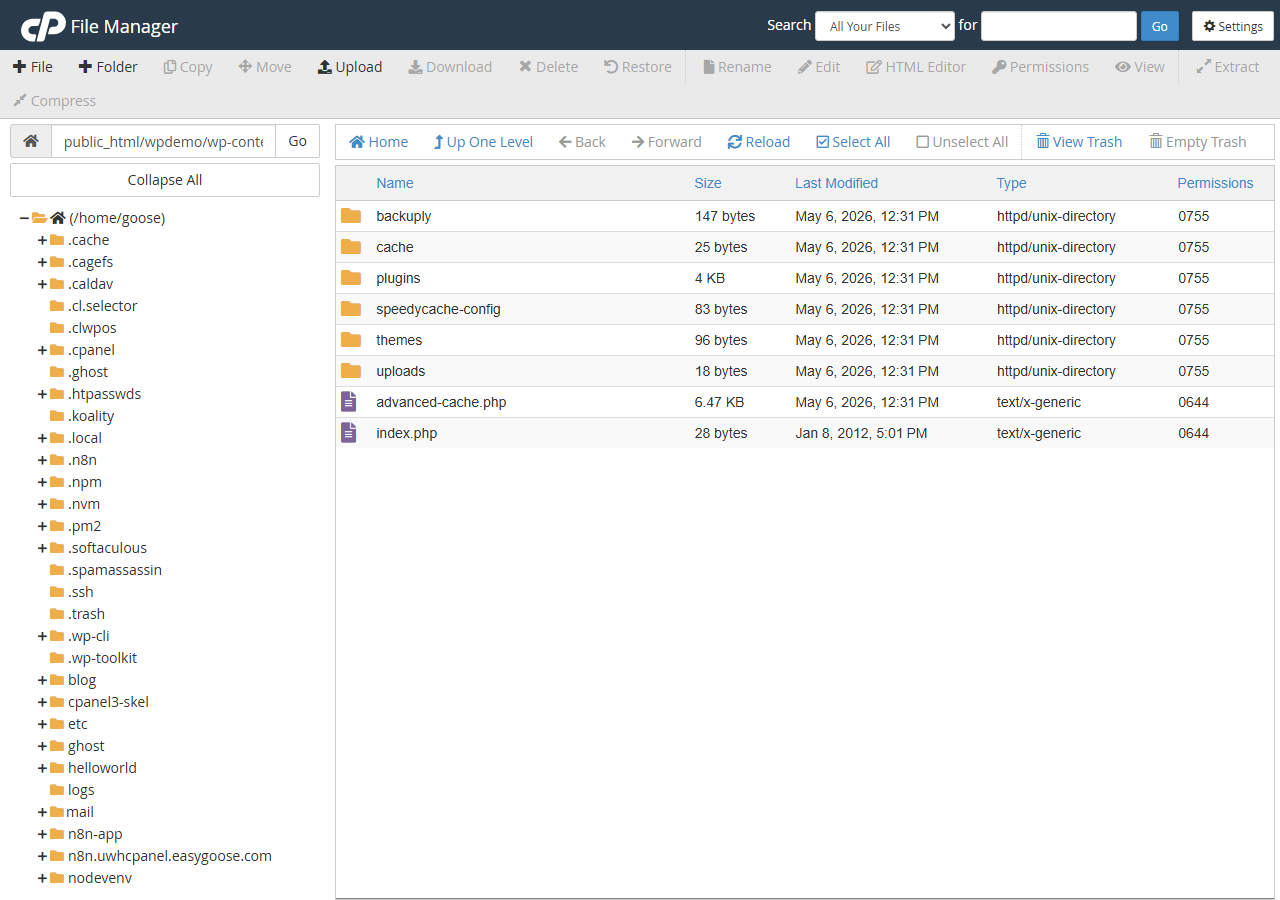
With this configuration, WordPress writes all PHP errors to wp-content/debug.log without displaying them to visitors. You can review this file at any time using File Manager or an FTP client. If you want errors written to a different location, set WP_DEBUG_LOG to the full file path instead of true, for example define( 'WP_DEBUG_LOG', '/home/username/logs/wp-errors.log' );.
Troubleshooting
No errors appear after enabling WP_DEBUG
If you set WP_DEBUG to true but no errors appear on screen, WP_DEBUG_DISPLAY may already be defined elsewhere in wp-config.php and set to false. WordPress also suppresses error display automatically for REST API, Ajax and XML-RPC requests, so errors from those request types will not appear in the browser regardless of your settings.
- Search
wp-config.phpfor any existingWP_DEBUG_DISPLAYdefinition and remove or update it. - Enable
WP_DEBUG_LOGand checkwp-content/debug.logfor errors that are being suppressed from the screen. - Confirm you saved the file after making changes and that you are viewing the correct domain.
The debug.log file is not being created
If WP_DEBUG_LOG is set to true but no debug.log file appears in wp-content/, the web server process may not have write permission to that directory.
- Check the permissions on your
wp-content/directory. It should be set to755. - Confirm that
WP_DEBUGis also set totrue.WP_DEBUG_LOGhas no effect unlessWP_DEBUGis active. - Try setting
WP_DEBUG_LOGto an absolute file path in a directory you know is writable.
Wrapping up
You have configured WordPress debug mode by editing wp-config.php. You can now display PHP errors on screen during diagnosis or write them silently to wp-content/debug.log while keeping your site looking normal to visitors.
Once you have resolved the underlying error, remember to set WP_DEBUG back to false. For related tasks, see our guides on removing malware from WordPress, increasing the WordPress memory limit and fixing common website error codes.
If you are running WordPress on managed hosting, our WordPress hosting plans include tools to help you monitor and maintain your site.
Plans and tools mentioned in this guide
WordPress Hosting
Tuned for WordPress, with one-click installs.
From £5.99/mo
View WordPress HostingDid this guide solve your problem?
Still stuck?
Our UK support team answers tickets and live chat every day. Send us the guide you were following and where it stopped working.
Keep learning
Find a guide
Related guides

Running a WordPress site?
Get fast, secure and reliable WordPress Hosting with optimised for performance with AccelerateWP.
Get WordPress Hosting
Need multiple accounts?
Create fully isolated individual accounts for your clients and manage them all from one dashboard.
Get Reseller Hosting