Web Host Manager (WHM) provides administrative access to your reseller hosting account. You can create and manage cPanel accounts for your clients, configure hosting packages and apply settings across multiple accounts at once.
You will access WHM either through your client area or by logging in directly using your server hostname, domain or IP address. Both methods take you to the same WHM dashboard where you manage your reseller hosting environment.
Before you begin
- You need an active reseller hosting account.
- Your WHM login credentials are in your welcome email.
Log in via client area
The client area provides the quickest route to WHM. This method logs you in automatically without entering credentials.
- Access your services list.
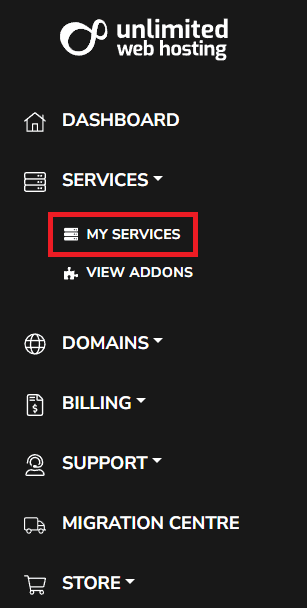
Log in to your client area, expand Services in the top menu and click My Services.
- Select your reseller service.
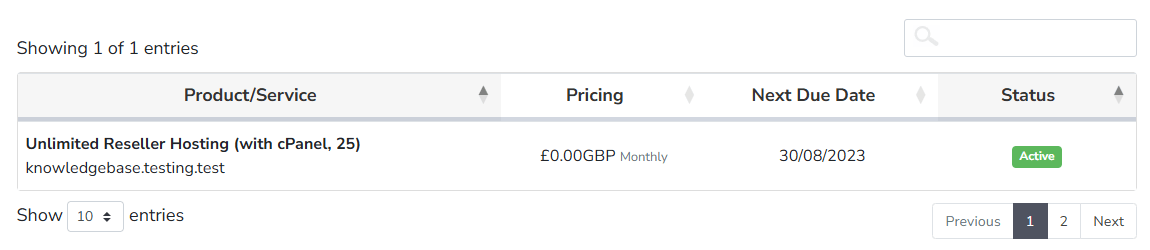
Click on your reseller hosting service from the list. This opens the service management page.
- Open WHM.
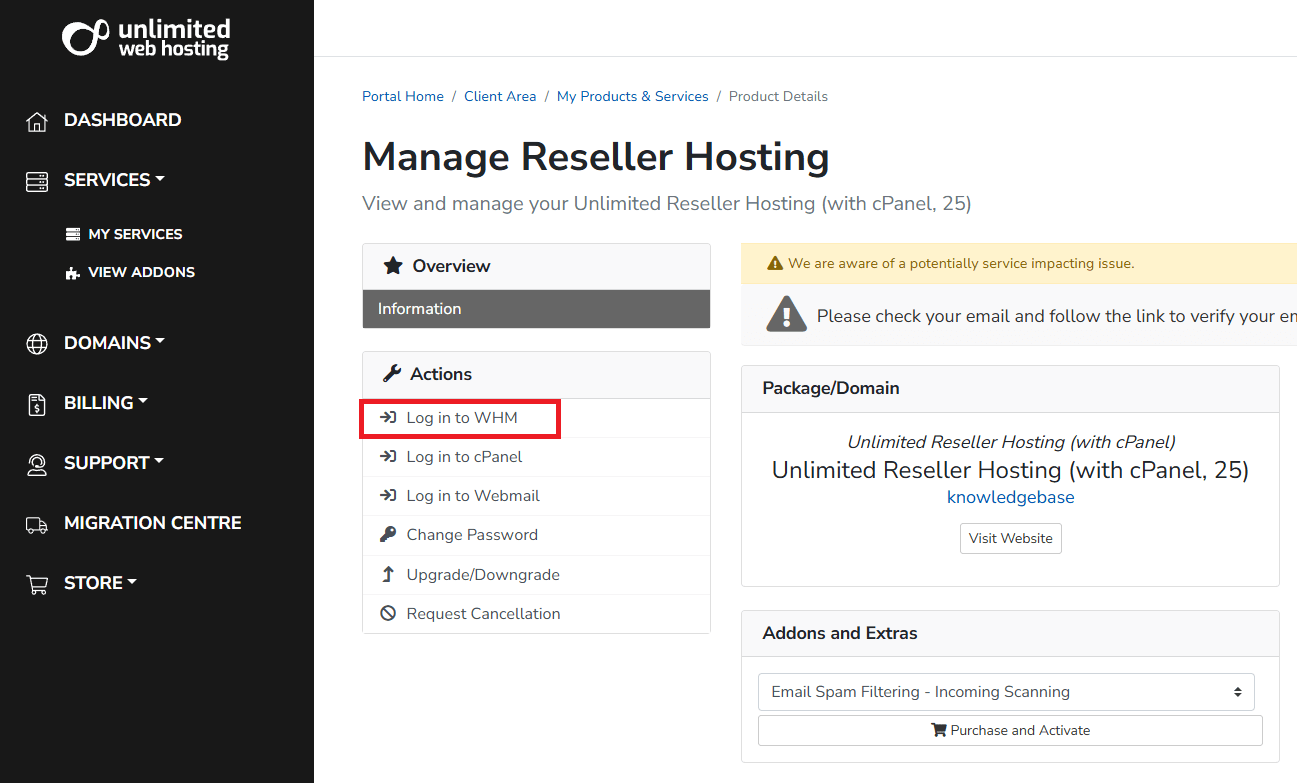
In the Actions menu on the right, click Log in to WHM. WHM opens in a new browser tab with you already logged in.
Log in using hostname, domain or IP
You can access WHM directly by entering your credentials at the login screen. This method works from any location without accessing the client area first.
- Find your login credentials.
Open your welcome email and locate your WHM username, password and control panel URL. The URL appears ashttps://cloud000.thundercloud.uk:2087using your server hostname. - Open the WHM login screen.
Enter one of these URLs in your browser, replacing the placeholders with your actual details:https://yourdomain.co.uk:2087(if your domain has propagated)https://serverhostname:2087(using your server hostname)https://serverip:2087(using your server IP address)
You can also replace:2087with/whmin any of these URLs. - Enter your credentials.
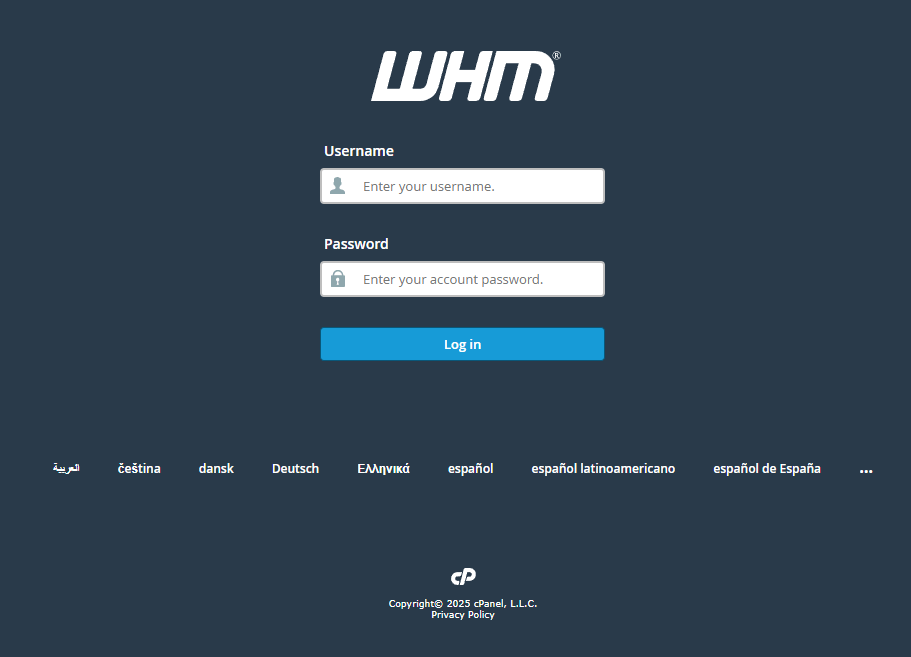
Type your WHM username and password from your welcome email, then click Log in. WHM opens to your dashboard.
Wrapping up
You can now access WHM to manage your reseller hosting account. The client area method provides automatic login, while direct access via hostname, domain or IP gives you flexibility to log in from anywhere. Both routes take you to the same WHM interface where you create and manage client accounts and configure hosting packages.
Our cPanel reseller hosting plans include full WHM access with the tools you need to manage multiple client hosting environments.
Plans and tools mentioned in this guide
Did this guide solve your problem?
Still stuck?
Our UK support team answers tickets and live chat every day. Send us the guide you were following and where it stopped working.
Keep learning
Find a guide
Related guides

Need multiple accounts?
Create isolated individual accounts for your clients and manage them all from one dashboard.
Get Reseller Hosting
Need more control?
Upgrade to VPS hosting for scalable resources and root access to your server.
Get VPS Hosting