Debian 12 ships with Python 3 available through its default repositories, making installation quick and repeatable. Whether you are setting up a development environment on a VPS or preparing a server to run a web application, this guide walks you through installing Python 3 and verifying it is working correctly.
Before you begin
- You need SSH access to a Debian 12 server with a non-root sudo user or root access.
- We recommend completing basic server hardening before installing additional software. See our guide on initial server setup for Debian 12.
- Your server must have an active internet connection to reach the Debian package repositories.
Update the package index
Before installing any software, refresh the local package index so apt has accurate information about what is available in the Debian repositories. Running an outdated index can cause apt to install older versions or fail to locate packages entirely.
Run the following command as root or with sudo:
apt updateOnce the index has refreshed, you are ready to install Python.
Install Python 3 on Debian 12
The python3 package in the Debian 12 repositories provides a stable, tested build of Python 3. Installing from the official repositories is the recommended approach for server environments because updates are delivered through the standard Debian security channels.
- Install the python3 package.
Run the following command to install Python 3 and its dependencies:
apt-get install python3- Confirm the installed version.
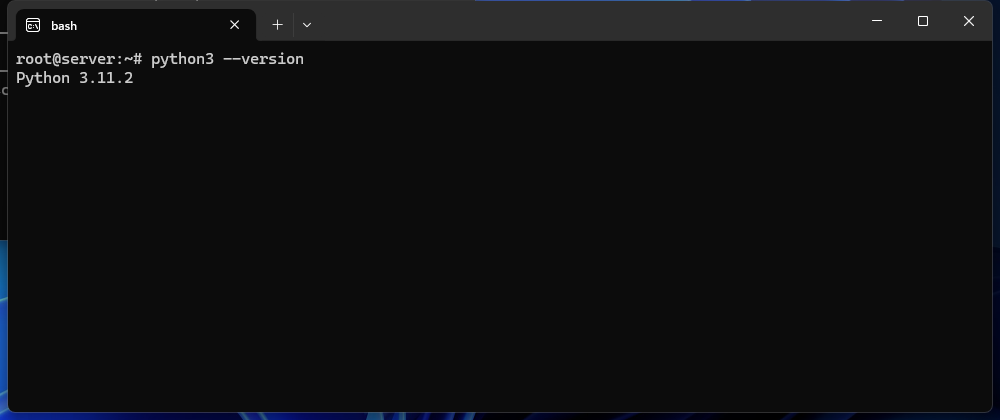
Check that Python installed correctly and note the version number:
python3 --version- Install pip for Python 3.
pip is the standard package installer for Python. Install it alongside Python so you can add third-party libraries from PyPI:
apt-get install python3-pipPython 3 and pip are now installed. You can install packages from PyPI using the python3 -m pip install command shown in the next section.
Install a Python package with pip
With pip available, you can install any package from PyPI for the active Python 3 version. Using the -m pip syntax calls pip through the Python interpreter directly, which avoids ambiguity when multiple Python versions are present on the same server.
Replace SomePackage with the name of the package you want to install:
python3 -m pip install SomePackageBuild Python from source
The Debian 12 repositories provide the Python version that was current at the time of the Debian release. If you need a newer Python release than the repository provides, you can build Python from its source code. This requires downloading the source tarball from python.org and installing the necessary build dependencies first.
- Install the C build tools and development libraries.
These packages provide the compiler and headers that Python’s build process requires:
apt-get install glibc-doc manpages-dev libc6-dev gcc build-essential- Download and extract the Python source.
Visit python.org/downloads to find the latest release tarball. Download it to your server and extract it, then change into the extracted directory. - Configure the build environment.
Run the configure script from inside the source directory. This checks your system for required dependencies and prepares the build:
./configure- Compile the source code.
Build Python usingmake. This step can take several minutes depending on your server’s CPU:
make- Install using altinstall.
Usemake altinstallrather thanmake install. Thealtinstalltarget installs the new version without overwriting the system’s existingpython3binary, which other system tools may depend on:
make altinstallThe newly built Python version is now available on your server alongside the system Python. You can call it directly using its versioned binary name, for example python3.14, and install packages for it with:
python3.14 -m pip install SomePackageTroubleshooting
apt cannot find the python3 package
If apt-get install python3 returns a “unable to locate package” error, the package index is likely stale or your repository configuration is incomplete. Run apt update again and retry. If the error persists, check that /etc/apt/sources.list contains the standard Debian 12 (Bookworm) repository entries.
pip install fails with an externally managed environment error
Debian 12 marks the system Python environment as externally managed, which blocks direct pip install calls to prevent conflicts with apt-managed packages. The recommended approach is to create a virtual environment for your project first:
python3 -m venv myenv
source myenv/bin/activate
pip install SomePackage
This installs packages into an isolated environment that does not affect system-level Python packages.
Build from source fails during configure or make
A failed ./configure or make step usually means a required development library is missing. Review the error output to identify the missing dependency, then install it with apt-get install and re-run the configure step. Common missing packages include libssl-dev, zlib1g-dev and libffi-dev.
Wrapping up
You have installed Python 3 on Debian 12 using the official apt repositories, confirmed the version, and set up pip for package management. For cases where the repository version is not sufficient, you also have the steps to build a specific Python release from source without disturbing the system Python.
From here, you may want to set up a virtual environment for each project to keep dependencies isolated, or configure a web framework such as Django or Flask. See our guides on initial server setup for Debian 12 and connecting to your server via SSH for related tasks.
Running Python applications in production works best with full control over your server environment. Our VPS hosting gives you root access to a Linux server so you can manage Python versions, dependencies and application configuration without restrictions.

