Before you can configure your new SSL certificate you will need to:
- Purchase an SSL certificate
- Generate a certificate signing request (CSR)
- Start SSL configuration
- Finish the installation process
SSL Certificates at Unlimited
Your SSL certificate must be properly configured to link it to your domain and the server via the selected validation method. Without this configuration, your SSL certificate cannot be installed correctly. If you face any issues during the process or need assistance, please don’t hesitate to contact us.
Configure your SSL certificate
1. Firstly, log in to your unlimited web hosting client area.
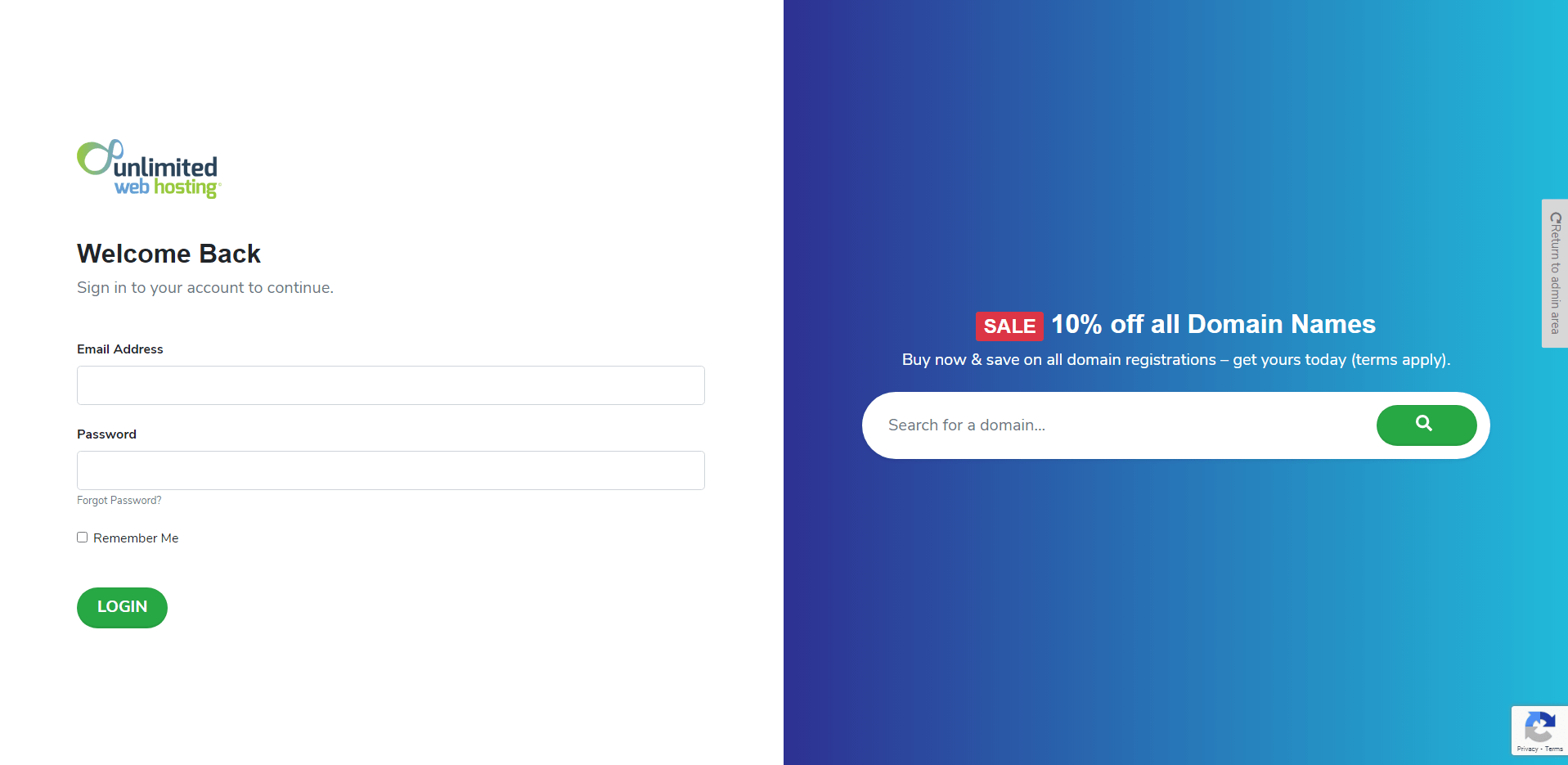
2. From your client area, click the manage services button.
3. Afterwards, inside the manage services area, click the SSL you wish to configure.
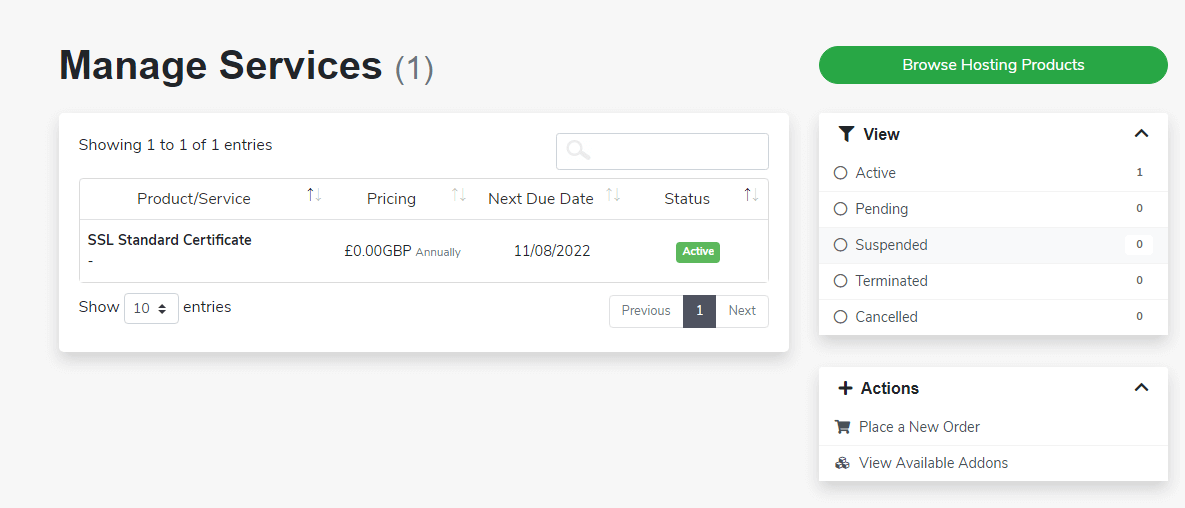
4. From here, click the green view certificates details button.
5. Finally, click the configure certificate button on this page.
Certificate configurator
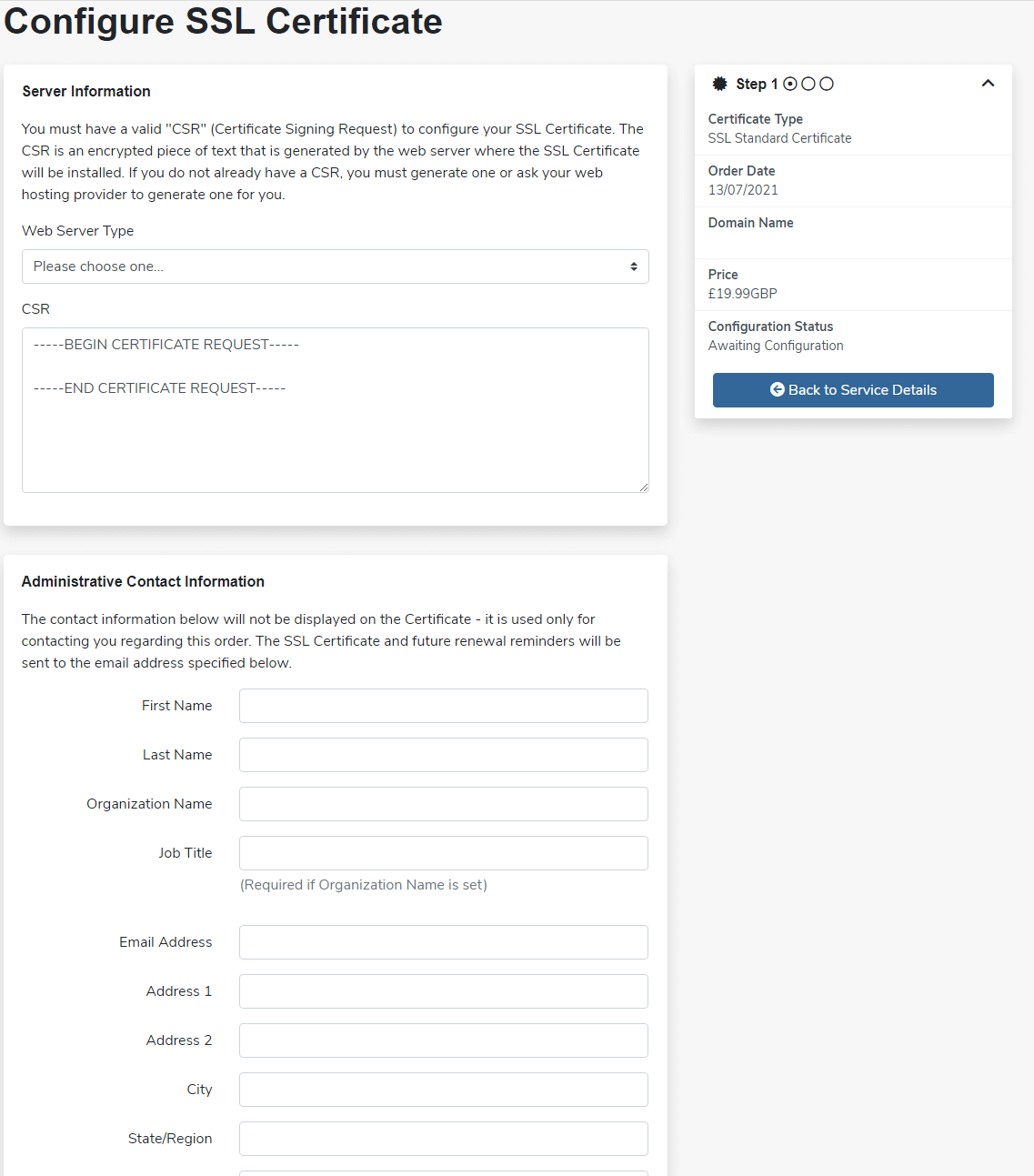
1. Firstly, using the drop-down list select the server type, this is usually Plesk or cPanel.
2. Enter your previously generated CSR code.
3. Provide all required details, including your name, address, and contact number.
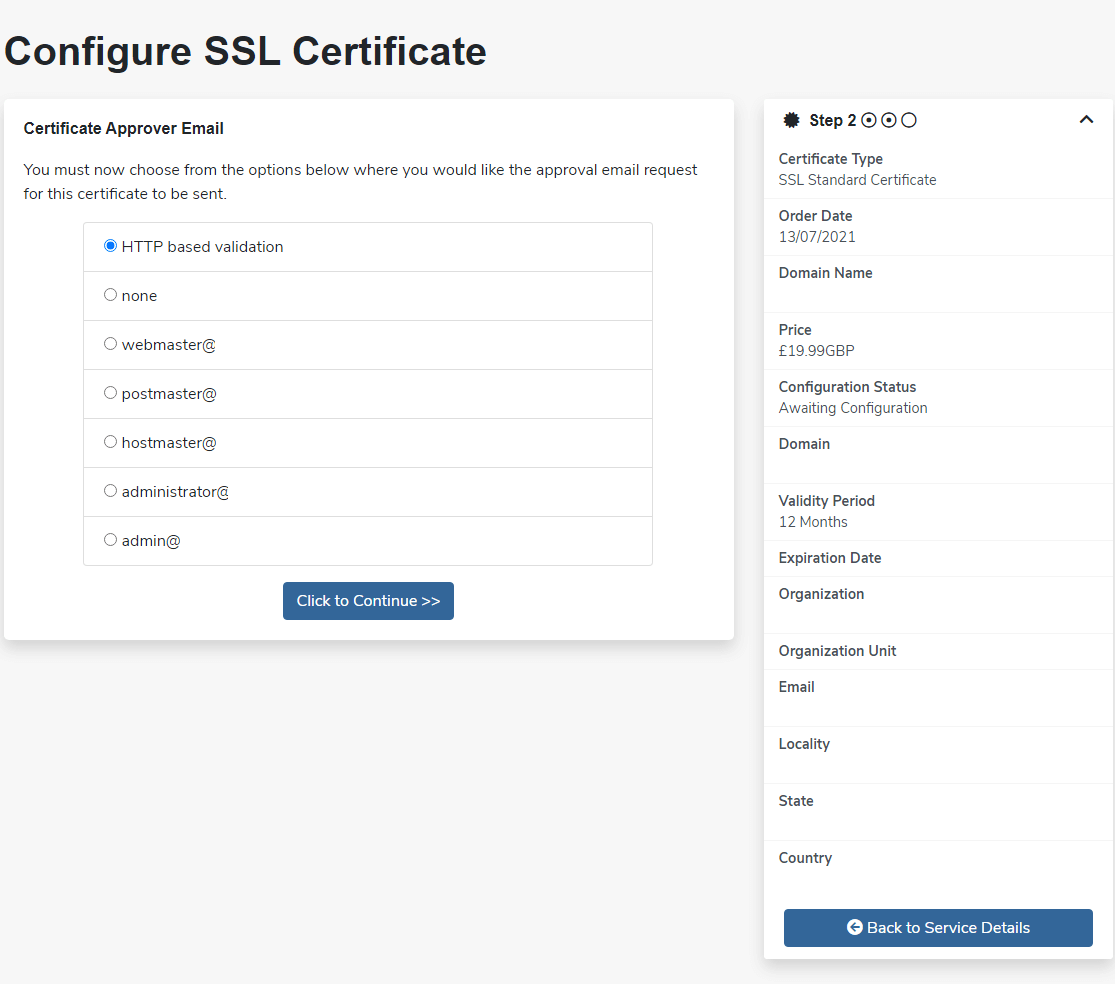
4. Select your preferred validation method. We recommend using email validation, as it tends to offer advantages over HTTP validation.
5. Once the configuration is complete, you can proceed with installing your new TLS/SSL.


Ready to get started?
Launch your website with our reliable cPanel hosting with unlimited bandwidth and expert support.
Get cPanel Hosting