The cURL error 60: SSL certificate problem: certificate has expired error appears in WordPress when outgoing HTTP requests fail SSL verification. This breaks plugin and core updates, third-party API calls and any feature that uses WordPress’s HTTP API to communicate with an external server.
You can resolve this by updating WordPress, which ships a refreshed CA certificate bundle, or by replacing the certificate bundle file manually if the update itself cannot complete.
Before you begin
- You need access to your WordPress admin area at
https://yourdomain.co.uk/wp-admin - You need access to your hosting file manager or an FTP client to replace files manually.
- We recommend creating a WordPress backup before editing core files.
What causes cURL error 60 in WordPress
WordPress bundles a list of trusted Certificate Authority (CA) certificates in a file called ca-bundle.crt. When WordPress makes an outgoing HTTPS request, it checks the remote server’s SSL certificate against this bundle. If the bundle is outdated and no longer includes a required root certificate, the check fails and WordPress returns cURL error 60.
This became widespread after September 2021 when the DST Root CA X3 certificate used by Let’s Encrypt expired. Sites running older WordPress versions that had not yet received an updated bundle began failing SSL verification on every outgoing request.
Fix cURL error 60 by updating WordPress
Updating WordPress to the latest version replaces the outdated CA bundle with a current one. This is the recommended fix because it also applies any other security and compatibility patches your installation may be missing.
- Log in to your WordPress admin area.
Go tohttps://yourdomain.co.uk/wp-admin, replacingyourdomain.co.ukwith your domain. - Open the Updates screen.
In the left sidebar, click Dashboard, then Updates. - Run the WordPress update.
If an update is available, click Update to version X.X.X. WordPress will download and install the latest core files, including the refreshed certificate bundle. - Test outgoing requests.
After the update completes, go to Dashboard > Updates and check for plugin updates. If the plugin list loads without errors, the fix has worked.
If the update completes without errors, you do not need to follow the manual steps below.
Fix cURL error 60 by replacing the CA bundle manually
If the WordPress update itself fails because of the cURL error, the update process cannot download the new files. In that case, you need to replace the CA bundle file directly through your hosting file manager so that WordPress can then complete the update.
- Download the current CA certificate bundle.
Visit curl.se/ca/cacert.pem in your browser. Your browser will display or download the file. Save it to your computer ascacert.pem. - Open your hosting file manager.
Log in to cPanel and open File Manager from the Files section. See our guide on using the cPanel File Manager if you need help navigating it. - Navigate to the WordPress certificate file.
Browse topublic_html/wp-includes/certificates/and locate the file namedca-bundle.crt. The path may differ if WordPress is installed in a subdirectory. - Edit the certificate file.
Right-clickca-bundle.crtand select Edit. Select all the existing content and delete it. - Paste the new certificate content.
Open thecacert.pemfile you downloaded in a text editor, select all the content and copy it. Paste it into the file manager editor, replacing the old content. - Save the file.
Click Save Changes in the file manager editor. The updated bundle takes effect immediately.
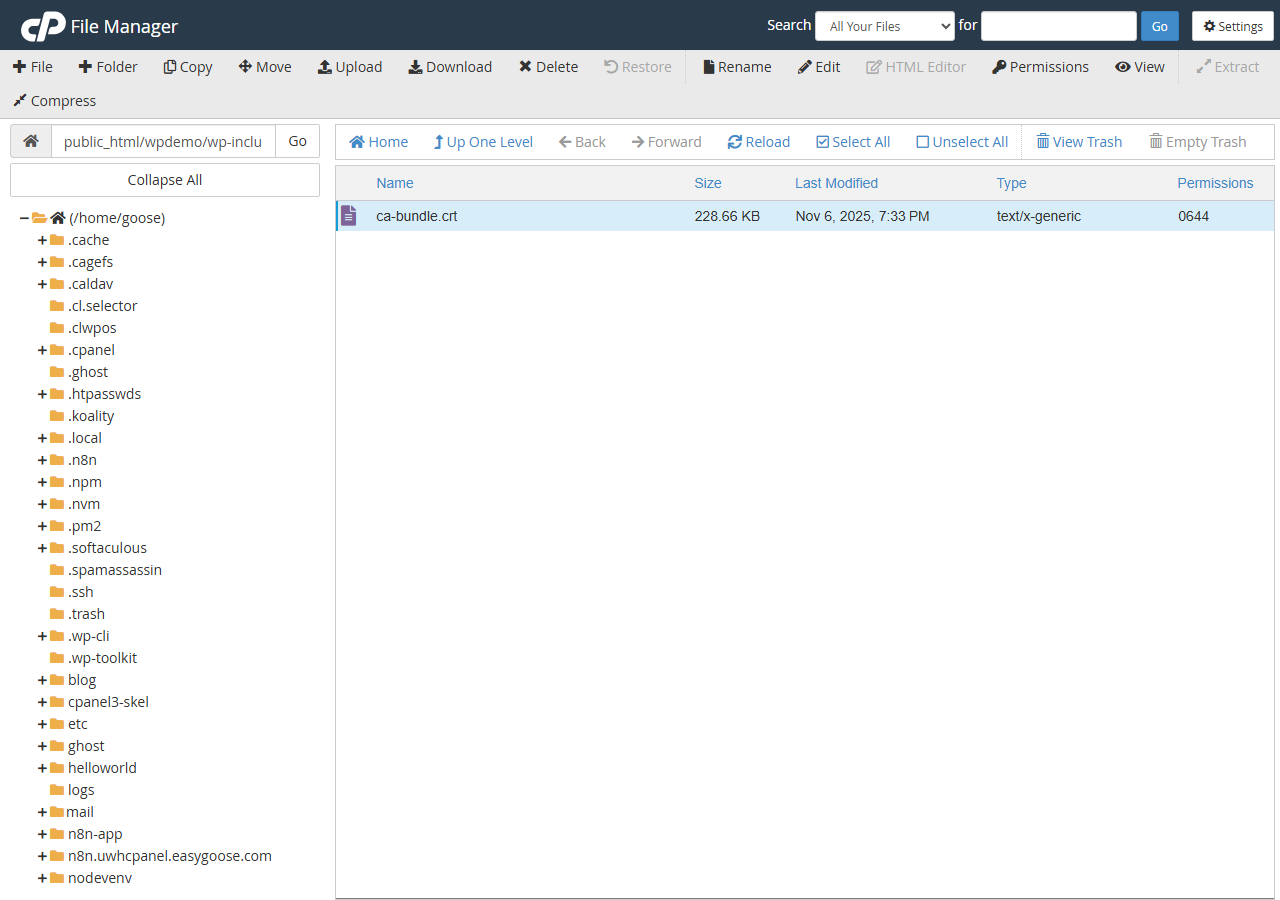
With the bundle replaced, WordPress can now verify SSL certificates on outgoing requests. Return to Dashboard > Updates and run the WordPress core update to bring your installation fully up to date.
Troubleshooting
The error persists after updating WordPress
If cURL error 60 continues after a successful WordPress update, the server’s own CA store may be outdated rather than the WordPress bundle. This is more common on older server configurations.
- Confirm the update actually completed by checking the version number at the bottom of any admin screen.
- Try the manual CA bundle replacement above even after a successful update, as it forces the newest available bundle.
- If you manage your own VPS, update the system CA certificates. On Ubuntu or Debian, run
sudo update-ca-certificates. On AlmaLinux or CentOS, runsudo update-ca-trust. - Open a support ticket if the error persists on shared hosting, as the server-level CA store may need updating by the hosting team.
The ca-bundle.crt file is missing
If you cannot find ca-bundle.crt at wp-includes/certificates/ca-bundle.crt, the file may have been removed or your WordPress installation may be incomplete.
- Create the
certificatesdirectory insidewp-includesif it does not exist, then create a new file namedca-bundle.crtand paste the contents ofcacert.peminto it. - Alternatively, reinstall WordPress core files using WP-CLI with
wp core download --force, which replaces all core files without touching your content or plugins.
Plugin or API errors continue after the fix
Some plugins cache SSL errors or store their own certificate paths. If a specific plugin continues to report SSL failures after you have resolved the core WordPress error, the plugin itself may be making requests outside of the WordPress HTTP API.
- Deactivate and reactivate the affected plugin to clear any cached state. See our guide on disabling plugins using WP Toolkit if you cannot access the admin area.
- Check the plugin’s own settings for a custom SSL certificate path or a toggle to disable SSL verification. Disabling SSL verification is not recommended for production sites.
- Review the plugin documentation or contact the plugin developer if the issue is specific to one integration.
Wrapping up
You have resolved the cURL error 60 SSL certificate problem by updating WordPress or replacing the CA bundle file manually. WordPress can now verify SSL certificates on outgoing requests, restoring plugin updates, core updates and third-party API connections.
Keep WordPress updated regularly to avoid the CA bundle falling out of date again. For related tasks, see our guides on backing up WordPress, installing a Let’s Encrypt SSL certificate and removing malware from WordPress. If your SSL certificate itself needs attention, our guide on configuring SSL in cPanel covers the full setup process.
Our WordPress hosting plans keep your server environment current so SSL verification issues at the server level are handled for you.