By default, WordPress sends emails using PHP’s built-in mail function. Emails sent this way carry no authentication, which means spam filters on the receiving end often block or discard them before they reach the inbox. Switching to SMTP lets your emails leave through an authenticated mailbox, which significantly improves deliverability.
This guide walks you through installing the WP Mail SMTP plugin, connecting it to a cPanel email account and confirming that outgoing mail works correctly.
Before you begin
- You need Administrator access to your WordPress site.
- You need a working cPanel email account with its SMTP hostname, username and password to hand. See our guide on creating an email account if you do not have one yet.
- We recommend noting your SMTP credentials before starting – you will need them during plugin setup.
- Your domain should have SPF and DKIM records configured. See our guide on adding SPF records for details.
Install and activate WP Mail SMTP
WP Mail SMTP replaces WordPress’s default PHP mail function with a proper SMTP connection. Installing it from the plugin directory takes only a few clicks and requires no manual file uploads.
- Open the plugin installer.
In your WordPress dashboard, go to Plugins and click Add New Plugin. - Search for the plugin.
TypeWP Mail SMTPinto the search box. The plugin by WPForms should appear at or near the top of the results. - Install the plugin.
Click Install Now next to WP Mail SMTP and wait for the installation to complete. - Activate the plugin.
Click Activate. WordPress will return you to the Plugins screen, where WP Mail SMTP now appears in your active plugins list.

With the plugin active, you can now configure it to send mail through your cPanel SMTP account.
Configure SMTP settings in WP Mail SMTP
The plugin needs your SMTP server details so it knows where to route outgoing mail. These settings tell WordPress which server to connect to, which port to use and how to authenticate.
- Open the plugin settings.
In the WordPress dashboard, go to WP Mail SMTP and click Settings. - Set the From Email and From Name.
Enter the email address your messages will appear to come from in the From Email field. This should match the cPanel mailbox you are using. Enter a display name in the From Name field. - Select the mailer.
Scroll down to the Mailer section and select Other SMTP. A configuration panel will appear below. - Enter your SMTP server details.
Fill in the fields using the values below, replacing the placeholders with your own details:
SMTP Host:mail.yourdomain.co.uk(replace with your actual domain or your server hostname)
Encryption:TLS
SMTP Port:587
Authentication: On
SMTP Username: your full email address, for examplehello@yourdomain.co.uk
SMTP Password: the password for that mailbox - Save the settings.
Click Save Settings at the bottom of the page.
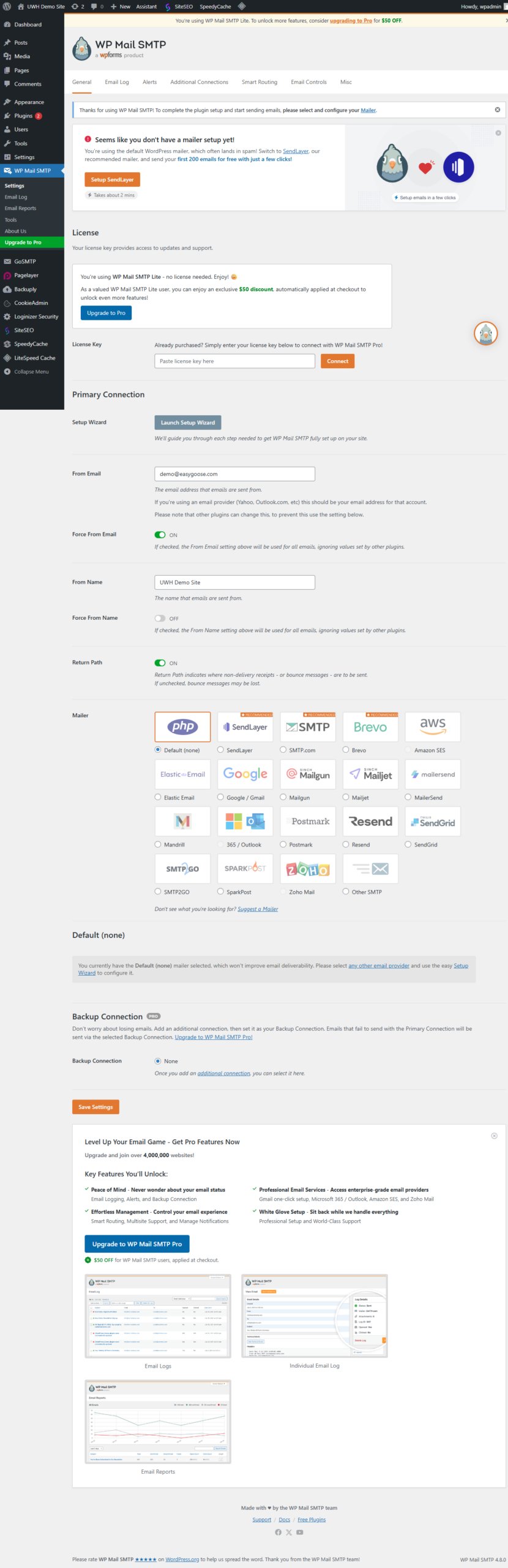
Your SMTP credentials are now saved. The next step is to confirm the connection is working before your site starts sending real emails through it.
Send a test email
Sending a test email confirms that WordPress can connect to your SMTP server and authenticate successfully. Do this before relying on the configuration for contact forms or transactional emails.
- Open the Email Test tab.
In WP Mail SMTP settings, click the Email Test tab at the top of the page. - Enter a recipient address.
Type an email address you can access in the Send To field. This is where the test message will be delivered. - Send the test.
Click Send Email. A green success banner confirms the message was sent. Check your inbox to confirm it arrived. If you see a red error banner instead, review your SMTP host, port and credentials in the settings tab and try again.
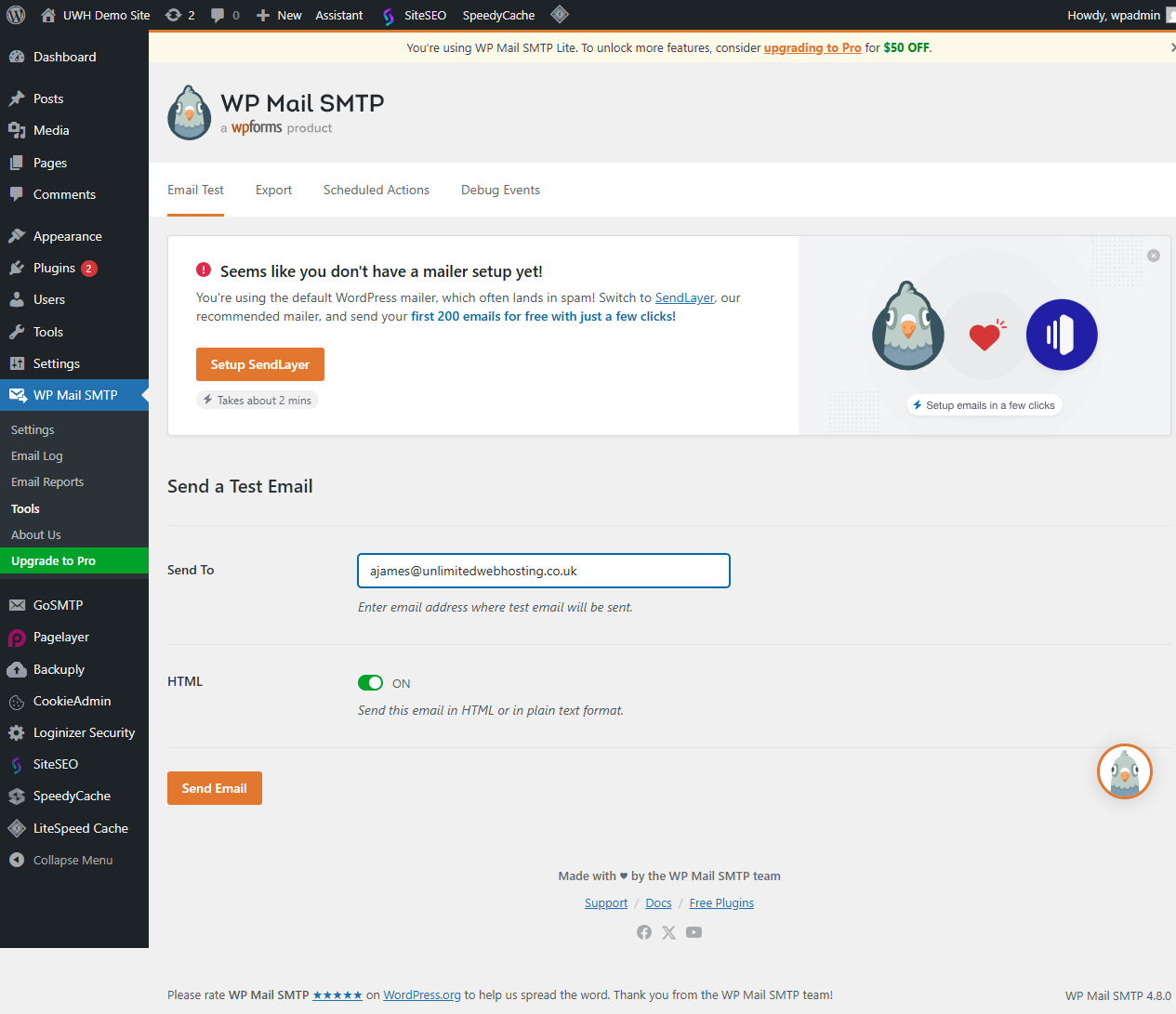
A successful test means your WordPress site is now routing all outgoing mail through authenticated SMTP.
Troubleshooting
Test email returns a connection error
A connection error usually means the plugin cannot reach your SMTP server. This is most often caused by an incorrect hostname, the wrong port number or a firewall blocking outbound connections on port 587.
- Double-check the SMTP host matches your cPanel server hostname or
mail.yourdomain.co.uk. - Confirm you are using port
587with TLS encryption, or port465with SSL encryption. - Check that the email account exists and the password is correct by logging into webmail with the same credentials.
Test email sends but arrives in the spam folder
If the test email is delivered but lands in spam, the issue is likely missing or misconfigured DNS authentication records rather than the SMTP connection itself.
- Confirm your domain has a valid SPF record. See our guide on adding and editing SPF records.
- Check that DKIM is enabled for your domain in cPanel.
- Review your DMARC record using our guide on setting up a DMARC record in cPanel.
The From Email address does not match the SMTP account
Some mail servers reject messages where the From address differs from the authenticated sending account. This prevents spoofing but can catch misconfigured plugins.
- Set the From Email field in WP Mail SMTP to exactly match the cPanel mailbox you entered as the SMTP username.
- If your contact form plugin overrides the From address, check its settings for a dedicated reply-to or sender address option.
Wrapping up
Your WordPress site now sends all outgoing mail through an authenticated SMTP connection using your cPanel mailbox. This applies to contact form submissions, password reset emails and any other notifications your site generates.
If you are still seeing delivery issues, review your DNS authentication records and check the email blocked for spam guide. For contact form-specific problems, see our guide on fixing WordPress contact form issues. Bear in mind that cPanel mailboxes are not intended for bulk or mass mailing – for mailing list campaigns, use a dedicated email marketing platform instead.
Our WordPress hosting plans include cPanel email accounts ready to use as your SMTP sending address.
Plans and tools mentioned in this guide
WordPress Hosting
Tuned for WordPress, with one-click installs.
From £5.99/mo
View WordPress HostingDid this guide solve your problem?
Still stuck?
Our UK support team answers tickets and live chat every day. Send us the guide you were following and where it stopped working.
Keep learning
Find a guide
Related guides

Running a WordPress site?
Get fast, secure and reliable WordPress Hosting with optimised for performance with AccelerateWP.
Get WordPress Hosting
Need multiple accounts?
Create fully isolated individual accounts for your clients and manage them all from one dashboard.
Get Reseller Hosting