When you move a WordPress site to a new domain or promote a staging site to production, the old URLs remain hardcoded throughout your database. Pages, images and internal links all break until you replace every instance of the old address with the new one.
You can update WordPress URLs using the Better Search Replace plugin from your WordPress dashboard, or using WP-CLI from the terminal if you prefer a command-line approach. Both methods handle serialised data correctly, which is important for WordPress databases.
Before you begin
- Take a full database backup before making any changes. A search and replace operation cannot be undone automatically.
- Know your old URL (e.g.
staging.yourdomain.co.uk) and your new URL (e.g.yourdomain.co.uk) exactly as they appear, without trailing slashes. - For the WP-CLI method, you need SSH access to your hosting account. See our guide on connecting and using SSH.
- We recommend testing your site thoroughly after the replacement to confirm all links and media load correctly.
Method 1: Update URLs using Better Search Replace
The Better Search Replace plugin performs a database-wide search and replace from inside your WordPress admin area. It handles serialised data automatically, which prevents corruption of theme settings, widget configurations and plugin options stored in the database.
- Install and activate the plugin.
In your WordPress dashboard, go to Plugins > Add New Plugin. Search forBetter Search Replace, then click Install Now followed by Activate. - Open the plugin.
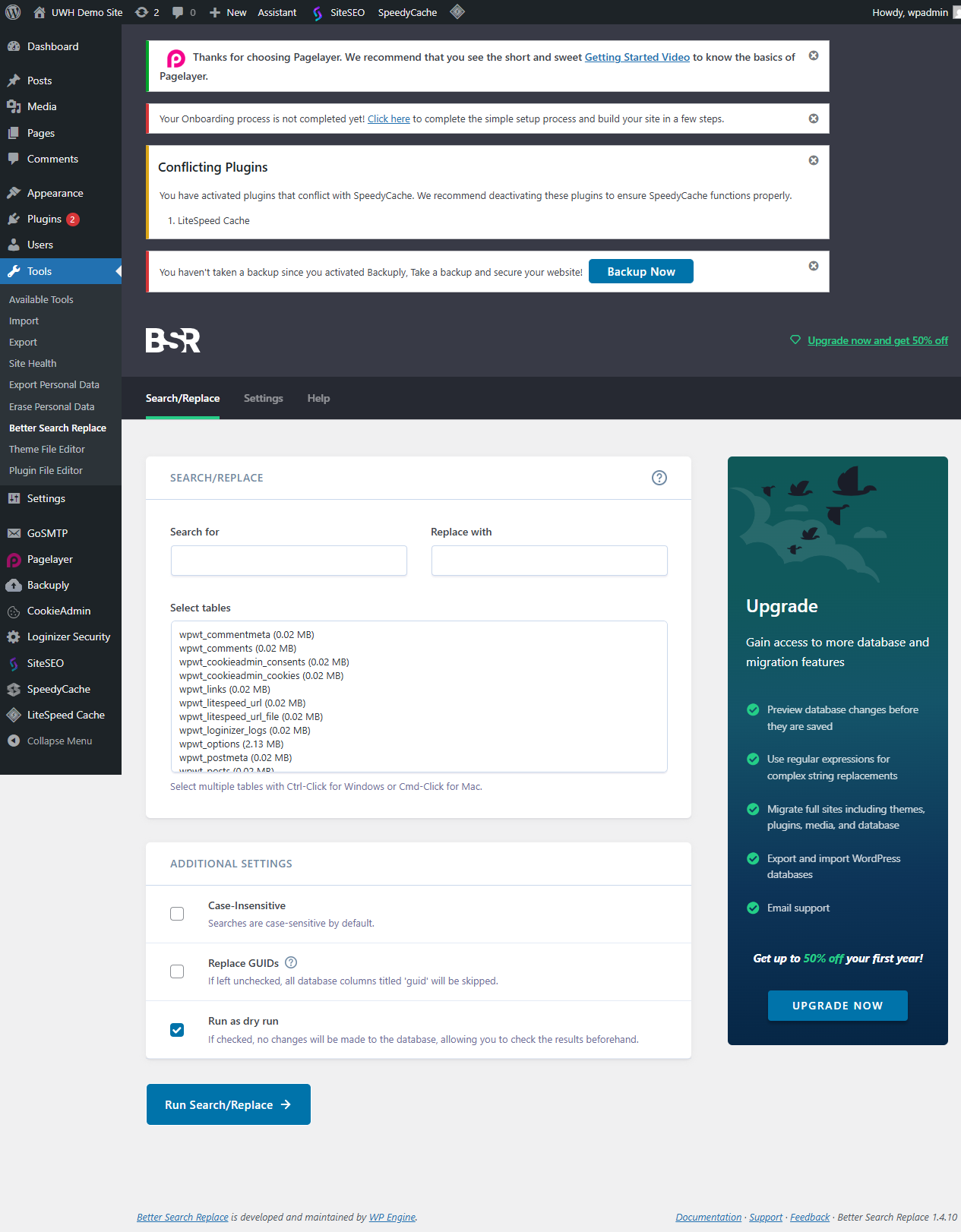
Go to Tools > Better Search Replace in the left-hand menu. - Enter your old URL.
In the Search for field, type your old URL exactly as it appears in the database, for examplehttp://staging.yourdomain.co.uk. - Enter your new URL.
In the Replace with field, type your new URL, for examplehttps://yourdomain.co.uk. - Select the database tables.
Click Select All to include every table. This covers posts, options, metadata and any plugin-specific tables. - Run a dry run first.
Leave the Run as dry run? checkbox ticked and click Run Search/Replace. The plugin reports how many fields would be updated without changing anything. Review the count to confirm it looks reasonable before proceeding. - Run the live replacement.
Untick Run as dry run? and click Run Search/Replace again. The plugin updates every matching field across your selected tables.
Once the replacement completes, clear any caching plugin’s cache and your server-level cache so visitors see the updated URLs immediately.
Method 2: Update WordPress URLs with WP-CLI
WP-CLI’s search-replace command updates URLs directly in the database from the terminal. This is faster on large databases and does not require a plugin to remain installed after the task is complete.
- Connect to your server via SSH.
Open a terminal and connect to your hosting account. See our guide on connecting and using SSH if you have not done this before. - Navigate to your WordPress root directory.
Change into the directory where WordPress is installed. On most cPanel accounts this ispublic_html:
cd ~/public_html- Preview the changes with a dry run.
Run the command below with the--dry-runflag to see how many replacements would be made without modifying the database. Replacestaging.yourdomain.co.ukandyourdomain.co.ukwith your actual old and new URLs:
wp search-replace 'http://staging.yourdomain.co.uk' 'https://yourdomain.co.uk' --all-tables --dry-run- Run the live replacement.
Once you are satisfied with the dry run output, remove the--dry-runflag and run the command again. The--all-tablesflag covers every table in the database, including those added by plugins:
wp search-replace 'http://staging.yourdomain.co.uk' 'https://yourdomain.co.uk' --all-tablesWP-CLI outputs a table showing how many rows were updated in each database table. Clear your site and server cache after the command finishes.
Troubleshooting
The site redirects to the old URL after replacement
WordPress stores the site URL and home URL in the wp_options table. If these were not updated by the search and replace, WordPress continues redirecting to the old address.
- Check Settings > General in your WordPress admin and confirm the WordPress Address (URL) and Site Address (URL) fields show the new URL.
- If you cannot access the admin area, verify the current login URL from the terminal using the command
wp eval "echo wp_login_url();"run from your WordPress root directory. - Check your
wp-config.phpfile for hardcodedWP_SITEURLorWP_HOMEconstants that override the database values. Update or remove them if they still reference the old URL.
Images and media still show the old domain
Media URLs are stored in the wp_posts and wp_postmeta tables. If you ran the replacement on selected tables only, some media references may have been missed.
- Re-run the replacement with all tables selected, or use the
--all-tablesflag in WP-CLI. - Check your theme’s customiser settings and any page builder data, as these are sometimes stored in separate option rows.
- Clear all caches after re-running the replacement.
Mixed content warnings appear after the URL change
Mixed content warnings occur when some resources still load over HTTP after the site moves to HTTPS. This often means the search and replace did not cover all HTTP references.
- Run the replacement again searching for the HTTP version of your new domain (e.g.
http://yourdomain.co.uk) and replacing it with the HTTPS version (https://yourdomain.co.uk). - See our guide on forcing HTTPS in WordPress for additional steps including server-level redirects.
Wrapping up
You have updated the URLs throughout your WordPress database using either the Better Search Replace plugin or WP-CLI. Every reference to the old domain has been replaced with the new one, and your site’s settings reflect the correct address.
Browse your site and check posts, media, menus and forms to confirm everything loads from the new URL. If you moved to HTTPS at the same time, review our guide on forcing HTTPS in WordPress and our guide on WordPress backups to keep a current copy of your updated database. You may also want to review your WordPress installation if you are setting up a freshly migrated site for the first time.
Our WordPress hosting plans include SSH access and WP-CLI support as standard.