Importing a large database through phpMyAdmin can fail mid-way due to connection timeouts or file size limits, leaving your database in an incomplete state. Running the import over SSH sends the file directly to MySQL from the server, bypassing those restrictions entirely.
This guide covers uploading your SQL dump file to your server and running the MySQL import command from an SSH session. The same approach works for databases of any size.
Before you begin
- You need SSH access to your hosting account. See our guide on connecting and using SSH if you have not done this before.
- An empty target database and a database user with full permissions must already exist in cPanel. See our guide on creating a MySQL database in cPanel.
- Your SQL dump file must be uploaded to your server. We recommend uploading it to your home directory using FTP. See our guide on adding an FTP account.
- Have your database name, database username and database user password ready before you start.
Check your SQL dump file before importing
Some database export tools include CREATE DATABASE or USE statements at the top of the dump file. These instruct MySQL to create or switch to a named database, which can conflict with the target database you have already set up in cPanel. Removing or commenting out these lines prevents the import from failing or writing data to the wrong database.
- Open the dump file in a text editor.
Open your.sqlfile locally before uploading, or view it on the server usingnano yourdumpfile.sql, replacingyourdumpfile.sqlwith your actual filename. - Check the first 20 lines for conflicting statements.
Look for any lines beginning withCREATE DATABASEorUSE. If you find them, comment them out by placing two hyphens and a space at the start of each line, like this:
-- CREATE DATABASE `yourdatabasename`;
-- USE `yourdatabasename`;- Save and close the file.
If editing in nano, pressCtrl+X, thenY, thenEnterto save.
Your dump file is now ready to import without conflicting with your cPanel database setup.
Import the MySQL database via SSH
The mysql command accepts a dump file as input using shell redirection. This sends the SQL statements directly to your target database without any file size or timeout constraints.
- Connect to your server via SSH.
Open your terminal (or PuTTY on Windows) and log in to your hosting account. See our guide on connecting via SSH if needed. - Navigate to the directory containing your dump file.
If you uploaded the file to your home directory, you are already in the right place after logging in. To confirm, runlsand check your.sqlfile appears in the output. - Run the import command.
Use the following format, replacing the placeholders with your own values:
mysql -u your_db_username -p your_database_name < yourdumpfile.sqlReplace your_db_username with your cPanel database username, your_database_name with the name of the target database and yourdumpfile.sql with the filename of your dump file. If the file is in a different directory, provide the full path, for example /home/cpanelusername/backups/yourdumpfile.sql.
- Enter your database user password when prompted.
After pressingEnter, MySQL will ask for the password. Type it and pressEnteragain. The password will not appear on screen as you type – this is expected behaviour. - Wait for the import to complete.
The command will return you to the shell prompt once the import finishes. A database with a large number of rows may take several minutes. No progress indicator is shown, so leave the session open until the prompt reappears.
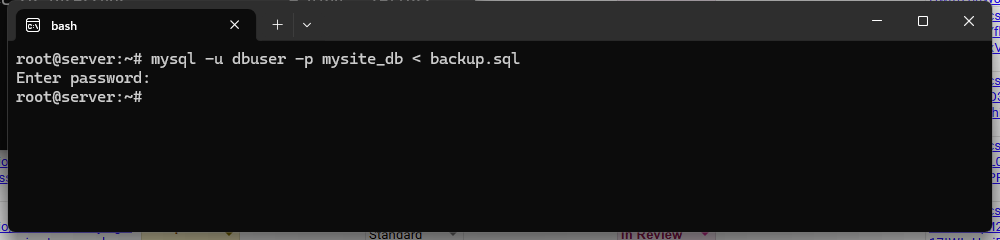
Your database has been imported. You can verify the contents by logging in to phpMyAdmin from cPanel and browsing the target database tables.
Troubleshooting a failed import
The import fails with an error immediately
An immediate error usually means MySQL could not authenticate or could not find the target database. Check that the database name and username are spelled exactly as they appear in cPanel, including any account prefix. Database names and usernames in cPanel are case-sensitive.
- Confirm the database exists in cPanel under MySQL Databases.
- Confirm the database user has been assigned to the database with All Privileges.
- Re-enter the password carefully – copy-paste errors are common with auto-generated passwords.
The import stops part-way through with SQL errors
Errors mid-import are most often caused by conflicting CREATE DATABASE or USE statements in the dump file, or by the dump file being generated from a different MySQL version with incompatible syntax.
- Delete the partially imported database from cPanel, recreate an empty one and re-run the import after fixing the dump file.
- Check the top of the dump file for
CREATE DATABASEorUSEstatements and comment them out as described in the first section of this guide. - If the dump was exported from a significantly newer MySQL version, check whether any syntax is unsupported on your current server version.
The dump file is not found
If MySQL returns a No such file or directory error, the path to your dump file is incorrect. Run ls in your current directory to confirm the file is present, or use find ~ -name "yourdumpfile.sql" to locate it. Provide the full path in the import command if the file is not in your current working directory.
Wrapping up
You imported a MySQL database over SSH using the mysql command and shell redirection. This method handles databases of any size without the file upload limits or connection timeouts that affect phpMyAdmin.
Now that your database is in place, you may need to update your application’s database connection settings to point to the new database name and user. If you are migrating a WordPress site, see our guide on migrating from cPanel for the full migration process. For connecting to MySQL from a remote application, see our guide on connecting to MySQL with an SSH tunnel.
Our cPanel hosting plans include full SSH access and MySQL database management as standard.
Plans and tools mentioned in this guide
Did this guide solve your problem?
Still stuck?
Our UK support team answers tickets and live chat every day. Send us the guide you were following and where it stopped working.
Keep learning
Find a guide
Related guides

Hosting that keeps up
cPanel hosting with the tools these guides use, backed by UK support.
Get cPanel Hosting
Keep your site secure
Protect your visitors with SSL certificates – from budget DV to premium EV certificates.
Get SSL Certificate